Manual · Unitech
Hand Held Scanner User's Manual
Manual55 pagesPDF 211 KB
User's manual for the Unitech hand held bar code scanner: keyboard, USB, RS232, terminal and wand interfaces, setup and data editing.
Filed with · 2 models
Also filed with these models on the old site
Summary
What is in it
Unitech's user's manual for its hand held scanner with built-in decoder, which works as a keyboard wedge, RS232 serial or terminal wedge, wand emulator or USB device. It explains installing each interface and its operating parameters, setting up the scanner by scanning bar code menus, quick and batch setup, output data editing with formulas, qualifiers and modifiers, pin assignments and specifications, with appendices for function codes, the setup menu, an ASCII chart and a test chart.
Its parts
- Overview
- Keyboard Interface
- RS232 Serial Interface
- Terminal Interface
- Wand Emulation
- Setup
- Output Data Editing
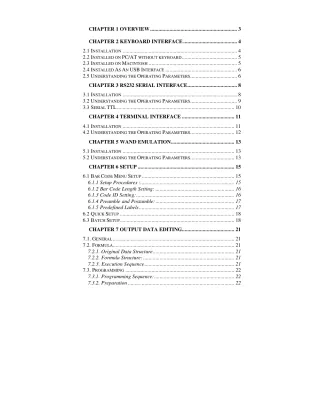
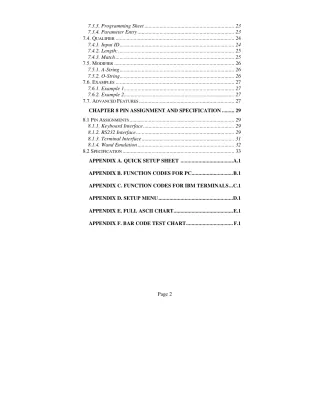
- Pin Assignment and Specification
From the manual
Key facts from this manual
Some pages are scans or cannot be read; this says only what the readable text supports. Each line names its page in the PDF.
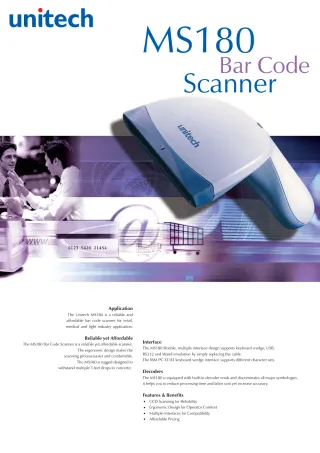
Unitech hand held scanner user's manual (version 3.0, January 2000) for a bar code scanner with a built-in decoder; the manual does not name a model number. It explains installing the scanner as a keyboard wedge, USB, RS232 serial, terminal wedge or wand emulation device, configuring it with setup bar codes, and its pin assignments and basic specifications.
- What it is
- Hand held bar code scanner with a built-in decoder p. 1, 4
- Interfaces
- Keyboard wedge, RS232 serial wedge, RS232 terminal wedge, wand emulation, USB p. 4
- Power
- +5V ±5% DC p. 31, 34
- Serial settings
- 300 to 38400 bps, default 9600, no parity, 8 data bits; optional CTS/RTS handshaking p. 10
- Connector
- 10-pin modular (RJ45) connector at the bottom of the scanner handle p. 5, 30
- Symbologies
- Code 39 Standard and Full ASCII, Codabar, UPC/EAN with supplement codes, UCC/EAN128, Interleaved 2 of 5, Code 32, Standard 2 of 5, Code 93, MSI, Code 128, Plessey, Label Code IV and V, China Postal Code, Delta Distance Code p. 4
- Keyboard hosts
- IBM PC/AT and PS/2 by default; other PCs, IBM terminals and Macintosh ADB; keyboardless mode p. 4, 6
- USB
- PC or iMac USB port with the USB interface cable p. 7
- Terminal wedge
- Sits between a host and an ANSI ASCII terminal (UNIX, XENIX); full duplex, half duplex and block modes p. 4
- Wand emulation
- Code 39 output (device 07) or native output (device 26) p. 14
- Serial TTL
- RS232 data format at TTL levels, 0V to 5V p. 11
- Cables
- Y cable for keyboard and terminal wedge; RS232 adapter cable ending in a DB25 or DB9 female; wand cable ending in a DB9 female p. 5, 12, 31, 34
- Settings memory
- Non-volatile, kept when power is lost p. 16
- Humidity
- 0% to 95% relative humidity p. 34
What this manual walks you through
- Installing the scanner as a keyboard wedge with the Y cable p. 5, 6
- Using the scanner without a keyboard, on a Macintosh or over USB p. 6, 7
- Installing as an RS232 serial device and setting baud rate, parity and handshaking p. 9, 10, 11
- Installing as a terminal wedge p. 12, 13
- Setting up wand emulation output p. 14, 15
- Changing settings with the bar code setup menu p. 16
- Setting bar code lengths, code IDs, prefix and suffix p. 17, 18
- Copying one scanner's settings to others with Dump Settings p. 19, 20
- Pin assignments for each interface p. 30, 31, 32, 33, 34
Good to know
- Standard RS232 needs the manufacturer's RS232 adapter cable; other cables cannot replace it. p. 31
- CTS and RXD at the modular connector take 0V to 5V only and should not go to a standard RS232 port. p. 31
- 7 data bits with no parity is treated as 7 data bits with mark parity. p. 10
- Keyboardless mode may not work properly on some laptop computers. p. 6
- The three predefined labels share 24 characters in all. p. 19
Questions this manual answers
What baud rates does the Unitech scanner support on RS232?
300 to 38400 bps; the default is 9600 baud, no parity, 8 data bits. p. 10
Does the Unitech scanner need a power adapter on RS232?
Only if the host's RS232 port gives no power; otherwise host power can feed pin 9 of the scanner connector. p. 9
Can I use the scanner on a PC with no keyboard?
Yes, scanning the Keyboardless label makes it answer the PC's keyboard inquiry, though some laptops may not work with it. p. 6
The whole text · 6 parts
Read the manual here as text
Its text as extracted from the PDF, unedited, in parts; each page opens the PDF at that page.
The file