Manual · Symbol
SPT 1700 Series Quick Reference
Manual28 pagesPDF 642 KB
Quick reference guide for the Symbol SPT 1700 Series pocket terminals: parts, battery, startup, scanning, resets and troubleshooting.
Names · 2 models
The models it names
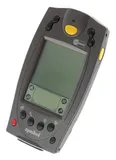 Symbol SPT-1700Portable batch data collection terminal from$595.001 in stock Symbol SPT-1733 1734Wide-area wireless (WWAN) portable data collection terminal Call for availability
Filed with · 2 models
Also filed with these models on the old site
Summary
What is in it
Symbol's quick reference guide for the SPT 1700 Series pocket terminals, including the wireless SPT 174X and wide area network SPT 173X models. It shows the parts of the terminal and covers installing and charging the lithium-ion battery, starting and calibrating the screen, the power, backlight and contrast controls, writing with the stylus, soft and hard resets, attaching the handstrap, scanning 1-D and PDF417 bar codes, starting a network connection, maintenance, troubleshooting and regulatory information.
Its parts
- Introduction
- About This Guide
- Getting Started with the SPT 1700
- Installing the Battery
- Starting the SPT 1700
- Using the SPT 1700
- Resetting Your SPT 1700 Terminal
- Attaching the Handstrap
- Scanning 1-D Bar Codes with the SPT 1700
- Scanning PDF417 (2-D) Bar Codes
- Initiate A Network Connection
- Maintaining the SPT 1700
- Troubleshooting
- Ergonomic Recommendations
- Regulatory Information
From the manual · read page by page
Key facts from this manual
Each line names its page in the PDF.
Quick reference for the Symbol SPT 1700 Series terminals, including the Spectrum24 models (SPT 174X) and the wide area network models (SPT 173X). It shows the parts of the terminal, installing and charging the battery, first start, resets and scanning 1-D and PDF417 bar codes. It ends with care tips, troubleshooting and regulatory and laser notices.
- Device
- Pocket-size terminal with personal information software, radio communication and 1- and 2-dimensional scanning p. 3
- Battery
- Lithium-ion, p/n 20-36098-01, for SPT 1700 series terminals only p. 6, 7
- Charging
- About two hours in the cradle or on the Synchronization/Charging Cable; the cradle also charges a spare battery p. 7, 8
- Scanner
- Integrated laser bar code scanner; PDF417 (2-D) on 2-D configured terminals p. 14, 15
- Text entry
- Graffiti handwriting with the stylus, or on-screen letter and number keyboards p. 10, 11
- Ports
- Serial port; infrared (IrDA) port for beaming p. 5, 18
- Radio
- SPT 174X: Symbol Spectrum24 wireless network; SPT 173X: wide area network p. 3
- Networks
- Spectrum24, CDPD (Cellular Digital Packet Data) or GSM p. 16
- Backlight
- Hold the power button about 2 seconds to switch it on or off p. 10
- Auto-off
- Thirty seconds, one, two or three minutes of inactivity p. 17
- Spectrum24 bands
- Europe: 2.400 - 2.4835 GHz, -EU suffix; France: 2.447 - 2.453 GHz, -FR suffix on SPT 1742 p. 22
- Full manual
- SPT 1700 Product Reference Guide, p/n 70-37544-xx p. 3
What this manual walks you through
- Installing the battery and charging it in the cradle or on the cable p. 6, 7, 8
- Starting the terminal and calibrating the screen p. 8, 9
- Using the backlight, contrast control, stylus and on-screen keyboard p. 10, 11
- Performing a soft reset or a hard reset p. 12, 13
- Attaching the handstrap p. 14
- Scanning 1-D bar codes p. 14
- Scanning PDF417 (2-D) bar codes and improving decoding p. 15, 16
- Starting a Spectrum24, CDPD or GSM network connection p. 16
- Caring for the terminal and its screen p. 16, 17
- Troubleshooting power, sound, handwriting, beaming and scanning problems p. 17, 18, 19
Good to know
- A hard reset erases all records and entries; use it only when a soft reset does not help. p. 13
- When the battery is low, the scanner stops before the terminal warns of the low battery. p. 19
- For FCC RF exposure rules the terminal is meant to be used in the hand, with about 20 cm between antenna and body. p. 22
- Spectrum24 use is restricted in France and Belgium, and Italy requires a user license. p. 22
- A locked .prc file cannot be overwritten by beaming over IrDA. p. 18
Questions this manual answers
What is the part number of the SPT 1700 battery?
The lithium-ion battery is p/n 20-36098-01, and the guide says it must be used only with SPT 1700 series terminals. p. 7
How long does an SPT 1700 take to charge?
About two hours in the cradle or on the Synchronization/Charging Cable. A spare battery in the back slot of the cradle also charges in about two hours. p. 7
How do I scan a PDF417 bar code with the SPT 1700?
Hold the trigger with the scan line parallel to the rows and move the scanner slowly up and down over the whole code. The line should reach at least 1/2 inch past each side. p. 15
How do I turn on the SPT 1700 backlight?
With the terminal on, hold the power button for about 2 seconds; the screen text then shows in reverse video. p. 10
Why does my SPT 1700 not scan?
Check that a scanning application is loaded, the bar code is not defaced, you are in range and the bar code type is enabled. A low battery also stops the scanner. p. 19
Contents
Chapters and sections
Each line opens the PDF at its page.
- Introduction3
- About This Guide3
- Getting Started with the SPT 17006
- Installing the Battery6
- Starting the SPT 17008
- Using the SPT 170010
- Resetting Your SPT 1700 Terminal12
- Attaching the Handstrap14
- Scanning 1-D Bar Codes with the SPT 170014
- Scanning PDF417 (2-D) Bar Codes15
- Initiate A Network Connection16
- Maintaining the SPT 170016
- Troubleshooting17
- SPT 1700 terminal does not turn on:17
- Low battery warning after replacing the battery:17
- No sound:17
- SPT 1700 terminal turns itself off:17
- SPT 1700 terminal doesn’t recognize my handwriting:18
- When I tap the icon, nothing happens:18
- Beamed data does not transmit:18
- When receiving beamed data an out of memory message appears:18
- Your SPT 1700 unit does not accept scan input:19
- Ergonomic Recommendations19
- Regulatory Information20
- Battery Caution22
- Laser Devices23
The whole text · 3 parts
Read the manual here as text
Its text as extracted from the PDF, unedited, in parts; each page opens the PDF at that page.
The file