Manual · Symbol
PPT 4300 Series Quick Reference
Manual27 pagesPDF 487 KB
Quick reference for the Symbol PPT 4300 Series pen terminals, including the wireless PPT 4340: parts, startup, keypad, PC cards and batteries.
Covers · 1 model
The models it covers
Summary
What is in it
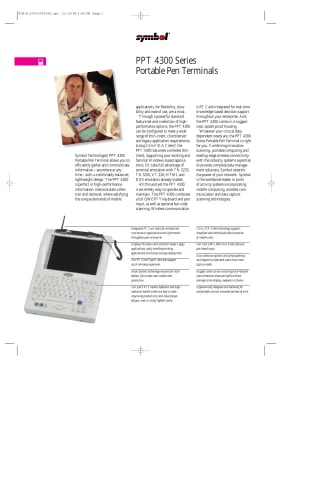
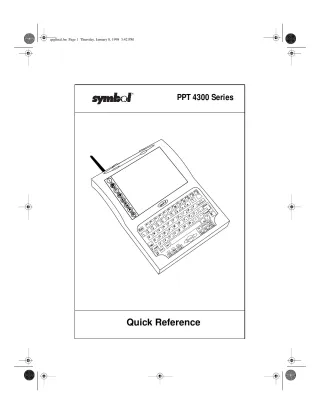
The quick reference for Symbol's PPT 4300 Series, hand-held PC-compatible terminals with pen input and a QWERTY keyboard; the PPT 4340 adds radio communication with an existing network. It shows the parts of the terminal and explains the Power icon, starting the terminal and applications, the touch screen, the 78-key keypad and numeric overlay, an external keyboard, PCMCIA cards, the Direct Access Panel, battery level and warnings, changing and recharging the NiMH battery pack, external power and power save modes.
Its parts
- Introduction
- About This Guide
- Parts of the PPT 43xx
- Using the Power Icon
- Starting the Terminal
- Starting Applications
- Turning the Terminal Off
- Using the Terminal
- Providing Power to the Terminal
From the manual · read page by page
Key facts from this manual
Each line names its page in the PDF.
Pocket quick reference for the Symbol PPT 4300 Series pen terminals, written for any model in the series, including the radio-equipped PPT 4340. It shows the parts of the terminal and explains starting it, the pen and keypad, the Direct Access Panel, PC Cards, batteries, charging and the power save modes.
- Device
- Hand-held, PC-compatible terminal with pen input and a QWERTY keyboard; the PPT 4340 adds radio for wireless networking p. 4
- Keypad
- Integral 78-key QWERTY keypad with an Fn key and a built-in numeric keypad overlay p. 10, 11
- Connectors
- IrDA port, DC power input, external 3.3v keyboard connector, RS232/TTL interface connector, PCMCIA slot p. 6
- Battery
- Rechargeable NiMH (nickel metal hydride) battery pack p. 17
- Battery life
- About four hours of active use with no power management p. 18
- Charging
- Optional Symbol charger takes up to four batteries; full charge within three hours; conditioning cycle three to six hours p. 21, 22
- External power
- Symbol-approved DC adapter into the DC Power Input on the right side; power management is off while on the adapter p. 23
- Expansion slot
- PCMCIA (PC Card) slot for memory or I/O cards; the terminal can boot from a memory card p. 12
- External keyboard
- Symbol-approved, low power PS/2-AT keyboard p. 10
- Battery warnings
- Low warning at 8% (about 19 minutes left), Critical at 2% (under 5 minutes); facility can change the levels p. 18
- Power save modes
- Doze after 17 - 76 seconds idle; Doze lasts 4 seconds to 17 minutes; Sleep 1 to 272 minutes, then off p. 24, 25
- Document numbers
- This guide 70-31470-01 Revision A; PPT 4300 Product Reference Guide p/n 70-31471-01 p. 26, 27
What this manual walks you through
- Starting the terminal and its applications p. 7
- Turning the terminal off for each session type p. 8, 9
- Using the pen as a mouse on the touch screen p. 9
- Fn key functions and the numeric keypad p. 10, 11
- Inserting and removing a PCMCIA card p. 12, 13
- Direct Access Panel icons for power, display, contrast, battery and mouse p. 14, 15, 16
- Checking the battery level and reading battery warnings p. 17, 18
- Changing the battery without logging out p. 19, 20
- Recharging and conditioning batteries in the charger p. 21, 22
- Understanding the power save modes p. 24, 25
Good to know
- Set the Run/Ship switch to Run before starting the terminal. p. 4
- Below 1% battery the terminal may switch off abruptly and unsaved work may be lost. p. 18
- On a new terminal, turn it off before changing the battery for the first two to three days, so the swap battery can charge. p. 19
- Use only a Symbol-approved DC adapter. p. 23
- After taking a battery out of the charger, wait 10 - 15 seconds before inserting another in the same slot. p. 21
Questions this manual answers
What battery does the PPT 4340 use?
A rechargeable NiMH battery pack, which lasts about four hours of active use with no power management. p. 17, 18
PPT 4300 will not boot
Check that a charged battery is inserted correctly and that the Run/Ship switch in the battery well is set to Run. p. 7
How do I force a PPT 4300 to reboot?
Press Ctrl-Alt-Del, or press the Force On switch in the IrDA port. p. 7
How do I type numbers on the PPT 4300 keypad?
Turn on NumLock, then hold Fn and press the keys marked with small numbers, for example Fn-J for 1. p. 11
Contents
Chapters and sections
Each line opens the PDF at its page.
The whole text · 3 parts
Read the manual here as text
Its text as extracted from the PDF, unedited, in parts; each page opens the PDF at that page.
The file