Manual · Symbol
PPT 2700 Series Pocket PC Quick Reference
Manual36 pagesPDF 839 KB
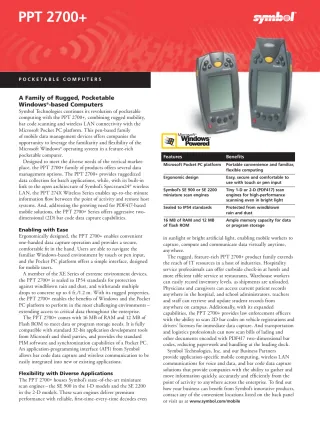
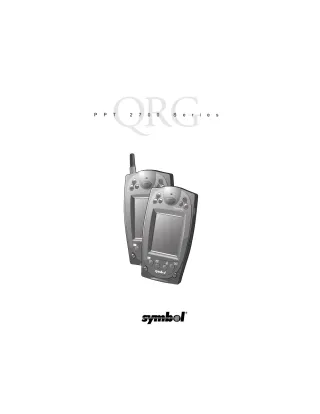
Quick reference guide for the Symbol PPT 2700 series Pocket PC terminals: batteries, charging, setup, stylus, scanning and resets.
Names · 1 model
The models it names
Filed with · 4 models
Also filed with these models on the old site
 Symbol PPT-2733Cellular portable data collection terminal Call for availability
 Symbol PPT-2740802.11 (1 Mbps) wireless portable data collection terminal Call for availability
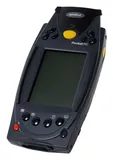 Symbol PPT-2742802.11 (2 Mbps) wireless portable data collection terminal Call for availability Symbol PPT-2746802.11b wireless portable data collection terminal Call for availability
Summary
What is in it
Symbol's quick reference for the PPT 2700 series Pocket PC terminals, covering the batch 1D, batch PDF417 and Spectrum24 versions. It shows the parts of the terminal, installing and charging the lithium-ion battery with the CRD 2700 cradle or synchronization cable, starting up and aligning the screen, the power button, contrast and backlight, stylus and input methods, scanning 1D and PDF417 bar codes, soft and hard resets, maintenance, troubleshooting and regulatory information.
Its parts
- Introduction
- About This Guide
- Parts of the PPT 2700
- Installing Batteries
- Charging the Battery
- Starting the PPT 2700
- Aligning the Screen
- Using the PPT 2700
- Scanning with the PPT 2700
- Resetting Your PPT 2700 Terminal
- Maintaining the PPT 2700
- Troubleshooting
- Regulatory Information
From the manual
Key facts from this manual
Each line names its page in the PDF.
The quick reference guide for the Symbol PPT 2700 Series Pocket PC terminals, covering the batch 1D scanning, batch PDF417 scanning and Spectrum24 versions. It shows the parts and explains installing and charging the battery, setting up the screen, entering text, scanning bar codes, resetting, care and troubleshooting, followed by regulatory notices.
- Device
- Pocket size terminal with Microsoft Windows Pocket PC, personal information management software, printing support and 1D or 2D scanning p. 3
- Versions
- Batch 1D scanning, batch PDF417 scanning and Spectrum24 p. 3
- Wireless
- Spectrum24 wireless network or a wide area network (CDPD and GSM) p. 3
- Battery
- Lithium-ion; first charge about 2 1/2 hours in the CRD 2700 Cradle or with the Synchronization Cable p. 7
- Backup battery
- Memory backup battery charges from the main battery and keeps data while the main battery is out p. 7
- Scanner
- Integrated scanner with right, left or center scan trigger; the 2D version reads PDF417 p. 17
- Display
- Touch-sensitive LCD containing glass, with adjustable contrast and backlight p. 4, 11, 21
- Text input
- Soft keyboard or Character Recognizer handwriting p. 15
- Ports
- Serial port on the bottom, IR port, speaker and microphone p. 5
- Spare battery
- Charges in the rear slot of the cradle in about 2 1/2 hours p. 8
- Auto shutoff
- After 1 to 5 minutes of inactivity, set in one-minute steps p. 22
- Related guides
- PPT 2700 Product Reference Guide p/n 70-37806-xx; PPT 2700 Cradle Quick Reference Guide p/n 70-37807-xx p. 3, 8
- Document number
- 70-37805-02, Revision A, August 2000 p. 36
What this manual walks you through
- Installing the lithium-ion battery p. 6
- Charging the battery in the CRD 2700 cradle or with the Synchronization Cable p. 7, 8, 9
- Starting the terminal and aligning the screen p. 10, 11
- Adjusting contrast and the backlight p. 11, 12
- Using the stylus and entering text p. 12, 15
- Scanning bar codes, including PDF417 and tall PDF symbols p. 17, 18
- Performing a soft reset and a hard reset p. 19, 20
- Caring for the terminal p. 21
- Troubleshooting power, sound, handwriting, memory, beaming and scanning problems p. 21, 22, 23
Good to know
- Do not remove the main battery during the first ten hours of use, or data may be lost. p. 7
- A hard reset erases all stored records and returns settings to factory defaults. p. 20
- Do not perform a soft reset while the terminal is suspended. p. 19
- When the battery is low, the scanner stops before the low battery warning appears. p. 23
- Receiving beamed data needs free memory of at least twice the size of the data. p. 23
Questions this manual answers
How do I soft reset a PPT 2700?
Hold down both the up and down scroll buttons, then press the App 4 button. Stored records are kept. p. 19
How do I hard reset a PPT 2700?
Remove the battery cover, hold the Function button and gently press the reset button with the stylus, then replace the cover and press Power. All stored records are erased. p. 20
How long does the PPT 2700 battery take to charge?
About 2 1/2 hours, in the CRD 2700 Cradle or with the Synchronization Cable. p. 7
Why does my PPT 2700 turn itself off?
It shuts off after a period of inactivity, settable from one to five minutes in the Power dialog under Start/Settings, System tab. p. 22
How do I turn on the PPT 2700 backlight?
Press and hold the Function button, then press any application button. p. 12
Contents
Chapters and sections
Each line opens the PDF at its page.
- Introduction3
- About This Guide3
- Parts of the PPT 27004
- Parts of the PPT 2700 (continued)5
- Installing Batteries6
- Charging the Battery7
- Charging the Battery Using the CRD 2700 Cradle7
- Charging the Battery Using the Synchronization Cable9
- Starting the PPT 270010
- Aligning the Screen10
- Using the PPT 270011
- Using the Power Button11
- Controlling the Contrast/Backlight11
- Using the Stylus12
- Today Screen13
- Navigation Bar and Command Bar14
- Input Methods15
- Scanning with the PPT 270017
- Scanning PDF417 Bar Codes17
- “Tall” PDF Bar Codes18
- Resetting Your PPT 2700 Terminal19
- Performing a Soft Reset19
- Performing a Hard Reset20
- Maintaining the PPT 270021
- Troubleshooting21
- Regulatory Information27
- Radio Frequency Interference Requirements27
- Radio Frequency Interference Requirements - Canada27
- CE Marking and European Union Compliance28
- RF Devices28
- Laser Devices30
- Battery Caution32
- DECLARATION OF CONFORMITY DECLARATION OF CONFORMITY33
The whole text · 4 parts
Read the manual here as text
Its text as extracted from the PDF, unedited, in parts; each page opens the PDF at that page.
The file