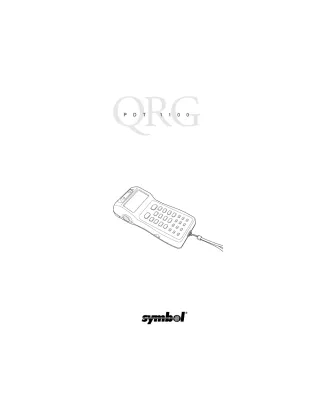
Manual · Symbol
PDT 1100 Quick Reference
Manual24 pagesPDF 280 KB
Quick reference guide for the Symbol PDT 1100 hand-held laser bar code scanning terminal: keys, scanning, settings, batteries.
Covers · 1 model
The models it covers
Summary
What is in it
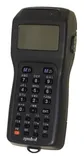
A short quick reference guide for the Symbol PDT 1100, a lightweight battery-powered hand-held laser bar code scanning terminal. It shows the parts and keypad, powering on and off, scanning bar codes, the hand strap and clip, backlight, LCD contrast, beeper and vibration settings, date and time, keypad entry, communications through the CRD 1100 cradle, optical interface or serial cable, batteries and charging, cleaning, troubleshooting, ergonomics and regulatory information.
Its parts
- Introduction
- About This Guide
- Parts of the PDT 1100
- Key Pad
- Functions of the PDT 1100 Keys
- Powering On/Off
- Loading an Application
- Scanning Bar Codes
- Hand Strap and Pocket Clip (optional)
- Setting the Backlight
- Adjusting Settings
- Using the Keypad
- Communications
- Batteries
- Cleaning
From the manual · read page by page
Key facts from this manual
Some pages are scans or cannot be read; this says only what the readable text supports. Each line names its page in the PDF.
The Symbol PDT 1100 Quick Reference Guide (70-35861-02, Revision B, November 2001) covers basic use of the PDT 1100 hand-held laser bar code terminal. It shows the parts and keys, scanning, display and alert settings, setting the date and time, communications through the CRD 1100 cradle, infrared or serial cable, batteries, cleaning and troubleshooting.
- Device
- Lightweight, battery-powered, hand-held laser bar code scanning terminal p. 3
- Memory
- 2 MB or 512 K p. 3
- Batteries
- Two standard AAA batteries or an optional rechargeable NiMH battery pack p. 15
- Communications
- Infrared directly to a PC with an Ir port, the optional CRD 1100 cradle, or an optional RS-232C direct-connect serial cable p. 3, 14
- Scan range
- Up to 56 cm (22 in.) from the reading window p. 8
- Infrared range
- About 10-80 cm (4-30 inches) p. 14
- Cradle
- CRD 1100: infrared communications unit with optional charging function; also charges and discharges the NiMH pack p. 13, 17
- Battery charger
- Optional 4-slot NiMH battery charger; see the CRG 1100 Quick Reference Guide (p/n 70-35863-xx) p. 17
- Keypad
- Numeric keys, Enter, F5-F8 cursor keys, M1-M4 scan keys, PW (power), BS (backspace), SF (shift) and C (clear) p. 6, 7
- Display
- LCD with eight contrast levels and a backlight p. 10, 11
- Read alerts
- Green confirmation LED, beeper with four volume levels (OFF to MAX), and vibration p. 11
- Memory backup
- Super cap, charged by fresh batteries over two hours p. 16
- Full manual
- PDT 1100 Product Reference Guide (p/n 70-35864-xx) p. 7
What this manual walks you through
- What each key does and powering the terminal on and off p. 7
- Scanning bar codes and what to try when a code will not read p. 8, 9
- Fitting the hand strap and clip, and turning the backlight on or off p. 10
- Adjusting LCD contrast, beeper volume and beeper or vibration mode p. 11, 12
- Setting the date and time p. 12, 13
- Entering numbers, choosing menu items and typing letters on the keypad p. 13
- Sending data through the CRD 1100 cradle, the optical interface or a serial cable p. 13, 14
- Loading AAA batteries or the NiMH battery pack p. 15, 16
- Checking battery voltage, low battery messages and storing the terminal p. 16, 17
- Cleaning the scanner window and basic troubleshooting p. 18
Good to know
- On first power-up, or after the batteries have been out five minutes or more, the super cap needs about two hours to charge before it can back up memory. p. 16
- Replacing the batteries within 3 minutes avoids data loss. p. 17
- Before long storage, hold PW for three seconds to save RAM contents to ROM, then remove the batteries once the message clears. p. 17
- The guide recommends the NiMH pack for best battery performance at or below 0°C (32°F). p. 15
- Do not pour, spray or spill liquid on the scanner. p. 18
Questions this manual answers
What batteries does the Symbol PDT 1100 take?
Two standard AAA batteries or the optional rechargeable NiMH battery pack. p. 15
How far away can the PDT 1100 read a bar code?
Up to 56 cm (22 in.) from the reading window. p. 8
How do I set the date and time on a PDT 1100?
Hold SF and 1 and press PW to open the SYSTEM MENU, choose 4:SET SYSTEM, then 3:DATE/TIME, and type the date and time with the numeric keys. p. 12
What does Battery Voltage has Lowered mean on the PDT 1100?
It warns that the batteries will run out soon; if they are not replaced, the terminal shows a second message and shuts down. p. 16
How does the PDT 1100 connect to a PC?
By infrared directly to a PC with an Ir port, through the optional CRD 1100 cradle, or by serial cable to a host computer. p. 3
Contents
Chapters and sections
Each line opens the PDF at its page.
- Introduction3
- About This Guide4
- Parts of the PDT 11005
- Key Pad6
- Functions of the PDT 1100 Keys7
- Powering On/Off7
- Loading an Application7
- Scanning Bar Codes8
- Hand Strap and Pocket Clip (optional)10
- Setting the Backlight10
- Adjusting Settings11
- Using the Keypad13
- Communications13
- Batteries15
- Cleaning18
- Troubleshooting18
- Ergonomic Recommendations19
- Regulatory Information19
1 more line, from page 20 on
The whole text · 3 parts
Read the manual here as text
Its text as extracted from the PDF, unedited, in parts; each page opens the PDF at that page.
The file