Manual · Symbol
LL Series 500 Quick Reference: Getting Started
Manual84 pagesPDF 651 KB
Multilingual quick reference for getting started with the Symbol LL 500 OmniLink interface controller: cabling, power and first scans.
Covers · 1 model
The models it covers
Summary
What is in it
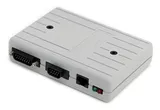
A short getting-started guide for the Symbol LL 500 OmniLink, an interface controller that passes bar code, magstripe and serial data to a host. It shows the ports, how to connect the host cable (OCIA, OCR, IBM 468x/9x, RS-232C, POS internal or keyboard wedge), power selection plug or external supply, scanners and a magstripe reader, then the default and host type bar codes, test bar codes, adding an ENTER to data, a troubleshooting chart and beep meanings. The guide repeats in French, German, Italian and Spanish, with regulatory and warranty information.
From the manual
Key facts from this manual
Each line names its page in the PDF.
A Symbol Getting Started quick reference for the LL 500 OmniLink interface controller, printed in English, French, German, Italian and Spanish. The English pages walk through cabling the host, power, scanner and magstripe ports, setting defaults and the host type, test scans and a troubleshooting chart. Host type bar codes and regulatory notes close the guide.
- Device
- Interface controller that passes bar code, magstripe and/or serial data to a host system p. 15
- Ports
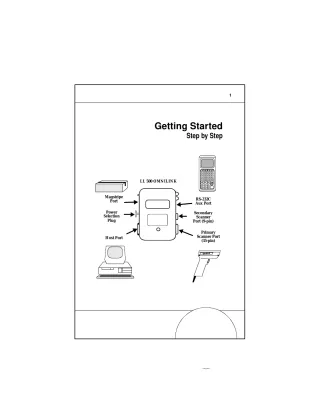
- Host port, RS-232C Aux port, Magstripe port, Primary scanner port (15-pin), Secondary scanner port (9-pin), power selection plug p. 3
- Host types
- OCIA, OCR, IBM 468x/9x or RS-232C terminals, POS internal connection, or keyboard wedge p. 5
- Scanner port voltage
- LL 500-I200: primary 12V, secondary 5V; LL 500-I201: primary 5V, secondary 12V p. 15
- Host cable
- 40-pin connector into the HOST port p. 5
- Aux cable
- 8-pin modular to 25-pin D-type, for dual-port RS-232C or downloading parameters p. 8
- Power
- From the host, or an external power supply plugged in place of the power selection plug p. 9, 15
- Reset
- Push the reset button and hold 2 seconds p. 14
- Power-up signal
- Three beeps and a green light p. 11
- Good read beep
- One short high tone p. 16
- Host type bar codes
- IBM, NCR, Nixdorf, Fujitsu, DEC, Decision Data, HP, Tandem, Telex-Memorex, TI and Wyse hosts, plus single and dual port RS-232C p. 73, 74, 75, 76, 77, 78, 79
- Compliance
- The manual states FCC Part 15 Class B, Industry Canada ICES-003 and CE marking p. 80
What this manual walks you through
- Connecting the host cable directly, inside a POS terminal, or as a keyboard wedge p. 5, 6, 7
- Cabling the AUX port for dual-port RS-232C or parameter downloads p. 8
- Fitting an external power supply or the power selection plug p. 9
- Attaching scanners and a magstripe reader p. 10
- Setting defaults and selecting the host type with bar codes p. 11
- Testing with UPC-A and Code 39 test bar codes p. 12
- Appending an ENTER (CR) to all data p. 13
- Troubleshooting by symptom with the What If chart p. 14
Good to know
- Without the power selection plug or an external power supply, the LL 500 will not work. p. 9
- The LL 500 will not operate until a host type is selected. p. 11
- Scanning the ENTER rule bar codes deletes all previously stored ADF rules. p. 13
- Configurations LL-500-I20X-170Y and LL500-I20X-80Y support only the Primary Scanner Port. p. 10
- Some configurations do not decode UPC or Code 39, so the test codes may not read. p. 14
Questions this manual answers
How do I reset the Symbol LL 500 controller?
Push the reset button and hold it for 2 seconds. p. 14
Which LL 500 scanner port is 5V and which is 12V?
On LL 500-I200 models the primary port is 12V and the secondary 5V; on LL 500-I201 models it is the reverse. p. 15
Why does my LL 500 not power up?
Check that the power selection plug is inserted, or that an external power supply is plugged in, and that the host has power. p. 9, 14
How do I make the LL 500 send Enter after each scan?
Scan the five bar codes ERASE ALL RULES, ANY SOURCE, SEND ALL DATA, SEND ENTER and SAVE RULE, in order. p. 13
What hosts can the OmniLink LL 500 connect to?
OCIA, OCR, IBM 468x/9x or RS-232C terminals, a POS internal connection, or a keyboard wedge. p. 5
Contents
Chapters and sections
Each line opens the PDF at its page.
The whole text · 9 parts
Read the manual here as text
Its text as extracted from the PDF, unedited, in parts; each page opens the PDF at that page.
The file