Manual · Symbol
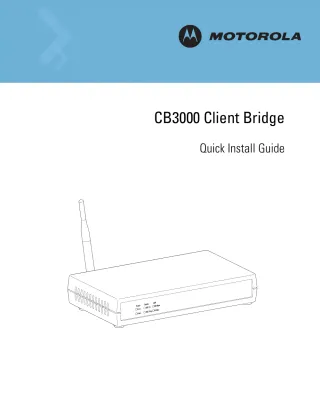
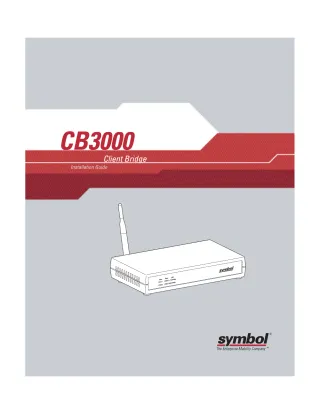
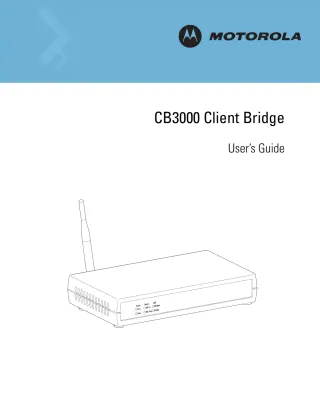
CB3000 Client Bridge User's Guide
Manual106 pagesPDF 3.7 MB
User's guide for the Motorola (Symbol) CB3000 Client Bridge, an 802.11a/b/g wireless Ethernet adapter: setup, security and management.
Covers · 1 model
The models it covers
Summary
What is in it
User's guide for the CB3000 Client Bridge, an IEEE 802.11a/b/g wireless LAN Ethernet adapter that puts Ethernet devices such as printers, scales and bar code readers on a wireless network. It covers operating modes, cabling and logging in, antenna settings, wireless and Ethernet configuration, WEP, WPA1 and WPA2 security, statistics and logs, SNMP and DHCP settings, passwords, firmware loading, troubleshooting and technical specifications.
Its parts
- About This Guide
- Introduction
- Getting Started
- Network Configuration
- Management Options
- Administrative Options
From the manual
Key facts from this manual
Some pages are scans or cannot be read; this says only what the readable text supports. Each line names its page in the PDF.
Motorola user's guide for the CB3000 Client Bridge, an 802.11a/b/g wireless LAN Ethernet adapter. It explains the operating modes, installation, network and security setup, client management, firmware loading, reset and troubleshooting tools, and lists the technical specifications and supported SNMP MIBs.
- What it is
- IEEE 802.11a/b/g wireless LAN Ethernet adapter (client bridge) p. 7
- Clients
- Multi Client Bridging Mode: up to 16 devices, only one of them a POS device; Single Client Bridging Mode: one client p. 56, 57
- Ethernet
- One 10/100 Base-T; Ethernet_II and IEEE 802.3 frames p. 91
- Frequencies
- 802.11a: 4.9 to 5.9 GHz; 802.11b/g: 2.4 to 2.5 GHz p. 91
- Data rates
- 802.11a and 802.11g: 54, 48, 36, 24, 18, 12, 9, 6 Mbps; 802.11b: 11, 5.5, 2, 1 Mbps p. 91
- Security
- 64/128-bit WEP, IEEE 802.1x, WPA1 (TKIP), WPA2 (CCMP) p. 92
- Power supply
- Switching DC 12V, 1A p. 92
- Dimensions
- 7 in. wide x 4 in. deep x 1.2 in. high (17.78 x 10.16 x 3.05 cm), without antenna and foot stand p. 91
- Weight
- 0.65 lbs (0.30 kg) with antenna p. 91
- Operating temperature
- 0 to 50° Celsius p. 92
- Storage temperature
- -20 to 70° Celsius p. 92
- Antenna
- Single detachable omni-pole antenna; peak gain 3 dBi at 2.4 GHz, 4 dBi at 5 GHz p. 13, 92
- Management
- Web interface, HTTPS by default (Internet Explorer 5.0, Firefox 2.0 or Netscape Navigator 6.0 or later); Discovery Tool; SNMP v2 p. 11, 93
- Firmware updates
- Loaded from an FTP or TFTP server, or a local file over HTTP; file names like cb3000_1.1.1.5 p. 84, 85
What this manual walks you through
- Choosing Infrastructure or Ad-hoc mode p. 9, 10
- Placing the unit within range p. 14
- Cabling and powering the CB3000 p. 14, 15
- Reading the status LEDs p. 16
- Setting single or multi client bridging and the preferred client list p. 56, 57
- Changing the console password p. 76
- Rebooting or restoring the factory configuration p. 76, 77, 78
- Loading new firmware p. 84, 85
- Ping tests to an associated device or the host p. 88, 89
- Supported SNMP MIBs p. 93
Good to know
- Do not connect a client bridge in Infrastructure mode directly to the LAN: it can cause a transmission loop. p. 9
- The console password travels over the network in clear text. p. 76
- Wait 10 seconds after a configuration change before resetting, to avoid a possible hang. p. 76
- Restoring the factory configuration wipes all settings; save a configuration file first. p. 76
- Use only the power adapter supplied by Motorola. p. 15
Questions this manual answers
How many devices can connect through one CB3000?
In Multi Client Bridging Mode up to 16 devices, of which only one can be a POS device; Single Client Bridging Mode supports one client. p. 56, 57
What IP address does the CB3000 use without a DHCP server?
If set to DHCP and no server answers, it takes 10.10.1.1 by default. p. 11
How do I update the CB3000 firmware?
Save the configuration, open Tools > Load Firmware, get the file from an FTP/TFTP server or a local file over HTTP, and click Upgrade; the unit reboots to finish. p. 84, 85
How do I restore a CB3000 to factory defaults?
Use Tools > Reset/Restore and click Restore, or press the Reset button for 10 seconds or longer. p. 76, 77, 78
Where is the CB3000 serial number?
On the bottom of the unit, with the MAC address; both also show at the top of the Troubleshooting screen. p. 88
Contents
Chapters and sections
Each line opens the PDF at its page.
The whole text · 11 parts
Read the manual here as text
Its text as extracted from the PDF, unedited, in parts; each page opens the PDF at that page.
The file