Manual · Symbol
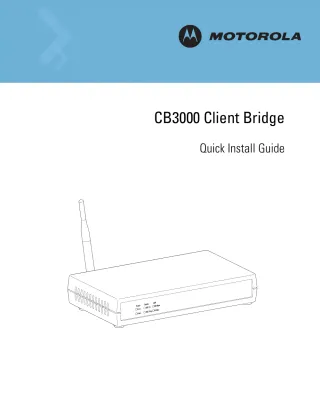
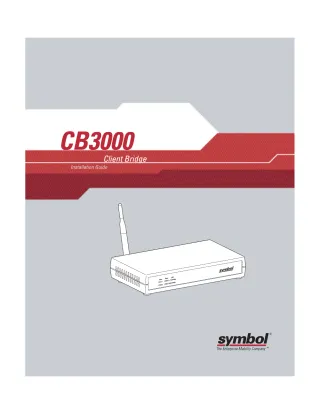
CB3000 Client Bridge Installation Guide
Manual35 pagesPDF 592 KB
Installation guide for the Symbol CB3000 Client Bridge, an 802.11a/b/g wireless LAN Ethernet adapter for printers, scales and other devices.
Covers · 1 model
The models it covers
Summary
What is in it
Symbol's installation guide for the CB3000 Client Bridge (CB-3000-0010-WWR), an IEEE 802.11a/b/g wireless LAN Ethernet adapter that gives Ethernet devices such as printers, scales and point-of-sale equipment a wireless link. It covers prerequisites, package contents, choosing the site, cabling and reading the LEDs, reaching the web interface by browser or Discovery Tool, and setting WLAN, Ethernet and basic encryption. It ends with connectivity testing, troubleshooting, technical specifications and regulatory compliance.
Its parts
- CB3000 Overview
- Installing the CB3000
- Displaying the CB3000 User Interface
- Configuring CB3000 WLAN Settings
- Configuring CB3000 Ethernet Settings
- Configuring CB3000 Security
- Testing Device Connectivity
- Where to Go From Here?
- CB3000 Troubleshooting
- Technical Specifications
- Customer Support
- Regulatory Compliance
From the manual · read page by page
Key facts from this manual
Some pages are scans or cannot be read; this says only what the readable text supports. Each line names its page in the PDF.
Symbol installation guide for the CB3000 Client Bridge, an 802.11a/b/g wireless LAN Ethernet adapter. It walks a technician through cabling, the status LEDs, reaching the web interface, basic WLAN, Ethernet and WEP 128 setup, a ping test and troubleshooting, and gives the technical specifications.
- What it is
- IEEE 802.11a/b/g wireless LAN Ethernet adapter (client bridge), part no. CB-3000-0010-WWR p. 5
- Clients
- Up to 16 client connections, or one POS device connection p. 5
- Ethernet
- LAN connector on the rear, 10 or 100 Mbps; crossover or straight through cable p. 8, 10
- Frequencies
- 802.11a: 4.9 to 5.9 GHz; 802.11b/g: 2.4 to 2.5 GHz p. 27
- Data rates
- 802.11a and 802.11g: 54, 48, 36, 24, 18, 12, 9, 6 Mbps; 802.11b: 11, 5.5, 2, 1 Mbps p. 27
- Security
- 64/128-bit WEP, IEEE 802.1x, WPA/WPA-PSK p. 27
- Power supply
- 12 Vdc, minimum 1 A; Symbol-approved supply pt # 0993036903 p. 32
- Dimensions
- 7 in. wide x 4 in. deep x 1.2 in. high (17.78 x 10.16 x 3.05 cm), without antenna and foot stand p. 27
- Weight
- 0.65 lbs (0.30 kg) with antenna p. 27
- Operating temperature
- 0 to 50° Celsius p. 27
- Storage temperature
- -20 to 70° Celsius p. 27
- Antenna
- Detachable omni-directional 802.11a/b/g; peak gain 3 dBi at 2.4 GHz, 4 dBi at 5 GHz p. 6, 27
- Management
- Built-in web interface (Internet Explorer 5.0 or Netscape Navigator 6.0 or later), Discovery Tool, SNMP MIBs p. 11, 13, 28
- In the box
- Guide, software and documentation CDROM, the CB3000, Ethernet cable, power adapter with 4 localized plugs, antenna, mounting hardware p. 6
What this manual walks you through
- Choosing a site and mounting the unit p. 7
- Cabling and powering the CB3000 p. 8
- Reading the Power, Radio and LAN LEDs p. 9, 10
- Opening the web interface from a browser p. 11, 12
- Finding units with the Discovery Tool p. 13, 14, 15
- Setting the network mode, ESSID, frequency band and country p. 16, 17, 18
- Setting the device name and IP address p. 19, 20
- Setting up WEP 128 encryption p. 21, 22, 23
- Testing connectivity with a ping p. 24, 25
- Troubleshooting LEDs, hangs and Discovery Tool scans p. 26
Good to know
- Do not connect a CB3000 in Infrastructure mode directly to the LAN behind its WLAN: it can cause a transmission loop. p. 7
- Use only the power adapter supplied by Symbol. p. 8
- Only qualified and approved antennas may be used. p. 6
- Selecting a country other than the one of operation makes operation illegal. p. 18
- Ad-hoc operation is limited to channels 36-48 (5150-5250 MHz), indoor use only. p. 32
Questions this manual answers
What is the CB3000 default IP address?
10.10.1.1, used when the CB3000 gets no DHCP reply within 20 seconds after power-up. p. 13
How do I reset a CB3000 to factory defaults?
Hold the Reset button on the back for 10 seconds or more; less than 10 seconds only resets the device. p. 26
How many devices can connect through one CB3000?
Up to 16 client connections, or one POS device connection; several devices can share it through a 10/100Base-T Ethernet hub. p. 5
What power supply does the CB3000 use?
A Symbol-approved supply, pt # 0993036903, rated 12 Vdc and at least 1 A. p. 32
What does the Discovery Tool need to find a CB3000?
A valid IP address on the PC Ethernet port and no VPN client running on that PC. p. 15
Contents
Chapters and sections
Each line opens the PDF at its page.
- CB3000 Installation Guide1
- CB3000 Overview5
- Installing the CB30005
- Installing the CB30007
- Displaying the CB3000 User Interface11
- Configuring CB3000 WLAN Settings16
- Configuring CB3000 Ethernet Settings19
- Configuring CB3000 Security21
- Testing Device Connectivity24
- Where to Go From Here?25
- CB3000 Troubleshooting26
- Technical Specifications27
- Customer Support29
- Regulatory Compliance31
The whole text · 4 parts
Read the manual here as text
Its text as extracted from the PDF, unedited, in parts; each page opens the PDF at that page.
The file