Manual · Metrologic
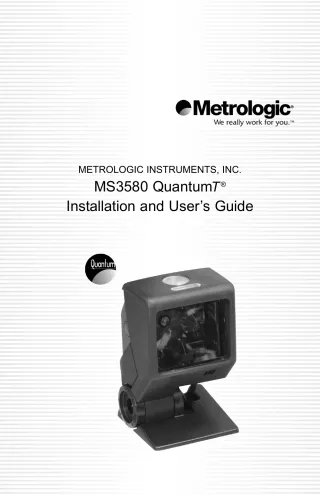
MS3580 QuantumT Installation and User's Guide
Manual60 pagesPDF 5.4 MB
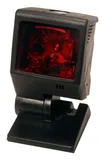
Installation and user's guide for the Metrologic MS3580 QuantumT hands-free omnidirectional bar code scanner.
Covers · 1 model
The models it covers
Summary
What is in it
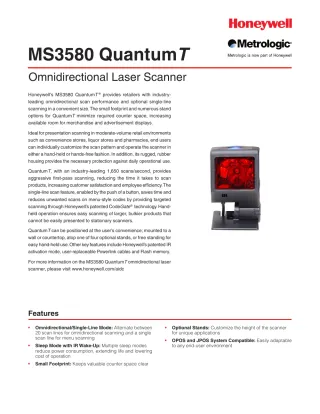
The installation and user's guide for the Metrologic MS3580 QuantumT, a hands-free omnidirectional bar code scanner with an optional single-line mode that can sit on a countertop, mount on a wall or be used handheld. It lists the interface versions and accessories, then covers stands and mounting, installation for RS232, IBM 46xx/OCIA, keyboard wedge and USB, scan pattern modes and button functions, indicators, depth of field, troubleshooting, design specifications, default settings, flash firmware upgrades, pinouts and regulatory information.
Its parts
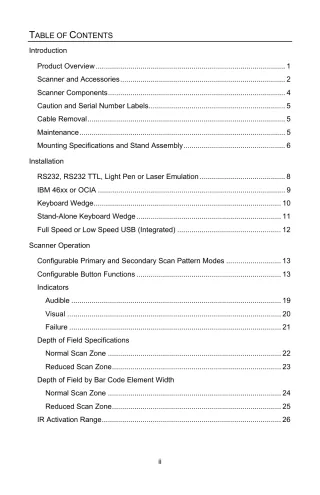
- Introduction
- Installation
- Scanner Operation
- Troubleshooting Guide
- Design Specifications
- Applications and Protocols
- Default Settings - Communication Parameters
- Upgrading the Flash ROM Firmware
- Scanner and Cable Terminations
- Regulatory Compliance
- Limited Warranty
- Patents
From the manual
Key facts from this manual
Some pages are scans or cannot be read; this says only what the readable text supports. Each line names its page in the PDF.
Metrologic installation and user's guide from 2006 for the MS3580 QuantumT, a hands-free omnidirectional laser bar code scanner, in its interface versions MS3580-9, MS3580-11, MS3580-38, MS3580-40, MS3580-41, MS3580-47 and MS3580-104. It shows how to connect each interface, read the beeps and LEDs, fix common problems and upgrade the firmware, and lists accessories, specifications and connector pinouts.
- What it is
- Hands-free omnidirectional bar code scanner with an optional single-line mode, built on the QuantumE scan engine p. 5
- Interface versions
- MS3580-9 OCIA and RS232; MS3580-11 IBM 46xx and full RS232; MS3580-38 RS232 and low speed USB; MS3580-40 full speed USB; MS3580-41 RS232/light pen emulation; MS3580-47 keyboard wedge, stand-alone keyboard and RS232; MS3580-104 RS232 TTL, laser emulation p. 5
- Connector
- 10-pin RJ45 socket for a user-replaceable PowerLink cable p. 5, 8, 44
- Power
- 5VDC ± 0.25V; 275 mA typical operating and 230 mA typical standby at 5VDC; DC transformer Class II, 5.2VDC @ 1 A p. 36
- Laser and scan
- Visible laser diode (VLD) @ 650 nm, 1.1 mW; omni scan 1650 scan lines per second, single-line 80, raster 320; motor 5000 RPM p. 35
- Depth of field
- Normal 19 mm - 273 mm (.75"- 10.75"); reduced 19 mm - 146 mm (.75"- 5.75"); for a 0.33 mm (13 mil) bar code p. 35
- Decoding
- All standard 1-D bar codes including RSS-14, RSS-Expanded and RSS-14 Limited; minimum bar width 0.127 mm (5.0 mil); up to 80 data characters p. 35
- Size and weight
- 63 mm (2.48") wide, 50 mm (1.97") deep, 68 mm (2.68") high; 6 oz (170 g) p. 36
- Environment
- Operating -20°C to 40°C (-4°F to 104°F); storage -40°C to 60°C (-40°F to 140°F); 5% to 95% relative humidity, non-condensing p. 36
- Power supplies
- AC to DC transformer, 5.2VDC @ 1 A: 46-00525 (120V United States and Canada), 46-00526 (Continental European), 46-00527 (United Kingdom), 46-00528 (Australia), 46-00529 (China), 46-00530 (India) p. 6
- Cables
- 54-54000x-3 RS232 PowerLink; 54-54002x-3 keyboard wedge PowerLink; 54-54020x-3 stand-alone keyboard PowerLink; 54-54235x-N-3 USB low speed; 54-54249x-N-3 host end not terminated p. 7, 43
- Stands
- 46-00288 Flex Stand (3"); 46-00289 Flex Stand (6") p. 7
- Firmware
- Flash-upgradeable with MetroSet2 on a Windows 95 or later PC through a serial port; needs a power supply and PowerLink cable MLPN 54-54014 p. 43
- Default symbologies
- UPC/EAN, Code 39, Interleaved 2 of 5, Code 93, Code 128 and Codabar enabled; minimum of 4 characters for non-UPC/EAN codes p. 31
What this manual walks you through
- Connecting an RS232, RS232 TTL, light pen or laser emulation scanner p. 12
- Connecting to an IBM 46xx or OCIA host with the MVC cable p. 13
- Connecting as a keyboard wedge or stand-alone keyboard p. 14, 15
- Connecting by full speed or low speed USB p. 16
- Releasing the cable with a paperclip p. 9
- Assembling the pedestal stand and the optional flex stand p. 10, 11
- Reading the beeps and the blue and white LEDs p. 23, 24
- Failure mode indicators p. 25
- Troubleshooting power, scanning, RS232 and keyboard wedge problems p. 31, 32, 33, 34
- Upgrading the flash firmware with MetroSet2 p. 43
Good to know
- Never remove the protective boot: it exposes parts that are highly sensitive to static discharge. p. 8
- Powering the scanner from a keyboard port can cause interference; the guide recommends an external power supply. p. 14
- On the MS3580-104, scanning the Recall Defaults bar code turns laser emulation off until it is re-enabled. p. 12
- Plugging the scanner in is not enough: a software driver and the right configuration are also needed. p. 12
- Two beeps after a firmware upgrade mean the upgrade did not succeed. p. 43
Questions this manual answers
What does it mean when the MS3580 beeps three times on power up?
The nonvolatile memory that holds the scanner configuration has failed; the guide says to return the unit for repair. p. 25
What power supply does the Metrologic MS3580 use?
A regulated AC to DC transformer with 5.2VDC @ 1 A output; part 46-00525 is the 120V United States and Canada version. p. 6
Which MS3580 version has USB?
The MS3580-38 has RS232 and low speed USB (keyboard or serial emulation) and the MS3580-40 has full speed USB. p. 5
Why does the MS3580 lock up after the first scan with the white LED on?
It is set up for host handshaking but gets no signal; check that the host cable and host support the handshaking. p. 32
Contents
Chapters and sections
Each line opens the PDF at its page.
The whole text · 6 parts
Read the manual here as text
Its text as extracted from the PDF, unedited, in parts; each page opens the PDF at that page.
The file