Manual · Intermec
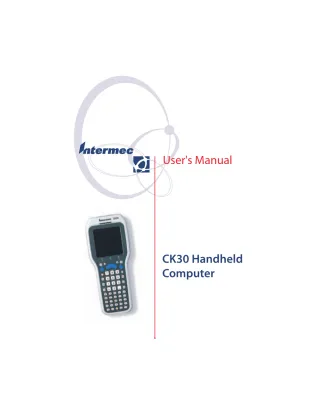
CK30 Handheld Computer User's Manual
Manual215 pagesPDF 3.7 MB
User's manual for the Intermec CK30 handheld computer: keypads, scanning, configuration, security, applications and diagnostics.
Covers · 1 model
The models it covers
Summary
What is in it
Intermec's user's manual for the CK30 handheld computer, which runs Windows CE .NET. It covers the battery, the 42, 50 and 52 key keypads, screen, status lights and bar code scanning, then configuring the CK30 for serial, 802.11b/g, Ethernet and Bluetooth communications and wireless security, developing and installing applications, managing files and upgrades, the diagnostics screens, troubleshooting and maintenance, with specifications and default settings in the appendices.
Its parts
- Before You Begin
- Using the CK30 Handheld Computer
- Configuring the CK30
- Developing and Installing Applications
- Managing the CK30
- Running Diagnostics
- Troubleshooting and Maintaining the CK30
From the manual
Key facts from this manual
Each line names its page in the PDF.
User's manual for the Intermec CK30 Handheld Computer (models CK30A, CK30B and CK30C), a Windows CE .NET terminal for client/server, terminal emulation and browser applications. It covers the battery, keypad, screen, lights and scanning, network and security setup, installing applications, diagnostics, troubleshooting and booting, with specifications, accessories and serial port pin assignments.
- Device
- Handheld computer on Windows CE .NET for client/server, terminal emulation and browser-based applications p. 16
- Battery
- AB1G (P/N 318-020-xxx) rechargeable 2400 mAh lithium-ion; backup keeps memory and clock at least 10 minutes during a swap p. 19, 158
- Electrical rating
- 7.4 to 12 VDC; 500 mA peak p. 158
- Screen
- 160 x 160 pixels, 7.9 cm (3.12 in) diagonal; CK30A, CK30B: electroluminescent backlight; CK30C: LED backlight p. 158
- Keypads
- 42-key large numeric and function, 50-key or 52-key full alphanumeric, with programmable, international and TE overlays p. 159
- Size and weight
- 20.3 cm (8.0 in) x 8.9 cm (3.5 in) x 5.5 cm (2.15 in) with standard case; 476 g (16.8 oz) p. 158
- Temperature
- Operating -10°C to 50°C (14°F to 122°F); storage -20°C to 60°C (-4°F to 140°F) p. 158
- Serial port
- 26-pin: RS-232, USB client, Ethernet, external 5V @ 500 mA output, and tethered undecoded scanner signals p. 170, 171
- Battery chargers
- AC1 4-Slot Battery Charger (P/N 852-904-xxx); AC2 4-Bay Battery Charging Dock (P/N 852-905-xxx); AC3 8-Slot Battery Charging Dock (P/N 852-906-xxx) p. 164
- Communications docks
- AD1 Communications Dock (P/N 225-709-xxx): serial, Ethernet or USB; AD2 4-Bay Communications Dock (P/N 225-710-xxx): one Ethernet, a serial port per unit p. 165
- Serial adapters
- AA2 (P/N 236-069-xxx): DB 9 with power on pin 9; AA3 (P/N 236-070-xxx): 26-pin to DB-9, no power on pin 9 p. 164
- Power supply
- 851-082-xxx for all CK30 docks and chargers except the AC3, which needs the 851-064-xxx p. 164
- Other accessories
- AG1 Protective Case, AG2 Protective Boot, CK30 and CK31 Handle (P/N 203-754-xxx), AL1 Holster and Belt, AL2 Handstrap, AL3 Swiveling Belt Clip, AV1 Vehicle Cradle p. 165, 166
- Model check
- The first five characters of the configuration number on the back label give the model (CK30A, CK30B, CK30C) p. 16, 17
What this manual walks you through
- Charging and installing the battery p. 20, 21
- Making a battery charge last longer p. 21
- Reading the status lights and beeps p. 34, 35
- Information to have ready before calling Product Support p. 140
- Solving problems while operating the CK30 p. 141, 142
- Clearing the Backup Battery Very Low message p. 142, 143
- Solving security and access point connection problems p. 143, 144
- Warm and cold booting the CK30 p. 153
- Linear imager and standard range laser reading distances p. 160, 162
- Serial port pin assignments p. 170, 171
Good to know
- Do not disassemble the lithium-ion battery, heat it above 100°C (212°F) or incinerate it. p. 19
- Removing the main battery while the backup battery low icon shows may cold boot the CK30 and lose data. p. 19
- A cold boot deletes all data in RAM storage. p. 153
- The WEP key must be re-entered after changing the SSID. p. 143
- The AL1 holster fits only a CK30 with the 1D linear imager or the 2D imager. p. 165
Questions this manual answers
What battery does the Intermec CK30 use?
The AB1G lithium-ion battery, P/N 318-020-xxx, rated 2400 mAh. p. 158, 164
How long does it take to charge a CK30 battery?
5 hours in the AC1, AC2, AC3, AD1 or AD2. p. 20
How do I reboot a frozen CK30?
For a warm boot, hold the key that turns the CK30 on for 5 seconds. If that fails, cold boot: remove the battery and press the reset switch on the back with a paper clip; this erases RAM. p. 141, 142, 153
What does the Backup Battery Very Low message on the CK30 mean?
The backup battery needs charging. Install a fully charged main battery or put the CK30 in a charger, and do not swap the main battery until the message stops. p. 142
Why won't my CK30 connect to the access point?
Check that the network name on the CK30 matches the access point's SSID; the default name is "INTERMEC." With static WEP keys, also check the key is correct. p. 144
Contents
Chapters and sections
Each line opens the PDF at its page.
- Before You Begin11
- Chapter 1: Using the CK30 Handheld Computer15
- Chapter 2: Configuring the CK3047
- Chapter 3: Developing and Installing Applications91
- Chapter 4: Managing the CK30107
- Chapter 5: Running Diagnostics121
- Chapter 6: Troubleshooting and Maintaining the CK30139
14 more lines, from page 153 on
The whole text · 24 parts
Read the manual here as text
Its text as extracted from the PDF, unedited, in parts; each page opens the PDF at that page.
- Pages 1 to 41-4
- Contents5-14
- Chapter 1: Using the CK30 Handheld Computer, pages 15 to 2215-22
- Chapter 1: Using the CK30 Handheld Computer, pages 23 to 3023-30
- Chapter 1: Using the CK30 Handheld Computer, pages 31 to 3831-38
- Chapter 1: Using the CK30 Handheld Computer, pages 39 to 4639-46
- Chapter 2: Configuring the CK30, pages 47 to 5547-55
- Chapter 2: Configuring the CK30, pages 56 to 6456-64
- Chapter 2: Configuring the CK30, pages 65 to 7365-73
- Chapter 2: Configuring the CK30, pages 74 to 8274-82
- Chapter 2: Configuring the CK30, pages 83 to 9083-90
- Chapter 3: Developing and Installing Applications, pages 91 to 9891-98
- Chapter 3: Developing and Installing Applications, pages 99 to 10699-106
- Chapter 4: Managing the CK30107-120
- Chapter 5: Running Diagnostics, pages 121 to 129121-129
- Chapter 5: Running Diagnostics, pages 130 to 138130-138
- Chapter 6: Troubleshooting and Maintaining the CK30, pages 139 to 147139-147
- Chapter 6: Troubleshooting and Maintaining the CK30, pages 148 to 156148-156
- Appendix A: Specifications, pages 157 to 164157-164
- Appendix A: Specifications, pages 165 to 172165-172
- Appendix B: Default Settings173-180
- Appendix C: Reprogrammable Keypad, pages 181 to 190181-190
- Appendix C: Reprogrammable Keypad, pages 191 to 200191-200
- Index201-215
The file