Manual · Intermec
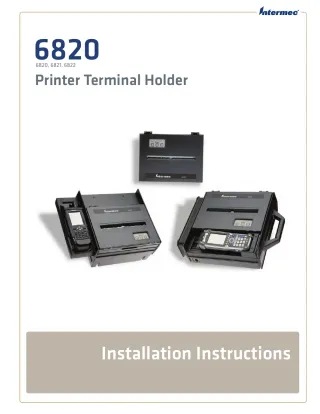
6820, 6821, 6822 Printer Terminal Holder Installation Instructions
Manual20 pagesPDF 1.6 MB
Instructions for installing a terminal holder in the Intermec 6820, 6821 or 6822 printer to connect an Intermec computer.
Covers · 1 model
The models it covers
Summary
What is in it
Installation instructions for the terminal holder that connects Intermec computers (700/700C, CK61, CN3, CN3e, CN4, CN4e) to the 6820, 6821 and 6822 printers. It lists the kit contents and part numbers, including Bluetooth holders for fixed printers, and the tools needed, then walks through removing the existing holder from a portable or fixed printer, installing the cables, fitting the new holder, inserting the computer to test the connection, and configuring the printer to communicate with the computer.
Its parts
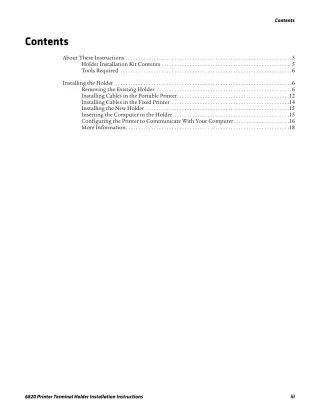
- About These Instructions
- Installing the Holder
From the manual · read page by page
Key facts from this manual
Each line names its page in the PDF.
Installation instructions, P/N 942-007-004, for the terminal holder that docks Intermec mobile computers on the 6820, 6821 and 6822 printers, in fixed or portable form. It lists the holder kits for each computer and walks through removing the old holder, routing the cables, fitting the new holder and configuring the printer.
- What it is
- Terminal holder that connects Intermec computers to the 6820, 6821 or 6822 printer p. 5
- Holder for 700/700C
- 203-645-101; Bluetooth version for fixed printers 203-693-102 p. 5
- Holder for CK61
- 203-739-101; Bluetooth version for fixed printers 203-739-102 p. 5
- Holder for CN3
- 203-842-001; Bluetooth version for fixed printers 203-881-001 p. 5
- Holder for CN3e
- 203-872-001; Bluetooth version for fixed printers 203-882-001 p. 5
- Holder for CN4
- 203-908-001; Bluetooth version for fixed printers 203-910-001 p. 5
- Holder for CN4e
- 203-909-001; Bluetooth version for fixed printers 203-911-001 p. 5
- Flathead screws
- 8-32 x 1.25 in, four: 801-115-000 for portable printer, 800-562-001 for fixed printer p. 5
- CN3/CN4 spacers
- 642-874-001, four, for portable printers only p. 5, 12
- CN3/CN4 adapter
- 642-850-001, for fixed printers only p. 5, 14
- Programming cable
- 6820 programming cable P/N 226-270-001, printer to PC p. 5, 17
- Configuration software
- 6820 Printer Configuration Utility, in the 6820 Tool Kit p. 16
- Bluetooth protocol
- Select the DTR protocol with a Bluetooth holder p. 18
- Tools required
- #1 and #0 Phillips screwdrivers p. 6
What this manual walks you through
- Removing the existing holder from a portable printer p. 6, 7, 8
- Removing the existing holder from a fixed printer p. 9, 10, 11, 12
- Installing the holder cables in a portable printer p. 12, 13
- Installing the holder cables in a fixed printer p. 14
- Fitting the new holder and docking the computer to test it p. 15, 16
- Configuring the printer to communicate with the computer p. 16, 17, 18
Good to know
- Cables that may come with the kit are not needed for the holder and should be discarded. p. 5
- The Bluetooth-enabled holder must be installed by a qualified technician. p. 5
- With a Bluetooth holder, disconnect the holder ribbon cable while configuring, or the utility cannot reach the printer. p. 16
- Disconnect external power and remove the internal battery before removing the holder from a portable printer. p. 6
- Older CK61 holders may have a second ground cable that must also be disconnected. p. 10
Questions this manual answers
Which terminal holder fits a CN3 on a 6822 printer?
Holder 203-842-001, or 203-881-001 for the Bluetooth version, which is for fixed printers only. p. 5
What cable connects a 6820 printer to a PC for configuration?
The 6820 programming cable, P/N 226-270-001, used with the 6820 Printer Configuration Utility. p. 17
How do I know the new holder is connected properly?
Turn on the printer and check the charge indicator on the docked computer, then print a test from an application. p. 16
Can a Bluetooth terminal holder go on a portable 6820 printer?
The kit list marks every Bluetooth holder as for fixed printers only. p. 5
Contents
Chapters and sections
Each line opens the PDF at its page.
The whole text · 3 parts
Read the manual here as text
Its text as extracted from the PDF, unedited, in parts; each page opens the PDF at that page.
The file