Manual · Honeywell
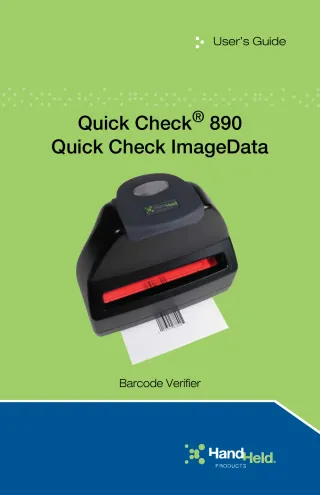
Quick Check 890 Quick Check ImageData Barcode Verifier User's Guide
Manual40 pagesPDF 624 KB
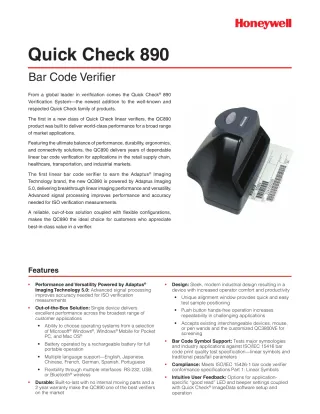
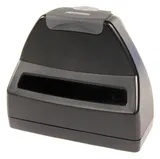
User's guide for the Quick Check 890 (QC890) linear barcode verifier and its Quick Check ImageData software.
Covers · 1 model
The models it covers
Summary
What is in it
The user's guide for the Quick Check 890 Verifier System, a quality control system for checking the readability and standards compliance of printed linear barcodes. It covers the kit contents, verifier features, scan button and LEDs, connections, specifications and battery, installing the Quick Check ImageData software, USB, RS-232 and Bluetooth communication, scanning and calibration with the verifier, a pen/mouse wand or the QC3800VE linear imager, reflectometer mode, maintenance and recertification, and customer support.
Its parts
- Getting Started
- Quick Check ImageData
- Using the Quick Check 890 Verifier System
- Maintenance
- Customer Support
From the manual · read page by page
Key facts from this manual
Each line names its page in the PDF.
User's guide (QC890-UG Rev C, 1/08) from Hand Held Products for the Quick Check 890 (QC890) barcode verifier and its Quick Check ImageData software. It covers the unit's features, connections and specifications, installing the software, connecting by USB, RS-232 or Bluetooth, calibration, and scanning with the built-in optics, pen or mouse wands or the QC3800VE linear imager. It ends with aperture selection and the menu setting barcodes.
- Device
- Barcode verifier system that checks the readability and standards compliance of printed linear barcodes: the QC890 unit plus Quick Check ImageData (QCID) software p. 5
- Host interfaces
- USB, RS-232 and Bluetooth (Serial Port Profile); USB COM port emulation is the default p. 9, 10, 11
- Connectors
- DC power barrel on the back; DB9 port for a pen wand, mouse wand or linear imager; RJ45 ten pin connector for USB or RS-232 to the host p. 7
- RS-232 settings
- 115,200 baud, no parity, 8 data bits, 1 stop bit, no flow control p. 11
- Battery
- Built-in lithium ion rechargeable, factory replaceable only; at least 8 hours on a properly charged battery p. 8
- Power
- External DC power supply, which also charges the battery; the unit also runs when attached to a USB host with power on p. 7, 8
- Apertures
- Unit: Automatic, 3, 5, 6 and 10 mil; wands: 3 (mouse wand only), 5, 6, 10 and 20 (mouse wand only) mil p. 6
- Symbologies
- Codabar, Code 11, Code 16K, Code 39, Code 49, Code 93, Code 128, Interleaved 2 of 5, Micro PDF417, MSI, PDF417, RSS-14, RSS Limited, RSS Expanded, Regular 2 of 5, Straight 2 of 5 IATA, Telepen, UPC/EAN p. 6
- External scanners
- Pen wand, mouse wand, or the QC3800VE linear imager, the only non-contact input device for the unit p. 7, 21
- Dimensions and weight
- 7 in (18 cm) W x 6 in (15 cm) H x 5.4 in (14 cm) D; 1 lb 8 oz (680 grams) p. 8
- Environment
- Operating 0° to 50°C; storage -20° to 70°C; humidity 20% to 95% RH non condensing p. 8
- Software
- Quick Check ImageData for Windows 98 Second Edition, 2000, NT 4.0 or XP, and for Windows CE .NET 4.2 or Pocket PC 2003/2003 SE p. 9
- Kit contents
- Quick Start Guide, CD with QCID software and documentation, DC power supply with cord and country adapters, USB and RS-232 cables, plastic gauge, metal ruler, reference test symbols, reflectance page, Certificate of Conformance p. 5
- Default timers
- Illumination 5 seconds (3, 5 or 15); battery power down 15 minutes (none, 5, 15, 60 or 120) p. 33, 34
What this manual walks you through
- Charging the battery and powering on the verifier p. 8
- Installing the USB driver and connecting by USB or RS-232 p. 10, 11
- Connecting to a PC, laptop or PDA by Bluetooth p. 12, 13, 14
- Scanning and verifying a barcode from the unit or from Quick Check ImageData p. 17, 18
- Calibrating the verifier on the reflectance page p. 18, 19
- Scanning with and calibrating a pen or mouse wand p. 19, 20, 21
- Scanning with the QC3800VE linear imager p. 21
- Choosing the aperture for a barcode's X dimension p. 31
- Cleaning the windows and wand tips, and sending the unit for recertification p. 25
- Restoring factory defaults and setting the illumination and power down timers p. 33, 34
Good to know
- Calibrate before scanning and again whenever you change apertures or external scanning devices; without it the values shown may not be accurate. p. 17
- The battery is factory replaceable only; the unit must be returned to Hand Held Products for a new one. p. 8
- The QC3800VE linear imager reports no reflectance parameters, so it is not calibrated, and it should not be used with other decoders, terminals or verifiers. p. 21
- Reflectometer mode works only with the mouse and pen wands. p. 22
- Replace the reflectance page if it gets dirty or damaged, and calibrate only with the original or certified replacement tools. p. 18
Questions this manual answers
How does the Quick Check 890 connect to a computer?
By USB, RS-232 or Bluetooth. USB COM port emulation is the default interface and needs the Hand Held Products CDC-ACM driver. p. 9, 10
How long does the QC890 battery last?
At least 8 hours on a properly charged battery. Charge it for at least 2 hours before first use. p. 8
What aperture is used for UPC/EAN on the QC890?
A 6 mil aperture is specified for UPC/EAN and RSS; in Automatic mode the unit picks it for EAN/UPC. p. 31
Can the QC890 verify PDF417 barcodes?
Yes, PDF417 and Micro PDF417 are on its list, though disabled by default. Hold the scan button and sweep the aiming line from top to bottom and back. p. 6, 17, 35
What RS-232 settings does the QC890 use?
115,200 baud, no parity, 8 data bits, 1 stop bit and no flow control. p. 11
Contents
Chapters and sections
Each line opens the PDF at its page.
The whole text · 4 parts
Read the manual here as text
Its text as extracted from the PDF, unedited, in parts; each page opens the PDF at that page.
The file