Manual · Code
Code CR1000 and CR1021 Quick Start
Manual2 pagesPDF 544 KB
Both pages are below, each with its text.
Names · 1 model
The models it names
Filed with · 1 model
Also filed with these models on the old site
From the manual · read page by page
Key facts from this manual
Each line names its page in the PDF.
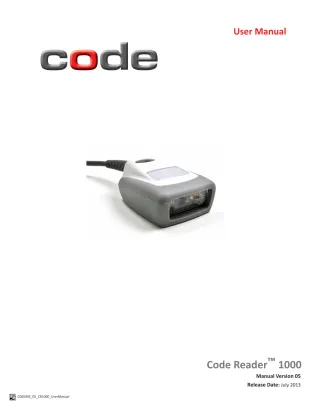
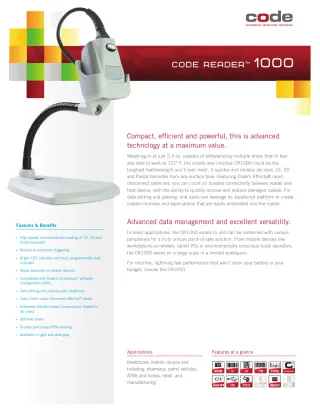
Quickstart guide for the Code Reader 1000 (CR1000) bar code reader. It shows how to power it on by USB or RS232 cable, find the hardware revision, read codes in or out of the Universal Stand, attach and detach the cable, and clean the reader.
- Reading distance
- Optimal about 4.0" (10 cm); two blue bars for targeting p. 1
- Cables
- USB Affinity cable, or RS232 Affinity cable with power supply; RJ-50 plug into the bottom of the reader p. 1, 2
- Default symbologies
- Aztec, Codabar, Code 39, Code 93, Code 128, Data Matrix, Data Matrix Rectangle, All GS1 DataBar, Interleaved 2 of 5, PDF417, QR Code, UPC/EAN/JAN p. 1
- Stand detection
- Hardware revision 4 or higher (MFG # _04 or higher) switches to motion detection in the stand p. 1
- Hardware revision
- Shown by the MFG # suffix on the serial label; _04 means revision 4 p. 1
- Kit contents
- Depending on the kit: USB Affinity cable, RS232 Affinity cable with power supply, Universal Stand p. 2
- Good read signal
- Beep and green LED flash p. 1
- Suffix Enter
- Off by default; one configuration code turns it on p. 1
- Cleaning agents
- Alcohol wipes, Clorox Disinfecting Wipes, 10% bleach solution, Medical DiAirKem, Sani-Cloth wipes, Virex II p. 2
What this manual walks you through
- Powering on with a USB or RS232 cable p. 1
- Finding the hardware revision on the serial label p. 1
- Reading bar codes by hand, out of the stand p. 1
- Reading bar codes in the Universal Stand p. 1
- Turning on Suffix Enter p. 1
- Attaching and detaching the cable p. 2
- Cleaning the reader p. 2
Good to know
- Hardware revisions 1 to 3 have no automatic stand detection; motion detection must be set with the Configuration Guide. p. 1
- Out of the stand the reader is in manual mode and the button must be pressed to read. p. 1
Questions this manual answers
How do I tell which hardware revision my Code CR1000 is?
Look at the MFG # on the serial label: a suffix of _04 means revision 4, which has stand detection. p. 1
How far from the bar code should the CR1000 be?
About 4.0 inches (10 cm), with the blue targeting bars centered on the code. p. 1
How do I remove the cable from a CR1000?
Press a paper clip into the hole on the back of the reader and gently pull the cable out. p. 2
How do I make the CR1000 send Enter after each scan?
Scan the Suffix Enter configuration code in the guide (Suffix Enter for USB, Carriage Return, Line Feed for RS232); it is off by default. p. 1
The file
Size and text
Every page · 2
Read it here
Each page as it is printed, and its words beside it, so a phone can search and copy them.
Page1of 2
Open in the PDF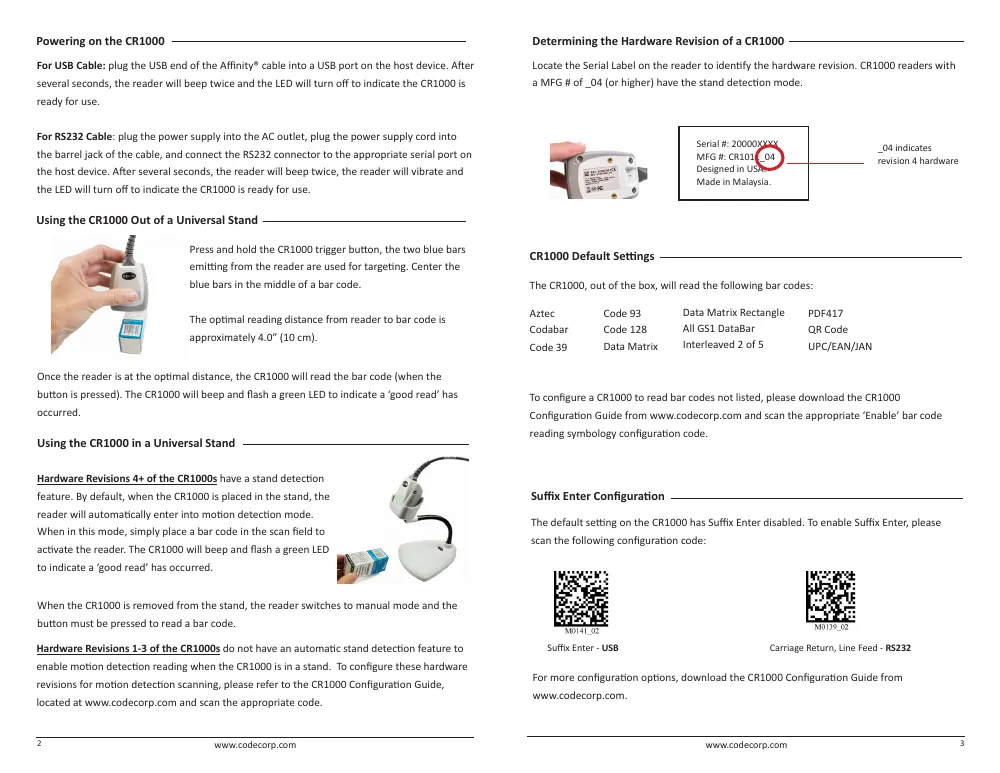
The text of page 1, from the PDF itself
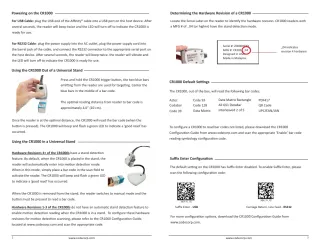
Powering on the CR1000
Determining the Hardware Revision of a CR1000
For USB Cable: plug the USB end of the Affinity® cable into a USB port on the host device. After
Locate the Serial Label on the reader to identify the hardware revision. CR1000 readers with
several seconds, the reader will beep twice and the LED will turn off to indicate the CR1000 is
a MFG # of _04 (or higher) have the stand detection mode.
ready for use. For RS232 Cable: plug the power supply into the AC outlet, plug the power supply cord into
Serial #: 20000XXXX MFG #: CR1011_04 Designed in USA. Made in Malaysia.
the barrel jack of the cable, and connect the RS232 connector to the appropriate serial port on the host device. After several seconds, the reader will beep twice, the reader will vibrate and the LED will turn off to indicate the CR1000 is ready for use.
_04 indicates revision 4 hardware
Using the CR1000 Out of a Universal Stand Press and hold the CR1000 trigger button, the two blue bars emitting from the reader are used for targeting. Center the
CR1000 Default Settings
blue bars in the middle of a bar code.
The CR1000, out of the box, will read the following bar codes:
The optimal reading distance from reader to bar code is
Aztec Codabar
approximately 4.0” (10 cm).
Code 39
Code 93 Code 128 Data Matrix
Data Matrix Rectangle All GS1 DataBar Interleaved 2 of 5
PDF417 QR Code UPC/EAN/JAN
Once the reader is at the optimal distance, the CR1000 will read the bar code (when the button is pressed). The CR1000 will beep and flash a green LED to indicate a ‘good read’ has
To configure a CR1000 to read bar codes not listed, please download the CR1000
occurred.
Configuration Guide from www.codecorp.com and scan the appropriate ‘Enable’ bar code
Using the CR1000 in a Universal Stand
reading symbology configuration code.
Hardware Revisions 4+ of the CR1000s have a stand detection feature. By default, when the CR1000 is placed in the stand, the reader will automatically enter into motion detection mode. When in this mode, simply place a bar code in the scan field to activate the reader. The CR1000 will beep and flash a green LED
Suffix Enter Configuration The default setting on the CR1000 has Suffix Enter disabled. To enable Suffix Enter, please scan the following configuration code:
to indicate a ‘good read’ has occurred. When the CR1000 is removed from the stand, the reader switches to manual mode and the button must be pressed to read a bar code. Hardware Revisions 1-3 of the CR1000s do not have an automatic stand detection feature to enable motion detection reading when the CR1000 is in a stand. To configure these hardware revisions for motion detection scanning, please refer to the CR1000 Configuration Guide, located at www.codecorp.com and scan the appropriate code. 2
www.codecorp.com
Suffix Enter - USB
Carriage Return, Line Feed - RS232
For more configuration options, download the CR1000 Configuration Guide from www.codecorp.com.
www.codecorp.com
3
Page2of 2
Open in the PDF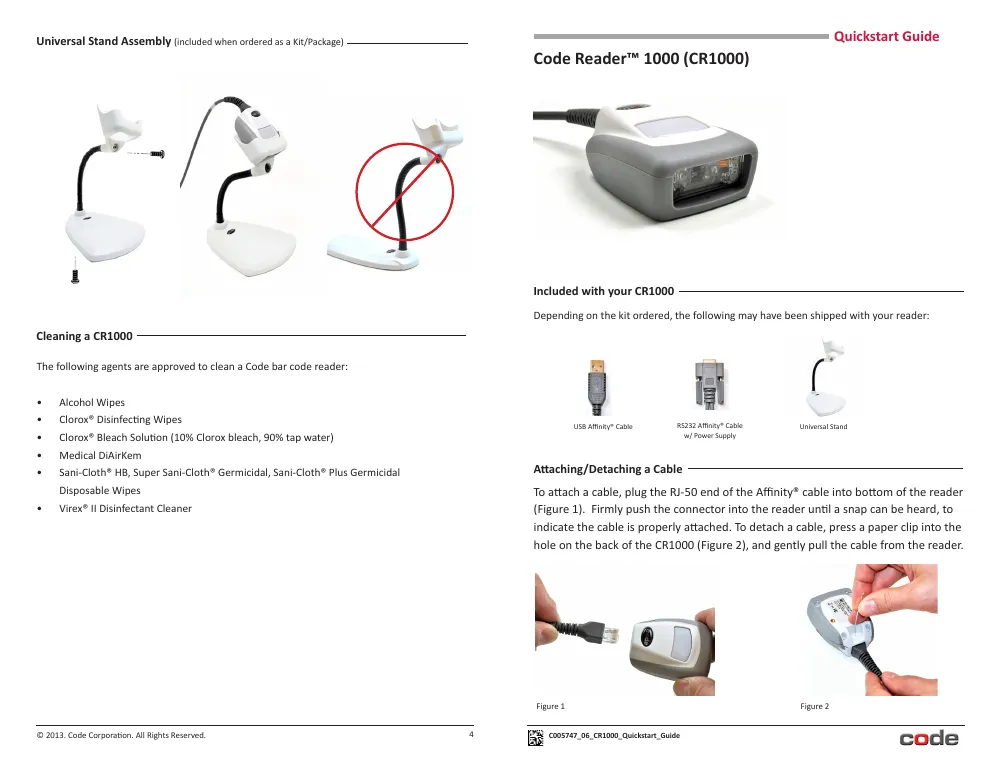
The text of page 2, from the PDF itself
Quickstart Guide
Universal Stand Assembly (included when ordered as a Kit/Package)
Code Reader™ 1000 (CR1000)
Included with your CR1000 Depending on the kit ordered, the following may have been shipped with your reader:
Cleaning a CR1000 The following agents are approved to clean a Code bar code reader:
Alcohol Wipes
Clorox® Disinfecting Wipes
Clorox® Bleach Solution (10% Clorox bleach, 90% tap water)
Medical DiAirKem
Sani-Cloth® HB, Super Sani-Cloth® Germicidal, Sani-Cloth® Plus Germicidal
Attaching/Detaching a Cable
Disposable Wipes
To attach a cable, plug the RJ-50 end of the Affinity® cable into bottom of the reader (Figure 1). Firmly push the connector into the reader until a snap can be heard, to indicate the cable is properly attached. To detach a cable, press a paper clip into the hole on the back of the CR1000 (Figure 2), and gently pull the cable from the reader.
USB Affinity® Cable
Virex® II Disinfectant Cleaner
RS232 Affinity® Cable w/ Power Supply
Figure 1 © 2013. Code Corporation. All Rights Reserved.
4
C005747_06_CR1000_Quickstart_Guide
Universal Stand
Figure 2