Manual · AML
Bar Code and Magnetic Stripe Reader Models 2000/2002 User's Manual
Manual82 pagesPDF 708 KB
User's manual for the Model 2000/2002 keyboard wedge bar code and magnetic stripe reader, with installation and programming menus.
Covers · 1 model
The models it covers
Summary
What is in it
The user's manual for the Model 2000/2002 bar code and magnetic stripe reader, a keyboard wedge that installs between the keyboard and the PC so scanned data arrives as if typed. It covers installation and connecting a wand, laser, CCD scanner, magnetic stripe reader or slot reader, scanning techniques, default settings, a bar code programming guide for symbologies, serial port, preambles and other options, cloning setups, connecting an electronic scale over RS-232, specifications and signal definitions, plus appendixes on bar code and card standards.
Its parts
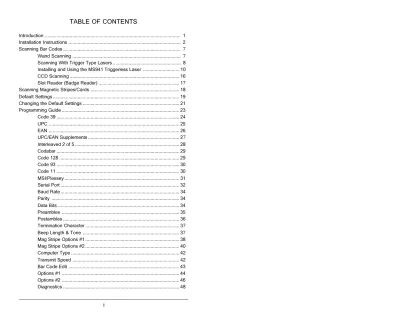
- Introduction
- Installation Instructions
- Scanning Bar Codes
- Default Settings
- Changing the Default Settings
- Programming Guide
- Cloning Setup Information
- RS-232C Serial Port
- Specifications
- Signal Definitions
From the manual
Key facts from this manual
Each line names its page in the PDF.
User's manual for the AML Model 2000/2002 bar code and magnetic stripe reader, a keyboard wedge decoder that takes laser, CCD, wand, slot reader and magnetic stripe reader inputs plus an RS-232 serial input. It covers installation, scanning, changing settings with the reader setup menu, cloning a setup, connecting a scale, specifications and connector pinouts. The M2000 has a 5 pin DIN keyboard interface and the M2002 a 6 pin mini-DIN.
- Device
- Bar code and magnetic stripe reader that installs between keyboard and PC, up to four input devices p. 5
- Input devices
- Lasers (helium-neon, visible laser diode, infrared), CCD scanners, wands, slot readers, magnetic stripe readers (single or dual track), RS-232 input p. 58
- Keyboard interface
- M2000: 5 pin DIN; M2002: 6 pin mini-DIN p. 58
- Power
- From the PC keyboard interface, 0.5 Watts; a 12V laser needs an external 12V supply p. 58
- External power input
- Female barrel 2.5mm x 5.5mm, 9 - 12 VDC center positive, powers the laser interface only p. 60
- Input connectors
- Laser 9 pin D, wand 5 pin DIN, mag stripe 8 pin DIN, RS-232 9 pin D p. 58
- Bar codes
- Code 39, Extended Code 39, Interleaved 2 of 5, UPC-A, UPC-E(0), UPC-E(1), EAN, 2 and 5 character supplements, Codabar, Code 128, Code 93, Code 11, MSI/Plessey p. 58
- RS-232 port
- 150 to 19.2K baud; parity none, odd, even, mark; 7 or 8 data bits; XON/XOFF p. 58
- Laser power jumper
- Internal jumper: 5V from the PC (INTERNAL, factory setting) or 12V from an external supply p. 62
- Environment
- Operating 0 to +50 C, storage -30 to +70 C, humidity 5% to 95% non-condensing p. 58
- Size and weight
- 5 1/8 in. wide, 5 1/4 in. long, 1 1/2 in. high; 14 ounces p. 58
- Indicators
- Beep on a good read; red/green status LED p. 58
- Programming
- By scanning the laminated reader setup menu; preambles and postambles up to 15 characters p. 25, 58
- Clone cables
- PC clone cable (9 pin male to 25 pin female) or reader clone cable (two 9 pin male plugs) p. 53, 55
What this manual walks you through
- Installing the reader between the keyboard and the computer p. 6, 9, 10
- Connecting a wand, laser, CCD, magnetic stripe reader or slot reader p. 7, 8
- Scanning with a wand or trigger laser p. 11, 12
- Reading magnetic stripe cards p. 22
- Changing settings with the reader setup menu and restoring defaults p. 25, 26, 27
- Running the diagnostic self test p. 52
- Cloning a setup from a computer or another reader p. 53, 54, 55
- Connecting an electronic scale to the RS-232 port p. 56, 57
- Setting the laser power jumper for 5V or 12V scanners p. 62
Good to know
- Turn off the computer before connecting the reader. p. 6
- A 12V laser needs an external power supply; a 5V laser does not. p. 7
- The external power supply feeds the laser interface only. p. 60
- Avoid staring into the laser beam. p. 12
- Exit the application program and return to DOS before running the diagnostic test. p. 52
Questions this manual answers
How do I reset the AML M2000 to factory defaults?
Scan the START label, then the RESET ALL DEFAULTS label, then the EXIT (Save Changes) label on the reader setup menu. p. 26
Does the AML M2000 need a power supply?
No, it takes power from the PC keyboard interface. Only a 12V laser needs an external 12V supply, with the internal jumper moved to EXTERNAL. p. 58, 62
How do I connect a scale to the AML M2000?
Connect a serial cable from the scale to the reader's RS-232 port, set the serial port to pass through mode, and match baud rate, parity and data bits to the scale. p. 56
How do I copy settings from one AML reader to another?
Connect both readers as keyboard wedges, join them with a reader clone cable (two 9 pin male plugs), then scan START and CLONE on the source reader. p. 55
What keyboard connector does the M2000 use?
The M2000 has a 5 pin DIN keyboard interface; the M2002 has a 6 pin mini-DIN. p. 58
The whole text · 9 parts
Read the manual here as text
Its text as extracted from the PDF, unedited, in parts; each page opens the PDF at that page.
The file