Manual · AML
Bar Code Reader Models 1000/1002 User's Manual
Manual54 pagesPDF 2.0 MB
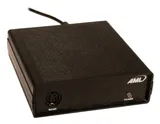
User's manual for the American Microsystems Model 1000/1002 keyboard wedge bar code reader for wands and slot badge readers.
Covers · 1 model
The models it covers
Summary
What is in it
The user's manual for the Model 1000/1002 bar code reader, a keyboard wedge decoder that sits between the keyboard and the PC and takes a wand or slot (badge) reader as input, so scanned data arrives as if typed. It covers installation, wand and slot reader scanning technique, the factory default settings, how to change them by scanning menu bar codes for each symbology and for preamble, postamble, termination, beep and computer type, diagnostics, specifications, signal definitions, and symbology appendices.
Its parts
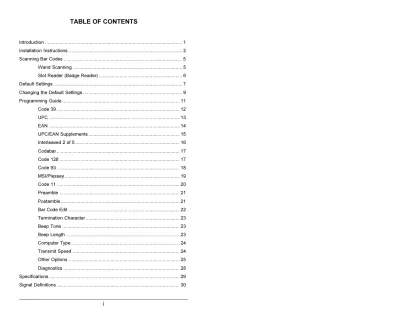
- Introduction
- Installation Instructions
- Scanning Bar Codes
- Default Settings
- Changing the Default Settings
- Programming Guide
- Specifications
- Signal Definitions
From the manual
Key facts from this manual
Each line names its page in the PDF.
The user's manual (Rev 3.2c) for the Model 1000/1002 bar code reader, a keyboard wedge decoder that takes a wand or slot reader and sends bar code data to an IBM PC as if typed. It covers the Models 1000 and 1002, which differ in keyboard connector. It explains installation, scanning, the default settings, programming with the setup menu, diagnostics and the specifications.
- Device
- Keyboard wedge bar code reader fitted between keyboard and PC; data arrives as keyboard input p. 5
- Input devices
- Wands (visible and infrared) and slot readers (badge readers) p. 33
- Connectors
- Wand: 5 pin DIN; keyboard interface: M1000 5 pin DIN, M1002 6 pin mini-DIN p. 33
- Power
- Taken from the PC keyboard interface; no separate supply p. 8, 33
- Bar codes
- Code 39, Extended Code 39 (Full ASCII), Interleaved 2 of 5, UPC-A, UPC-E(0), UPC-E(1), EAN with 2 and 5 character supplements, Code 128, Codabar, Code 93, Code 11, MSI/Plessey p. 33
- Computers
- IBM PC/XT, IBM AT, IBM PS/2 Models 25, 30, 57, 90 and Models 30-286, 50, 55, 60, 70, 80 p. 28
- Keyboard types
- USA (default), French, German, Italian, Universal p. 28
- Indicators
- Beep on a good read; red/green status LED p. 33
- Size and weight
- 5 1/4 x 5 1/8 x 1 1/2 inches (L x W x H); 14 ounces p. 33
- Preamble and postamble
- Up to 15 characters each p. 33
- Termination
- None, horizontal tab, carriage return, CR and line feed, or a user-defined character p. 27
- Transmit speed
- Slow, medium slow, medium fast or fast (default) p. 28
- Diagnostics
- Self-test of EPROM version and checksum, internal and external RAM, character set and buzzer, shown on the PC monitor p. 32
What this manual walks you through
- Installing the reader between the keyboard and the computer p. 6, 7, 8
- Scanning labels with a wand p. 9
- Reading badges with a slot reader p. 10
- The factory default settings for every option p. 11, 12
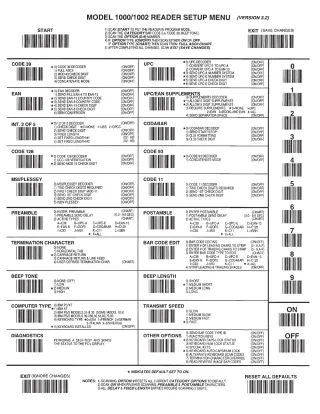
- Changing settings with the READER SETUP MENU and resetting all defaults p. 13, 14, 15
- Choosing the computer type, keyboard type and transmit speed p. 28
- Function keys, special keys and fixing upper and lower case output p. 29, 30, 31
- Running the diagnostic self-test p. 32
- Wand and keyboard connector signal definitions p. 34
Good to know
- Turn off the computer before connecting the reader. p. 6
- On all XT computers, set the keyboard type to UNIVERSAL for correct upper and lower case. p. 28
- The automatic Caps/Num Lock option does not work on some computers, such as XTs. p. 31
- Leave the application and return to DOS before running diagnostics. p. 32
- For the slot reader, the center of the bar code must sit 0.5 in from the bottom edge of the card. p. 10
Questions this manual answers
Does the Model 1000 bar code reader need a power supply?
No. It takes its power from the computer's keyboard interface, like the keyboard. p. 8, 33
What is the difference between the M1000 and M1002?
The keyboard connector: the M1000 uses a 5 pin DIN, the M1002 a 6 pin mini-DIN. p. 33
How do I reset the Model 1000/1002 reader to factory defaults?
Scan START, then RESET ALL DEFAULTS, then EXIT (Save Changes) on the setup menu. p. 14
Why are upper and lower case reversed when I scan?
Auto Caps/Num Lock may not work on that computer. Turn it off, then set the Caps Lock and Num Lock status options to match the keyboard. p. 31
What does the green light on the Model 1000 mean?
After power-up the light goes from red to green, meaning the reader is ready to use. p. 8
The whole text · 6 parts
Read the manual here as text
Its text as extracted from the PDF, unedited, in parts; each page opens the PDF at that page.
The file