Manual · Allen-Bradley
MobileView Tablet T750 User Manual
Manual104 pagesPDF 1.3 MB
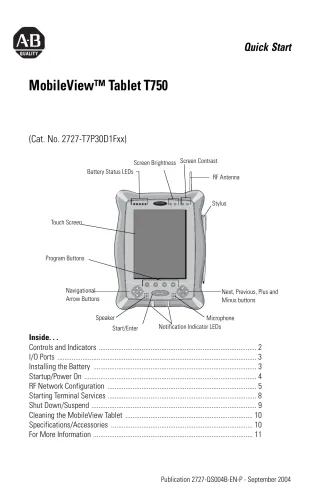
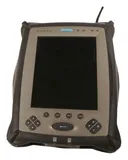
User manual for the Allen-Bradley MobileView Tablet T750 (2727-T7P30D1F), a Windows CE wireless industrial tablet.
Covers · 1 model
The models it covers
Summary
What is in it
The user manual for the Allen-Bradley MobileView Tablet T750 (2727-T7P30D1F), a Windows CE tablet with a 7.7 inch touch screen and 802.11b radio for industrial use. It describes the hardware, controls and I/O ports, a quick start, tablet operation and configuration, power management and batteries, RF network setup with WEP and LEAP security, serial and ISP connections, external monitor, keyboard and barcode reader connections, maintenance and troubleshooting, and specifications and accessories.
Its parts
- Preface
- Hardware Description
- Quick Start
- General Tablet Operation and Configuration
- Power Management
- Communications Configuration
- External Hardware Connections and Configuration
- Maintenance and Troubleshooting
- Specification/Accessories
From the manual
Key facts from this manual
Each line names its page in the PDF.
The Allen-Bradley user manual (publication 2727-UM001D-EN-P, March 2004) for the MobileView Tablet T750 (2727-T7P30D1F), a Windows CE tablet with an 802.11b radio card. It covers the hardware and ports, power management and charging, wireless and PC communications, connecting a monitor, mouse, keyboard or barcode reader, resets and troubleshooting, and the specifications and accessories.
- Processor and OS
- Hitachi SH-4 RISC (SH-7750); Microsoft Windows CE p. 97
- Memory
- 32 MB Flash, 32 MB SDRAM, 32 MB RAM back-up and file storage p. 97
- Display
- Passive LCD, 7.7 inch, 640 x 480, 256 colors; 7.7 inch analog resistive touch screen p. 97
- Wireless
- 802.11b direct sequence, on a PCMIA radio module card p. 14, 97
- Main battery
- Lithium Ion 3300 mAh, 8 hour typical operation; replacement 2727-TRB7 p. 46, 97
- Backup battery
- Internal single cell nickel metal hydride, 450 mAh p. 97
- Power input
- AC adapter 100 to 240 VAC, 0.7A, 50/60 Hz; DC input 15V, 2.0A p. 97
- Serial port
- RS-232, up to 115 Kbps; PC cable 2727-TRC1 p. 16
- USB
- For devices such as a mouse or keyboard; 12 Mbps and 1.5 Mbps p. 16
- Other ports
- Barcode wand, digital gage, infrared (IrDA), foot switch, VGA monitor, external audio p. 15, 16
- Size and weight
- 28 cm x 22 cm x 5 cm (11 in x 8.4 in x 2 in); 1.36 kg (4 lbs) p. 97
- Operating temperature
- +0°C to +45°C (+32°F to +113°F); 95% humidity non-condensing p. 97
- Chargers
- AC adapter/battery charger 2727-TRA7; single charging station with AC adapter and battery 2727-TRSP1; quad charging station 2727-TRS74 p. 97
- Other accessories
- Anti-glare overlay 2727-TRG7 (qty. 10); stylus with tether 2727-RY1 (qty. 5); serial cable 2727-TRC1 p. 98
What this manual walks you through
- Checking the battery level with the LEDs and Power properties p. 46, 47, 48
- Charging with the AC adapter or the single charging station p. 49, 50
- Printing to PCL3 printers p. 87
- Connecting an external VGA monitor p. 87, 88, 89
- Connecting a USB mouse or USB or infrared keyboard p. 89, 90, 91
- Connecting and setting up a barcode reader p. 91, 92
- Cleaning and storing the tablet p. 93, 94
- Soft reset and full reset p. 94, 95
- Troubleshooting power, screen and PC connection problems p. 96
Good to know
- Replace the main battery pack only with the same type, 2727-TRB7, and do not expose batteries to temperatures above +60°C (+140°F). p. 46
- Data is held in RAM; the internal backup battery keeps it for up to two minutes if the main battery is removed or runs out. p. 45
- If the battery pack charges only to 1/2 or less, replace it to avoid unexpected power loss. p. 47
- Keep the AC power adapter away from the IrDA port, as it can interfere with communication. p. 93
- A full reset deletes all data on the tablet and returns parameters to factory defaults. p. 95
Questions this manual answers
How long does the T750 keep data when the main battery is removed?
Up to two minutes, on the internal backup battery. Connect external power or fit a charged battery as soon as possible. p. 45
How do I connect a barcode reader to the MobileView T750?
Plug it into the barcode reader port, open Programs, MobileView, Barcode Reader, set the reader's communication parameters and check Use Barcode Wand. p. 91, 92
What do I do if the T750 screen is locked up?
Do a soft reset by pressing and quickly releasing the Reset button with the stylus; if that does not help, do a full reset. p. 94, 96
How do I check the real capacity of a T750 battery pack?
Remove the battery and press and release the TEST button on the pack; its LEDs show the power level. p. 47
What serial cable connects the T750 to a PC?
Serial cable 2727-TRC1 connects the RS-232 port to a desktop computer, at up to 115 Kbps. p. 16
Contents
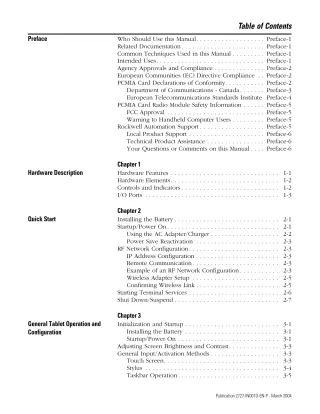
Chapters and sections
Each line opens the PDF at its page.
- 2727-UM001D-EN-P, MobileView Tablet T750, User Manual1
- Preface7
- Chapter 113
- Chapter 217
- Chapter 325
- General Tablet Operation and Configuration25
- Initialization and Startup25
- Adjusting Screen Brightness and Contrast27
- General Input/Activation Methods27
- Changing the Display Orientation34
- Button Configuration35
- Registry Settings39
- Storage Card Operations40
- Adjusting the Volume and Sounds41
- Screen Recalibration41
- Setting the Date and Time42
- Chapter 445
31 more lines, from page 45 on
The whole text · 14 parts
Read the manual here as text
Its text as extracted from the PDF, unedited, in parts; each page opens the PDF at that page.
The file