Manual · Aceeca
Aceeca MEZ1000 Quick Start
Manual2 pagesPDF 509 KB
Both pages are below, each with its text.
Covers · 1 model
The models it covers
From the manual · read page by page
Key facts from this manual
Each line names its page in the PDF.
Aceeca's two-page Quick Start Guide (2004) for the Meazura MEZ1000 handheld. It shows the controls and connectors, then walks through first setup, installing Palm Desktop, connecting by USB or serial, charging, HotSync, screen calibration, resets and contrast.
- Controls
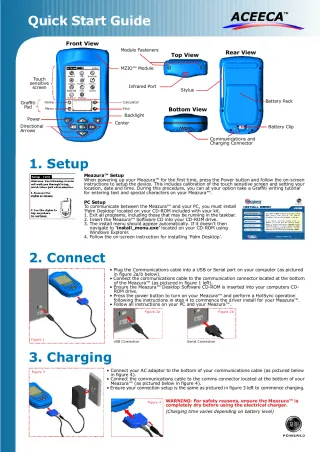
- Touch sensitive screen, Graffiti pad, Home, Calculator, Menu, Find, Backlight, Power, Center and directional arrows p. 1
- Ports and parts
- Infrared port, MZIO module with fasteners, battery pack with battery clip, bottom communications and charging connector, stylus p. 1
- PC connection
- Communications cable to a USB or serial port on the computer p. 1
- Desktop software
- Palm Desktop, from the Meazura Software CD (install_menu.exe) p. 1
- Charging
- AC adaptor plugs into the bottom of the communications cable p. 1
- Soft reset
- Press and release Power and Backlight together; no loss of data p. 2
- Hard reset
- Hold Power and Backlight, release Backlight, release Power at the Palm Powered logo; restores factory settings p. 2
- Contrast
- Hold the Backlight button 1.5 seconds for the contrast slider p. 2
- Operating system
- Palm OS (Palm Powered) p. 2
What this manual walks you through
- First power-up: calibration, location, date and time p. 1
- Installing Palm Desktop on the PC p. 1
- Connecting the Meazura to a PC by USB or serial p. 1
- Charging the battery p. 1
- Running a HotSync operation p. 2
- Calibrating the touch screen with Prefs, Digitizer p. 2
- Soft and hard reset p. 2
- Turning on the backlight and adjusting contrast p. 2
Good to know
- The Meazura must be completely dry before the electrical charger is used. p. 1
- Charging time varies with battery level. p. 1
- A hard reset restores factory settings; a soft reset keeps data. p. 2
Questions this manual answers
How do I reset an Aceeca Meazura MEZ1000?
Soft reset: press and release Power and Backlight together. Hard reset: hold both, release Backlight, then release Power at the Palm Powered logo. p. 2
How do I charge the Meazura MEZ1000?
Plug the AC adaptor into the bottom of the communications cable, then connect the cable to the connector at the bottom of the Meazura. p. 1
What software does the Meazura need on the PC?
Palm Desktop, installed from the Meazura Software CD. p. 1
How do I adjust the screen contrast on the Meazura?
Hold the Backlight button for 1.5 seconds, drag the on-screen slider, then click Done. p. 2
The file
Size and text
Every page · 2
Read it here
Each page as it is printed, and its words beside it, so a phone can search and copy them.
Page1of 2
Open in the PDF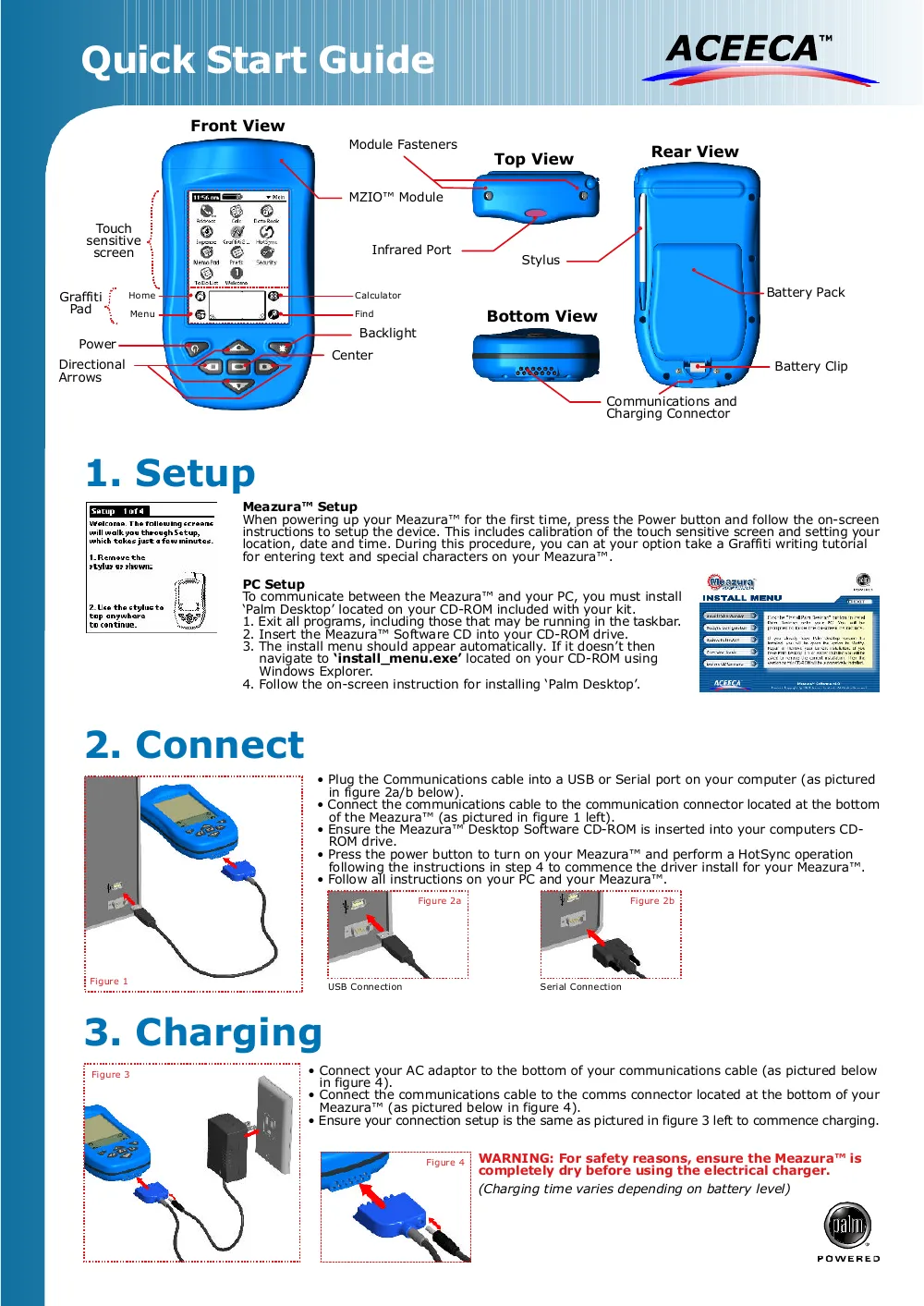
The text of page 1, from the PDF itself
Quick Start Guide Front View Module Fasteners
Rear View
Top View
MZIO™ Module Touch sensitive screen Graffiti Pad
Infrared PortHomeCalculatorMenuFindBattery PackBottom ViewBacklightPowerStylusCenterDirectional Arrows
Battery Clip Communications and Charging Connector
1. Setup Meazura™ Setup When powering up your Meazura™ for the first time, press the Power button and follow the on-screen instructions to setup the device. This includes calibration of the touch sensitive screen and setting your location, date and time. During this procedure, you can at your option take a Graffiti writing tutorial for entering text and special characters on your Meazura™. PC Setup To communicate between the Meazura™ and your PC, you must install ‘Palm Desktop’ located on your CD-ROM included with your kit. 1. Exit all programs, including those that may be running in the taskbar. 2. Insert the Meazura™ Software CD into your CD-ROM drive. 3. The install menu should appear automatically. If it doesn’t then navigate to ‘install_menu.exe’ located on your CD-ROM using Windows Explorer. 4. Follow the on-screen instruction for installing ‘Palm Desktop’.
2. Connect
- Plug the Communications cable into a USB or Serial port on your computer (as pictured in figure 2a/b below).
- Connect the communications cable to the communication connector located at the bottom of the Meazura™ (as pictured in figure 1 left).
- Ensure the Meazura™ Desktop Software CD-ROM is inserted into your computers CDROM drive.
- Press the power button to turn on your Meazura™ and perform a HotSync operation following the instructions in step 4 to commence the driver install for your Meazura™.
- Follow all instructions on your PC and your Meazura™. Figure 2a
Figure 1USB ConnectionFigure 2bSerial Connection3. Charging Figure 3
- Connect your AC adaptor to the bottom of your communications cable (as pictured below in figure 4).
- Connect the communications cable to the comms connector located at the bottom of your Meazura™ (as pictured below in figure 4).
- Ensure your connection setup is the same as pictured in figure 3 left to commence charging. Figure 4
WARNING: For safety reasons, ensure the Meazura™ is completely dry before using the electrical charger. (Charging time varies depending on battery level)
Page2of 2
Open in the PDF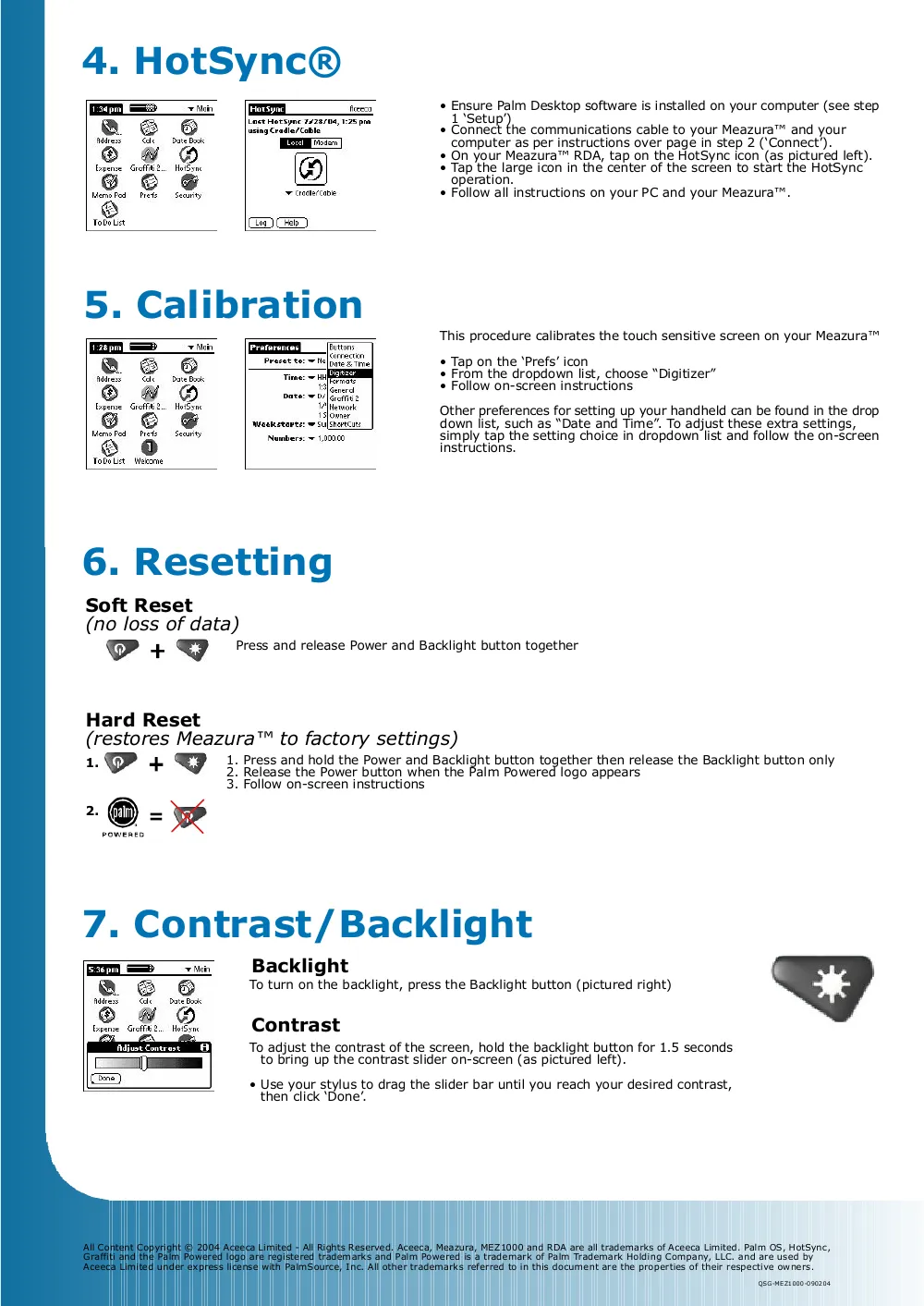
The text of page 2, from the PDF itself
4. HotSync®
- Ensure Palm Desktop software is installed on your computer (see step 1 ‘Setup’)
- Connect the communications cable to your Meazura™ and your computer as per instructions over page in step 2 (‘Connect’).
- On your Meazura™ RDA, tap on the HotSync icon (as pictured left).
- Tap the large icon in the center of the screen to start the HotSync operation.
- Follow all instructions on your PC and your Meazura™.
5. Calibration This procedure calibrates the touch sensitive screen on your Meazura™
- Tap on the ‘Prefs’ icon
- From the dropdown list, choose “Digitizer”
- Follow on-screen instructions Other preferences for setting up your handheld can be found in the drop down list, such as “Date and Time”. To adjust these extra settings, simply tap the setting choice in dropdown list and follow the on-screen instructions.
6. Resetting Soft Reset (no loss of data) Press and release Power and Backlight button together
Hard Reset (restores Meazura™ to factory settings) 1. Press and hold the Power and Backlight button together then release the Backlight button only 2. Release the Power button when the Palm Powered logo appears 3. Follow on-screen instructions
1.2.=
7. Contrast/Backlight Backlight
To turn on the backlight, press the Backlight button (pictured right)
Contrast To adjust the contrast of the screen, hold the backlight button for 1.5 seconds to bring up the contrast slider on-screen (as pictured left).
- Use your stylus to drag the slider bar until you reach your desired contrast, then click ‘Done’.
All Content Copyright © 2004 Aceeca Limited - All Rights Reserved. Aceeca, Meazura, MEZ1000 and RDA are all trademarks of Aceeca Limited. Palm OS, HotSync, Graffiti and the Palm Powered logo are registered tradem arks and Palm Powered is a trademark of Palm Trademark Holding Company, LLC. and are used by Aceeca Limited under express license with PalmSource, Inc. All other trademarks referred to in this document are the properties of their respective owners. QSG -ME Z1 000 -0 902 04