Manual · Zebra
User's Guide for the Zebra S400 and S600 Printers
Manual78 pagesPDF 796 KB
User's guide for the Zebra S400 and S600 Stripe Series thermal label printers: setup, media, ribbon, care and troubleshooting.
Covers · 2 models
The models it covers
Summary
What is in it
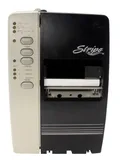
User's guide for the Zebra Stripe Series S400 and S600 thermal label printers. It explains site requirements, the tear-off, peel-off and cutter modes, loading roll or fanfold media and ribbon, adjusting the media sensor, calibration, front panel controls, printing a test label, connecting by RS-232 serial or parallel interface, cleaning, lubrication, fuse replacement and mechanical adjustments. It closes with troubleshooting, self tests, specifications including ZPL II, bar codes and fonts, and connector details.
Its parts
- Introduction
- Getting Ready to Print
- Routine Care and Adjustments
- Troubleshooting
- Specifications
From the manual
Key facts from this manual
Each line names its page in the PDF.
User's guide (1998) for the Zebra S400 and S600 thermal label printers. It explains setting up power and media, the front panel, connecting to a computer by serial or parallel cable, routine care, troubleshooting by the front panel LEDs, and the specifications and connector pinouts.
- Device
- Industrial thermal label printer, direct thermal or thermal transfer p. 9, 10, 24
- Interfaces
- Nine-pin EIA RS-232 serial (DB-9S on the printer) and IEEE 1284 bi-directional parallel (36-pin); Ethernet optional p. 26, 27, 64
- Serial settings
- 110-57,600 baud, XON-XOFF or DTR handshake; factory default 9600 baud, 8 bits, no parity, 1 stop bit, XON/XOFF p. 27, 61
- Power
- Auto range 110 VAC +/-20% or 230 VAC +/-15%, 47-63 Hz; 3 Amps @ 110 VAC, 1.5 Amps @ 230 VAC p. 61
- Resolution
- 203 dots per inch (8 dots per mm) p. 62
- Print modes
- Tear-Off, Peel-Off (backing rewind) and Cutter (with catch tray) p. 10, 11, 63
- Options
- 4 MB or 8 MB flash expansion, Peel-Off with backing-only rewind and Cutter with label catch tray (both factory installed), scalable and bitmap fonts, Ethernet p. 64
- Printer language
- ZPL II; ZPL II Programming Guide is part #46469L p. 9
- Maintenance manual
- S400/S600 Maintenance Manual, part #44895L p. 9
- Fonts
- S600: Zebra fonts A to H, GS and 0; S400: also P to V; CG Triumvirate Bold Condensed scalable font; Flash up to 8 MB for added fonts p. 65
- Bar codes
- Including Code 39, Code 128, Code 93, Interleaved 2 of 5, UPC-A, UPC-E, EAN 8, EAN 13, POSTNET, PDF 417, MicroPDF417, Data Matrix, MaxiCode, QRcode p. 65
- AC plugs
- Cable ends in a US 110 VAC, or a Great Britain, European or Australian 230 VAC three-prong plug p. 13
- Self test
- Power ON Self Test at switch-on, taking up to 30 seconds p. 26
What this manual walks you through
- Identifying the printer's mode: Tear-Off, Peel-Off or Cutter p. 10, 11
- Connecting the AC power cable p. 13
- Auto calibration and the front panel buttons p. 24, 25
- Connecting the printer to a computer by serial or parallel cable p. 26, 27
- Setting serial communications, resetting them to defaults, and autobaud p. 27, 28
- Troubleshooting by symptom and front panel LEDs p. 45, 46, 47, 48, 49, 50
- What the status sensors monitor p. 51
- RS-232 and parallel connector pinouts, null modem and straight cables p. 67, 68, 69
Good to know
- Do not place padding or cushioning under the printer; it restricts air flow. p. 10
- Always use a three-prong plug with an earth ground connection. p. 13
- FCC Class B compliance is with fully shielded six-foot data cables; longer or unshielded cables may exceed it. p. 26
- Autobaud only works at 9600 baud and higher. p. 28
- Turn the AC power switch off before connecting or disconnecting any cables. p. 26
Questions this manual answers
What are the default serial settings of the Zebra S600?
9600 baud, 8 bit word length, no parity, 1 stop bit and XON/XOFF. p. 27
What cable connects an S400 or S600 to a PC serial port?
The printer is DTE, so a PC serial port needs an RS-232 null modem (crossover) cable; a modem needs a straight-through cable. p. 67
What does a flashing PAPER/RIBBON LED mean on the S600?
The ribbon has run out, or, with the Peel-Off option, the backing rewind spindle is full. p. 51
What programming language does the Zebra S400 use?
ZPL II, described in the ZPL II Programming Guide, part #46469L; label preparation software can be used instead. p. 9
Contents
Chapters and sections
Each line opens the PDF at its page.
The whole text · 13 parts
Read the manual here as text
Its text as extracted from the PDF, unedited, in parts; each page opens the PDF at that page.
- Declaration of Conformity1-4
- Contents5-8
- Introduction9-12
- Getting Ready to Print, pages 13 to 2013-20
- Getting Ready to Print, pages 21 to 2821-28
- Routine Care and Adjustments, pages 29 to 3629-36
- Routine Care and Adjustments, pages 37 to 4437-44
- Troubleshooting, pages 45 to 5245-52
- Troubleshooting, pages 53 to 6053-60
- Specifications61-66
- Appendix67-70
- Glossary71-74
- Index75-78
The file