Manual · Zebra
Barcode Anything CCD and Wedge Wand User's Guide
Manual60 pagesPDF 620 KB
User's guide for the Zebra Barcode Anything CCD scanner (CF-2KBW) and wedge wand (CF-6W): installation, operation and configuration codes.
What this file really is
The old site listed this file as a manual for the Zebra Barcode Anything Wand, CF-1 and CF-2KBW. Filed as a CF-1 manual, this guide names only the CF-2KBW CCD reader and the CF-6W wedge wand; the CF-1 is not mentioned.
Names · 1 model
The models it names
Filed with · 2 models
Also filed with these models on the old site
Summary
What is in it
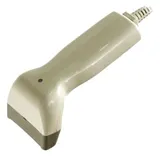
Zebra's user's guide for the Barcode Anything CCD reader (model CF-2KBW) and wedge wand (model CF-6W), keyboard wedge bar code readers for IBM PC AT and PS/2 computers. It introduces both readers and their technical data, explains how to scan with each, covers installing the keyboard wedge scanner and cable, and gives configuration bar codes for keyboard wedge settings, symbologies, prefix, suffix and buzzer. Appendices cover troubleshooting, factory service and hex tables.
Its parts
- Introduction
- Installation
- Configuration
From the manual · read page by page
Key facts from this manual
Some pages are scans or cannot be read; this says only what the readable text supports. Each line names its page in the PDF.
A user's guide for the Zebra Barcode Anything CCD reader (model CF-2KBW) and wedge wand (model CF-6W), two bar code readers that connect through the keyboard port of PC AT and PS/2 computers. It explains installation, scanning, setup by scanning programming bar codes, and troubleshooting. The guide does not name the CF-1.
- Device
- CCD: hand-held bar code scanner with built-in decoder that plugs into the keyboard interface p. 7, 17
- Interface
- CCD: TTL, keyboard wedge; wedge wand: keyboard wedge p. 10
- Host computers
- PC AT, PS/2 p. 10
- Converter cables
- PC/AT: 43993; PS/2: 43994 p. 17
- Kit part numbers
- Keyboard wedge scanner 43995; keyboard wedge cable 43996 p. 5
- CCD sensor
- CCD: 2160 pixels, 33 scans/sec, red LED array 660 nm p. 10
- Bar code width
- CCD: up to 80 mm p. 10
- Bar resolution
- 0.100 mm p. 10
- Wand light source
- Wedge wand: 655 nm visible LED emitter p. 8
- Symbologies
- Code 11, Code 32, Code 39, Code 93, Code 128, Codabar, UPC-A, UPC-E, EAN-8, EAN-13, MSI/Plessey, CIP 39, Telepen, China Postal Code, Interleaved, Industrial and Matrix 2 of 5 p. 10
- Settings memory
- Programmed settings kept in EEPROM p. 22
- Prefix and suffix
- Up to 10 characters each p. 46, 47
- End character
- None, CR (default), LF, CR/LF, Space, Tab, Esc or Ctrl-C p. 45
What this manual walks you through
- Installing the CCD scanner between the keyboard and the computer p. 17, 18
- Connecting the wedge wand with the keyboard wedge cable p. 19
- Keyboard wedge connector pin assignments for PC/AT and PS/2 p. 20
- Scanning with the CCD and with the wedge wand p. 11, 12
- Slowing the keyboard speed when data goes missing p. 13
- Restoring defaults and showing the configuration and version p. 23
- Setting the CCD trigger and LED modes p. 25, 26
- Turning bar code formats on or off p. 27, 28
- Adding a prefix or suffix to scanned data p. 46, 47
- Troubleshooting LEDs that do not light and random characters p. 49, 50
Good to know
- The CCD does not read a bar code wider than its read window. p. 11
- Turn off the computer before installing the scanner or wand. p. 17, 19
- Where a setup sequence ends with an End bar code, it must be scanned to finish. p. 11
- The readers only read bar codes and type them in; they keep no inventory data. p. 9
- Clean the read window only with a soft cloth or swab moistened with water, nothing abrasive. p. 15
Questions this manual answers
Which cable connects the Barcode Anything CCD to a PS/2 computer?
The PS/2 converter cable, part number 43994; the PC/AT cable is 43993. p. 17
Why does the CCD scanner drop characters or lock up?
It may send data faster than the computer accepts (keyboard buffer overrun); choose a slower keyboard speed setting. p. 13
How do I reset the CCD or wedge wand to factory settings?
Scan the Begin bar code and then Default in the Set Default Configuration section. p. 23
The CCD light is on but it will not read. What do I do?
Scan the Start up code bar code, which should reactivate the CCD. p. 23
How close must the CCD be to the bar code?
Touch the label with the read window or read within 0 to 1.5 cm of it. p. 11
The whole text · 6 parts
Read the manual here as text
Its text as extracted from the PDF, unedited, in parts; each page opens the PDF at that page.
The file