Manual · VeriFone
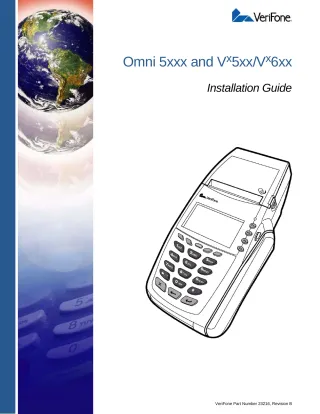
Omni 5xxx and Vx5xx/Vx6xx Installation Guide
Manual50 pagesPDF 1.5 MB
Installation guide for VeriFone Omni 5xxx and Vx5xx/Vx6xx payment terminals: setup, connections, specifications and troubleshooting.
Filed with · 1 model
Also filed with these models on the old site
Summary
What is in it
VeriFone's installation guide for the Omni 5xxx and Vx5xx/Vx6xx series of countertop and wireless payment terminals, including the Vx 510 (Omni 5150) and Vx 610 (Omni 5600). It covers terminal features, choosing a location, unpacking, telephone line connections, installing the paper roll and MSAM cards, optional devices and printers, the power pack and smart battery, SIM card and antenna for GSM/GPRS models, card transactions, specifications, cleaning, service and troubleshooting.
Its parts
- Preface
- Terminal Overview
- Terminal Setup
- Specifications
- Maintenance
- VeriFone Service and Support
- Troubleshooting Guidelines
From the manual
Key facts from this manual
Each line names its page in the PDF.
A 2005 VeriFone installation guide (part number 23216, Revision B) for the Omni 5xxx and Vx5xx/Vx6xx payment terminals: the Vx510 countertop terminal (also called Omni 5150) and the Vx610 portable wireless terminal (also called Omni 5600). The Omni 5100 appears only in document titles and as a label example, so the facts below are for the Vx5xx/Vx6xx series. It covers setup, connecting PINpads, check readers and printers, power, specifications, accessories, service returns and troubleshooting.
- Device
- Payment terminals: Vx5xx countertop, Vx6xx portable wireless; magnetic stripe reader, smart card reader, integrated PINpad, internal thermal printer p. 9, 10
- Power
- Terminal 9 V DC, 4.0 A; Class 2 power pack, input 100 - 240V AC 50/60 Hz, output 8.6 - 9.4V DC 4.0 A p. 35
- Power pack parts
- CPS10936-3A DC power pack (universal); 21973-01 AC power cord (US) p. 40
- Display
- Backlit LCD, 8 lines x 21 characters, split-screen capable p. 10
- Keypad
- 12-key telephone-style keypad; four ATM-style keys F1 to F4; four programmable function keys; CANCEL, BACKSPACE/CLEAR and ENTER keys; ALPHA key p. 13, 14
- Memory
- 3, 4, or 6 MB; Verix V OS; room for two or three typical-sized applications p. 10
- Wireless
- Vx6xx: GSM/GPRS, CDMA and Wi-Fi; some Vx6xx models use an external antenna p. 10, 11
- Battery
- Vx6xx: Li-ion smart battery; the first full charge takes 6 hours on the power pack p. 2, 44
- Vx5xx ports
- Vx5xx: two ports for up to two optional devices, a PINpad serial port and an RS-232 port p. 21, 22
- Vx6xx port
- Vx6xx: one side port, a PINpad port on external power and an RS-232 port on battery power p. 23, 24
- Peripherals
- PINpad 101, PINpad 201, PINpad 1000; CR 600 and CR 1000i check readers; P250, P350, P900, P950 external printers p. 21, 22, 24
- Environment
- Operating 0° to 40° C (32° to 104° F); storage -30° to + 60° C (-22° to 140° F); humidity 5% to 90%, no condensation p. 35
- Size and weight
- 209.2 mm (8.2 in) long (214.2 mm (8.4 in) for Vx6xx with external antenna), 101.8 mm (4.0 in) wide, 72 mm (2.8 in) deep; 0.48kg (1.06 lb) p. 35, 36
- Accessories
- 02746-01 Cleaning Kit; 00124-17 telephone line cord, 2.1-meter (7-foot), RJ11-type connectors; 23050-01 Swivel Stand p. 41
What this manual walks you through
- Choosing a location for the terminal p. 11
- Unpacking and inspecting the terminal for tampering or damage p. 12, 13
- Connecting the terminal to a dedicated telephone line p. 16
- Connecting a PINpad or smart card reader p. 21, 22, 23
- Connecting a CR 600 or CR 1000i check reader p. 22, 24
- Connecting the power pack p. 25
- Swiping a magnetic card and inserting a smart card the right way p. 14
- Returning a terminal or smart battery for service with an MRA number p. 39, 40
- Troubleshooting a terminal that will not start, dial out or print p. 43, 44
- Clearing a printer paper jam p. 45
Good to know
- The terminal is for indoor use only; it is not waterproof or dustproof. p. 11
- RS-232 devices do not work on the PINpad port, and PINpad devices do not work on the RS-232 port. p. 21
- Check readers need their own power source; unplug the terminal power cord before connecting one. p. 22
- Use only No. 26AWG or larger telephone line cord, to reduce the risk of fire. p. 16
- Vx6xx: if the terminal will sit unused for several days, remove the battery, since it keeps discharging when the terminal is off. p. 44
Questions this manual answers
What power supply does a Vx5xx/Vx6xx (Omni 5xxx) terminal need?
9 V DC at 4.0 A, from a Class 2 power pack rated 100 - 240V AC in and 8.6 - 9.4V DC 4.0 A out. p. 35
Which check readers work with the Vx5xx/Vx6xx terminals?
The CR 600 and CR 1000i. They connect to the RS-232 port and need their own power source. p. 22, 24
What paper does the Vx5xx/Vx6xx printer take?
High-grade thermal paper rolls, 57 mm (2.24-inch) wide and 25 meters (82 feet) long. p. 40
Why will a Vx6xx smart battery not power the terminal after it ran flat?
After the battery reaches its critically low state it must recharge at least 1/2 hour before it can power the terminal, and it may take several recharge attempts. p. 44
Which external printers can connect to a Vx5xx/Vx6xx terminal?
The VeriFone P250, P350, P900 and P950, through the RS-232 port, each with its own power supply. p. 24
Contents
Chapters and sections
Each line opens the PDF at its page.
The whole text · 5 parts
Read the manual here as text
Its text as extracted from the PDF, unedited, in parts; each page opens the PDF at that page.
The file