Manual · Unitech
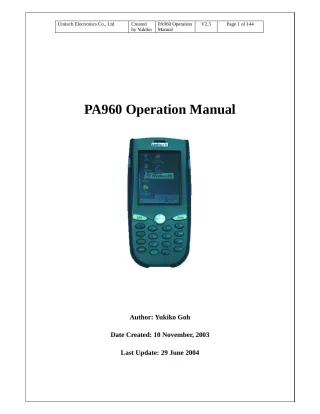
PA960 Operation Manual
Manual144 pagesPDF 10 MB
Operation manual for the Unitech PA960 portable terminal running WinCE 3.0: built-in tools, Control Panel, function keys and wireless setup.
Covers · 1 model
The models it covers
Summary
What is in it
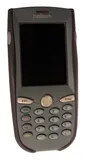
The operation manual for the Unitech PA960 portable data terminal under WinCE 3.0, based on firmware V2.01.08. It walks through the Unitech applications built into the firmware (Bootmode, Chatter, DeviceInfo, Flash Manager, Scan2Key, Scanner Settings and more), tools under the Windows folder, each Control Panel setting, the Func key combinations, remote networking, and setting up RF cards (Cisco Aironet, Lucent Orinoco, Symbol), GPRS cards and Bluetooth.
Its parts
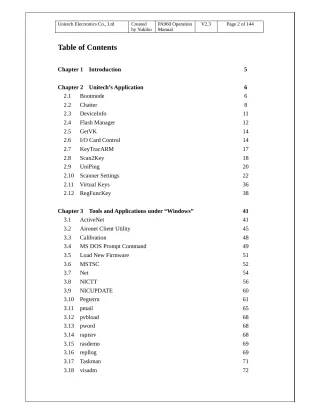
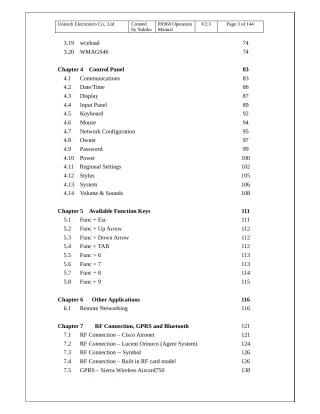
- Introduction
- Unitech's Application
- Tools and Applications under "Windows"
- Control Panel
- Available Function Keys
- Other Applications
- RF Connection, GPRS and Bluetooth
From the manual
Key facts from this manual
Each line names its page in the PDF.
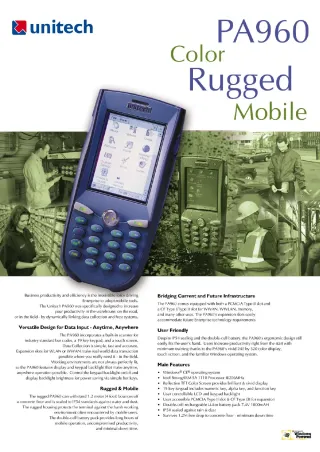
Operation manual (V2.3) for the Unitech PA960 handheld terminal running Windows CE 3.0. It explains the built-in Unitech utilities, scanner settings, Control Panel settings and function keys, and how to set up wireless LAN and GPRS cards.
- System
- Windows CE 3.0; manual based on firmware version V2.01.08 p. 5
- Built-in utilities
- Bootmode, Chatter, DeviceInfo, Flash Manager, GetVK, I/O Card Control, KeyTracARM, Scan2Key, UniPing, Scanner Setting, Virtual Keys, RegFuncKey p. 6
- Expansion slots
- PCMCIA slot and compact slot, each can be turned off in I/O Card Control p. 14
- PC connection
- RS232 cable (Desktop@57600 or Desktop@38400), USB cable, or infrared p. 85
- Wireless LAN
- Cisco Aironet, Lucent Orinoco (Agere) or Symbol cards; another PA960 model has a built-in wireless LAN CF card p. 121, 124, 126
- GPRS cards
- Sierra Wireless AirCard750 or Option Globe Trotter p. 121, 127
- Function keys
- Defaults: Func 6 Task Manager, Func 7 Scanner Setting, Func 8 Power Management, Func 9 Device Info; redefinable with RegFuncKey p. 38
- Backlight keys
- Func + Up Arrow toggles screen backlight; Func + Down Arrow or Func + TAB toggles keypad backlight p. 112
- Magstripe model
- Magnetic reading options apply only to the PA960-MSR model p. 29
- Scan decoder
- Hamster decoder; settings can be saved to a *.USI file p. 33, 35
- Batteries
- Main battery and backup battery; the Power panel shows the status and voltage of each p. 101
- Flash storage
- Flash Manager, based on Intel Persistent Store Manager (IPSM), saves the registry and formats the Flash Storage folder p. 12, 13
- Cisco utility
- Ships with Aironet Client Utility version 1.70 p. 121
What this manual walks you through
- Warm boot, cold boot and updating the OS from a CF card p. 6, 7, 8
- Scanning automatically and sending data to a host with Chatter p. 8, 9, 10
- Typing scan data into any program with Scan2Key p. 18, 19
- Scanner Settings: symbologies, code IDs, data editing, scan test, saving and loading settings p. 22, 23, 24, 25, 30, 31, 34, 35
- Redefining the Func 6 to Func 9 keys p. 38, 39
- Synchronizing files with a PC over wireless LAN using ActiveNet p. 41, 42, 43, 44
- Setting up a Cisco Aironet wireless LAN card (SSID, WEP, power mode) p. 45, 46, 47, 121, 122, 123, 124
- Calibrating the touch screen p. 48
- Choosing the PC connection type (RS232, USB or infrared) p. 83, 84, 85
- Setting backlight and power-off timers to save battery p. 89, 100, 101
Good to know
- Aironet Client Utility 1.70 works only with Cisco cards on firmware V4.XX.XX; cards on V5.XX or later need a downgrade or utility version 2.3 or later. p. 121
- Back up important data before a cold start. p. 7
- Updating the OS restores the registry to its defaults. p. 8
- A card in a disabled slot does not work until the slot is enabled again. p. 14
- Scanner Settings changes take effect only after tapping Apply. p. 22
Questions this manual answers
How do I cold start the Unitech PA960?
In Bootmode, press and hold the Å key, then tap Warm Boot. Back up important data first. p. 7
How do I get scanned bar codes into Pocket Word or other programs on the PA960?
Run Scan2Key; it routes scanner input to the keypad buffer so any program receives it as typed text. p. 18
How do I reset the PA960 scanner settings to factory default?
In Scanner Settings, tap Menu on the Settings tab, select Set To Factory Default and tap Yes. p. 34, 35
What do the Func + 6 to Func + 9 keys do on the PA960?
By default they open Task Manager, Scanner Setting, Power Management and Device Info; RegFuncKey can assign other programs. p. 38
The whole text · 15 parts
Read the manual here as text
Its text as extracted from the PDF, unedited, in parts; each page opens the PDF at that page.
- Pages 1 to 101-10
- Pages 11 to 2011-20
- Pages 21 to 3021-30
- Pages 31 to 4031-40
- Pages 41 to 5041-50
- Pages 51 to 6051-60
- Pages 61 to 7061-70
- Pages 71 to 8071-80
- Pages 81 to 9081-90
- Pages 91 to 10091-100
- Pages 101 to 110101-110
- Pages 111 to 120111-120
- Pages 121 to 130121-130
- Pages 131 to 140131-140
- Pages 141 to 144141-144
The file