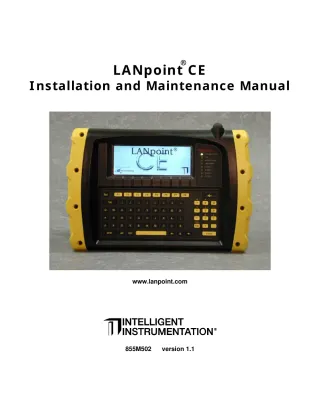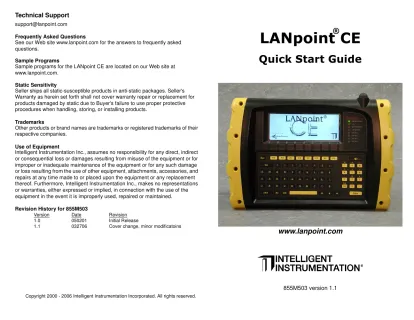
Manual · Texas Instruments
Texas Instruments LANpoint CE Quick Start
Manual2 pagesPDF 616 KB
Both pages are below, each with its text.
Covers · 1 model
The models it covers
From the manual · read page by page
Key facts from this manual
Each line names its page in the PDF.
The LANpoint CE Quick Start Guide (855M503 version 1.1) from Intelligent Instrumentation, a two-page sheet for the LANpoint CE terminal. It covers unpacking, testing the terminal at power-up before installation, and moving through Windows CE with the built-in keyboard.
- Operating system
- Windows CE p. 2
- Power input
- Power adapter cable to power input connector P1 on the back of the terminal p. 2
- Power light
- External Power light to the right of the display p. 2
- Settings storage
- Dialog changes go to the Windows Registry, which RegScan flushes to CompactFLASH p. 2
- Start menu key
- Ctrl+Esc opens the Windows CE Start menu; Alt+Tab opens the Task manager p. 2
- Related manuals
- LANpoint Installation and Maintenance Manual and LANpoint CE Developer's Manual p. 2
What this manual walks you through
- Unpacking and checking the parts against the packing slip p. 2
- Testing the terminal at power-up before installation p. 2
- Navigating menus and dialogs with the built-in keyboard p. 2
Good to know
- Use a power adapter that meets the power requirements given in the Installation and Maintenance Manual. p. 2
- Mounting, cabling and powering instructions are in the Installation and Maintenance Manual, not this guide. p. 2
Questions this manual answers
How do I test a LANpoint CE terminal before installing it?
Connect a suitable power adapter to connector P1 and an outlet; the External Power light should come on and the splash screen should advance to the Windows CE screen. p. 2
How do I open the Start menu on the LANpoint CE keyboard?
Press Ctrl+Esc. p. 2
How does the LANpoint CE save settings changes?
Pressing Enter sends dialog changes to the Windows Registry, which RegScan flushes to CompactFLASH. p. 2
The file
Size and text
Every page · 2
Read it here
Each page as it is printed, and its words beside it, so a phone can search and copy them.
Page1of 2
Open in the PDF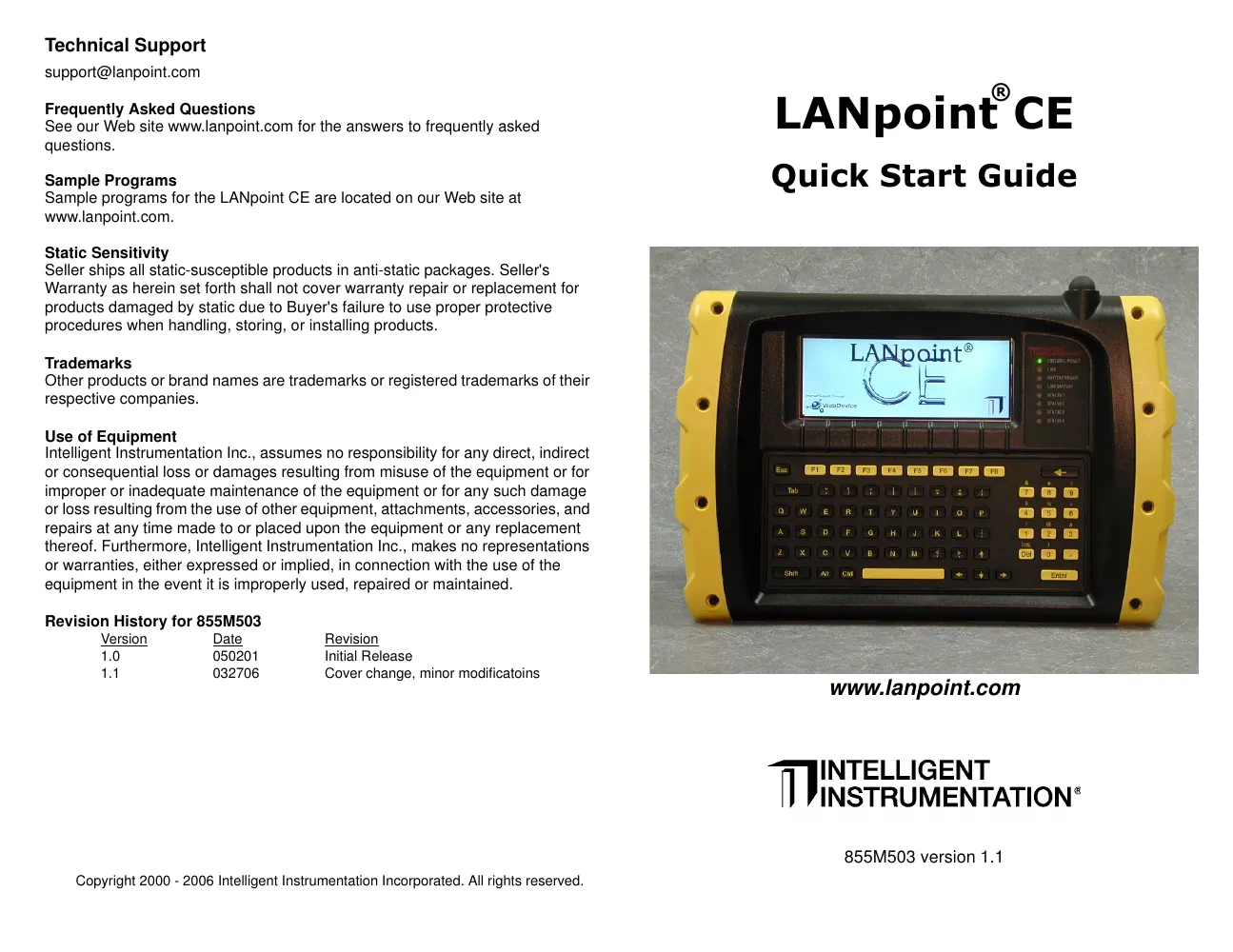
The text of page 1, from the PDF itself
Technical Support support@lanpoint.com Frequently Asked Questions See our Web site www.lanpoint.com for the answers to frequently asked questions. Sample Programs Sample programs for the LANpoint CE are located on our Web site at www.lanpoint.com.
LANpoint CE ®
Quick Start Guide
Static Sensitivity Seller ships all static-susceptible products in anti-static packages. Seller's Warranty as herein set forth shall not cover warranty repair or replacement for products damaged by static due to Buyer's failure to use proper protective procedures when handling, storing, or installing products. Trademarks Other products or brand names are trademarks or registered trademarks of their respective companies. Use of Equipment Intelligent Instrumentation Inc., assumes no responsibility for any direct, indirect or consequential loss or damages resulting from misuse of the equipment or for improper or inadequate maintenance of the equipment or for any such damage or loss resulting from the use of other equipment, attachments, accessories, and repairs at any time made to or placed upon the equipment or any replacement thereof. Furthermore, Intelligent Instrumentation Inc., makes no representations or warranties, either expressed or implied, in connection with the use of the equipment in the event it is improperly used, repaired or maintained. Revision History for 855M503 Version 1.0 1.1
Date 050201 032706
Revision Initial Release Cover change, minor modificatoins
www.lanpoint.com
855M503 version 1.1 Copyright 2000 - 2006 Intelligent Instrumentation Incorporated. All rights reserved.
Page2of 2
Open in the PDF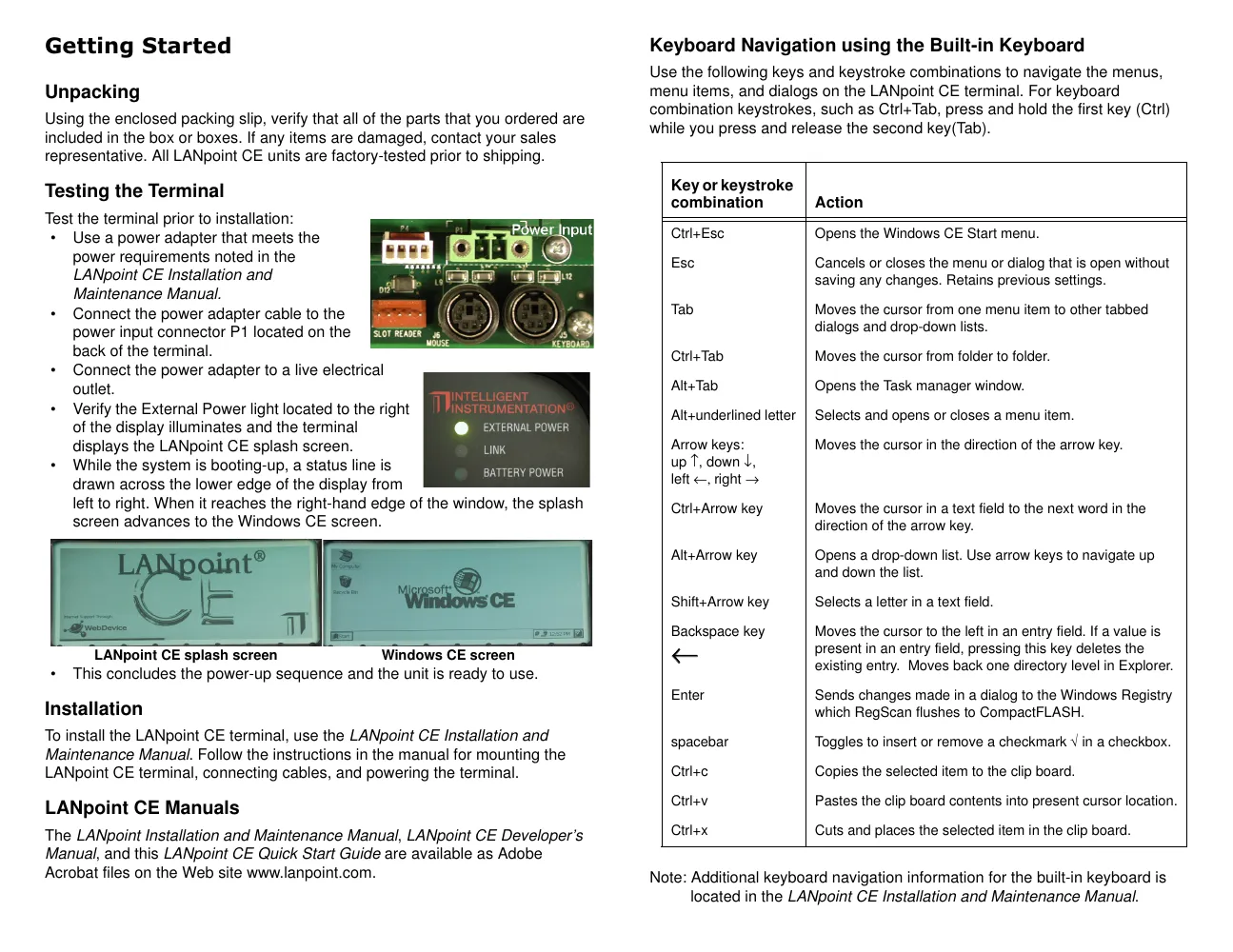
The text of page 2, from the PDF itself
Keyboard Navigation using the Built-in Keyboard
Unpacking Using the enclosed packing slip, verify that all of the parts that you ordered are included in the box or boxes. If any items are damaged, contact your sales representative. All LANpoint CE units are factory-tested prior to shipping.
Use the following keys and keystroke combinations to navigate the menus, menu items, and dialogs on the LANpoint CE terminal. For keyboard combination keystrokes, such as Ctrl+Tab, press and hold the first key (Ctrl) while you press and release the second key(Tab).
Key or keystroke combination
Action
Ctrl+Esc
Opens the Windows CE Start menu.
Esc
Cancels or closes the menu or dialog that is open without saving any changes. Retains previous settings.
Tab
Moves the cursor from one menu item to other tabbed dialogs and drop-down lists.
Ctrl+Tab
Moves the cursor from folder to folder.
Alt+Tab
Opens the Task manager window.
Alt+underlined letter
Selects and opens or closes a menu item.
Arrow keys: up ↑, down ↓, left ←, right →
Moves the cursor in the direction of the arrow key.
Ctrl+Arrow key
Moves the cursor in a text field to the next word in the direction of the arrow key.
Alt+Arrow key
Opens a drop-down list. Use arrow keys to navigate up and down the list.
Shift+Arrow key
Selects a letter in a text field.
Backspace key
Moves the cursor to the left in an entry field. If a value is present in an entry field, pressing this key deletes the existing entry. Moves back one directory level in Explorer.
Enter
Sends changes made in a dialog to the Windows Registry which RegScan flushes to CompactFLASH.
To install the LANpoint CE terminal, use the LANpoint CE Installation and Maintenance Manual. Follow the instructions in the manual for mounting the LANpoint CE terminal, connecting cables, and powering the terminal.
spacebar
Toggles to insert or remove a checkmark a checkbox.
Ctrl+c
Copies the selected item to the clip board.
LANpoint CE Manuals
Ctrl+v
Pastes the clip board contents into present cursor location.
The LANpoint Installation and Maintenance Manual, LANpoint CE Developer’s Manual, and this LANpoint CE Quick Start Guide are available as Adobe Acrobat files on the Web site www.lanpoint.com.
Ctrl+x
Cuts and places the selected item in the clip board.
Testing the Terminal Test the terminal prior to installation:
- Use a power adapter that meets the power requirements noted in the LANpoint CE Installation and Maintenance Manual.
- Connect the power adapter cable to the power input connector P1 located on the back of the terminal.
- Connect the power adapter to a live electrical outlet.
- Verify the External Power light located to the right of the display illuminates and the terminal displays the LANpoint CE splash screen.
- While the system is booting-up, a status line is drawn across the lower edge of the display from left to right. When it reaches the right-hand edge of the window, the splash screen advances to the Windows CE screen.
LANpoint CE splash screen
Windows CE screen
←
This concludes the power-up sequence and the unit is ready to use.
Installation
Note: Additional keyboard navigation information for the built-in keyboard is located in the LANpoint CE Installation and Maintenance Manual.