Manual · Symbol
VRC 8900 Radio Terminal Quick Reference
Manual24 pagesPDF 861 KB
Quick reference guide for the Symbol VRC 8900 vehicle-mount radio terminal: power, touch screen, resets, keys and keyboard.
Filed with · 1 model
Also filed with these models on the old site
Summary
What is in it
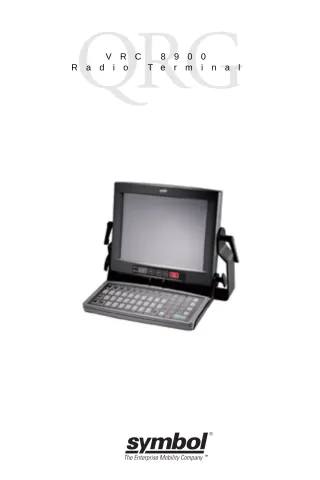
Symbol's quick reference for the VRC 8900 Radio Terminal, a vehicle or fixed-mount data terminal with a radio link to a host computer. It shows the parts of the terminal, required and optional accessories (keyboards, scanners, cables, power supply, filter box), charging the internal battery, connecting power, calibrating the touch screen, brightness, warm and cold boots, the programmable keys, attaching and using the optional keyboard, connecting accessories, maintenance, troubleshooting and regulatory information.
Its parts
- Introduction
- About This Guide
- Parts of the VRC 8900
- Required Accessories
- Optional Accessories
- Charging the Internal Battery
- Connecting Power to the Terminal
- Calibrating the Touch Screen
- Controlling Screen Brightness
- Resetting the Terminal
- Programmable Keys
- The Optional Keyboard
- Connecting Accessories
- Maintaining the Terminal
- Troubleshooting
From the manual
Key facts from this manual
Each line names its page in the PDF.
The quick reference for Symbol's VRC 8900 Radio Terminal, a vehicle or fixed-mount data terminal; it speaks of the VRC 8900 series and names no single model such as the VRC 8946. It shows the parts, accessories with part numbers, power and battery charging, touch screen calibration, resets, programmable keys, the optional keyboard, care and troubleshooting.
- Device
- Vehicle or fixed-mount data terminal with a direct radio link to a host computer p. 3
- Power input
- Internal wide-range supply, 11-60VDC, for propane, gasoline and electric forklifts p. 3
- Display
- Color LCD touchscreen p. 3
- Ports
- COM1 (scanner), COM2 (ActiveSync), USB port, keyboard port p. 4
- Cold storage
- Cold storage terminals run continuously at -30°C (-22°F) p. 3
- Programmable keys
- P1, P2 and P3 on the membrane panel, set in the Control Panel p. 9
- AC power
- Universal power supply 50-14001-004 (12V dc, minimum 9A), output cable 50-16002-024, line cord 23844-00-00 p. 5, 6
- Keyboard
- External keyboard with bracket: KYBD8900-00 non-heated, KYBD8900-01 heated p. 5
- Scanners
- LS-3203ER-I200EI (25-52923-01), P302FZY-I001 (25-52741-01), P304PRO-I000 (25-55774-01), P370ALR-I000 p. 5
- Cables
- RS-232 ActiveSync 25-51869-01; USB ActiveSync 25-56101-01; USB host 25-56102-01 p. 5
- Filter box
- FB7900, for gasoline-powered trucks: shuts the terminal off with the ignition and filters power cable noise p. 5
- Internal battery
- Keeps RAM for 72 hours when fully charged; 24 hours powered on to charge fully p. 6
What this manual walks you through
- Charging the internal battery p. 6
- Connecting AC power and turning the terminal on and off p. 7
- Calibrating the touch screen p. 8
- Warm and cold booting the terminal p. 9
- Setting the programmable P keys p. 9, 10
- Attaching and adjusting the optional keyboard p. 11, 12, 13
- Connecting a scanner, ActiveSync cable or USB device p. 14
- Cleaning the terminal p. 15
- Troubleshooting power, display, communication and scanner problems p. 16
Good to know
- When the terminal is stored, recharge the internal battery every three to four months. p. 6
- The terminal is meant for vehicles working mainly indoors or fixed indoor installation; outdoors it needs added environmental protection. p. 6
- The terminal is factory-sealed with no user-serviceable parts; only qualified Symbol Service Centers should service it. p. 15
- Never clean it with solvents, abrasive cleaners or a pressure hose. p. 15
- Files left open during a warm boot may be lost. p. 9
Questions this manual answers
How do you cold boot a VRC 8900?
Hold the Suspend Button until Release for Cold Boot appears (15 seconds), or turn the Power Switch off and on and press the Suspend button. p. 9
What voltage can the VRC 8900 run from?
Its internal wide-range power supply takes 11-60VDC, to suit propane, gasoline and electric forklifts. p. 3
How long does the VRC 8900 internal battery keep memory?
72 hours when fully charged; leave the terminal powered on for 24 hours to charge it fully. p. 6
Can the VRC 8900 use USB for ActiveSync?
Yes, the USB port can carry ActiveSync if COM2 is used for something else; the USB ActiveSync cable is 25-56101-01. p. 5, 14
What does a solid red Communication LED mean on the VRC 8900?
The terminal is not communicating with the access point; bring it closer to the AP. p. 16
Contents
Chapters and sections
Each line opens the PDF at its page.
- Introduction3
- About This Guide3
- Parts of the VRC 89004
- Required Accessories5
- Optional Accessories5
- Charging the Internal Battery6
- Connecting Power to the Terminal7
- Calibrating the Touch Screen8
- Controlling Screen Brightness8
- Resetting the Terminal9
- Programmable Keys9
- The Optional Keyboard11
- Connecting Accessories14
- Maintaining the Terminal15
- Troubleshooting16
- END-USER LICENSE AGREEMENT17
- Battery Information19
- Ergonomic Recommendations19
- Regulatory Information19
- Radio Modules19
- Applying the Regulatory Country Stamp(s)20
- Health and Safety Recommendations20
- FCC RF Exposure Guidelines20
- Terminal Warnings21
- Radio Frequency Interference Requirements21
- Radio Frequency Interference Requirements - Canada22
- Marking and European Economic Area (EEA)22
- Waste Electrical and Electronic Equipment (WEEE)22
The whole text · 3 parts
Read the manual here as text
Its text as extracted from the PDF, unedited, in parts; each page opens the PDF at that page.
The file