Manual · Symbol
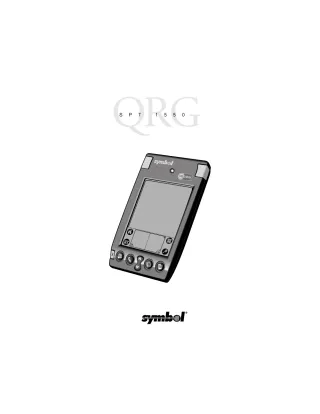
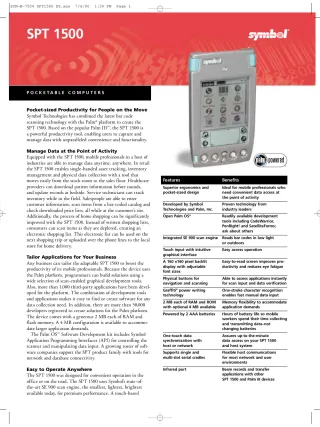
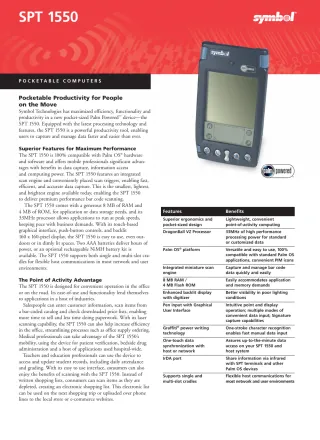
SPT 1550 Product Reference Guide
Manual290 pagesPDF 4.1 MB
Product reference guide for the Symbol SPT 1550 Palm-based terminal with laser scanner: setup, Graffiti, built-in applications and HotSync.
What this file really is
The old site listed this file as a manual for the Symbol SPT-1500 and SPT-1550. The file is named as an SPT-1500 user manual, but the document is the product reference guide for the SPT 1550.
Names · 1 model
The models it names
Filed with · 1 model
Also filed with these models on the old site
Summary
What is in it
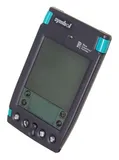
The product reference guide for the Symbol SPT 1550, a handheld Palm-based terminal with a laser bar code scanner. It explains the buttons and controls, installing the batteries, starting the terminal and installing the Symbol Palm Terminal Desktop software, then covers Graffiti writing, the Address Book, Calculator, Date Book, Mail, Memo Pad, To Do List, Preferences and Security applications, HotSync by cradle, modem or Ethernet cradle, the Scan Wedge and Laser Scanner applications, and maintenance.
Its parts
- About This Guide
- Getting Started with the SPT 1550
- Working with Your SPT 1550 Terminal
- Finding Information With Your SPT 1550 Terminal
- Applications: Address Book
- Applications: Calculator
- Applications: Date Book
- Applications: HotSync
- Applications: Mail
- Applications: Memo Pad
- Applications: Preferences
- Applications: Security
- Applications: To Do List
- Applications: Scan Wedge
- Applications: Laser Scanner
From the manual
Key facts from this manual
Each line names its page in the PDF.
The Symbol SPT 1550 Product Reference Guide, the full manual for the SPT 1550 Palm OS pocket terminal with a built-in laser scanner; it names only the SPT 1550. It covers setup, cradles and HotSync, the built-in applications, scanning, diagnostics, troubleshooting and care.
- Device
- Pocket-size terminal with PIM software, printing support and an integrated laser bar code scanner p. 13, 63
- Memory
- 8 MB RAM / 4 MB ROM p. 13
- Batteries
- Two AAA alkaline batteries behind the back battery door p. 24
- NiMH battery life
- About 8 hours of use per charge under normal conditions; less when scanning p. 265, 266
- Ports
- Serial port; IR port at the scan window for beaming to other SPT 1550 and Palm devices p. 22, 23
- Controls
- Left and right scan triggers, decode LED, scroll button, and Date Book, Address Book, To Do List and Memo Pad buttons p. 22, 23
- Display
- Touch-sensitive screen with Graffiti writing area, contrast control and backlight p. 22, 23, 24
- Serial cradle
- Plugs into the computer's serial port for HotSync; a 9-pin to 25-pin adapter may be needed p. 31
- Ethernet cradle
- CRD 1500-4000E, seen by the terminal as a dial-up PPP service; needs NetSync p. 127
- Desktop software
- Symbol Palm Terminal Desktop: Windows 95 or NT 4.0, 486 or higher, 8 MB RAM minimum, 12 MB disk, one serial port p. 32, 33
- Diagnostics
- Diag application: System Information, Bar Code Scanner, Serial Port, Digitizer Alignment and System Diagnostics tests p. 251
- Scan software
- SScan and Demo Scan sample programs on the SPT SDK p. 231
- Auto-off
- After 30 seconds, one, two or three minutes of inactivity p. 257
What this manual walks you through
- Identifying the buttons, ports and controls p. 22, 23, 24
- Installing the AAA batteries p. 24
- Connecting the cradle and installing the desktop software p. 31, 32, 33
- Beaming entries and applications to another terminal p. 62, 63
- Setting up the CRD 1500-4000E Ethernet cradle with NetSync p. 127
- Scanning bar codes with the SScan application p. 231
- Solving bar code scanning problems p. 236, 237
- Running the diagnostics utility tests p. 251, 252, 253, 254, 255
- Troubleshooting cradle, power, handwriting, memory and HotSync problems p. 256, 257, 258, 259, 260
- Caring for the terminal and its battery, and soft reset p. 265, 266
Good to know
- With the battery removed, backup power keeps memory for up to 1 minute. p. 266
- A drained battery left in the terminal for a long time can lose all stored data. p. 266
- The terminal needs a dedicated serial port on the computer; it cannot share one with an internal modem. p. 32
- Do not spray cleaner directly on the scanner window. p. 236
Questions this manual answers
How long does the SPT 1550 NiMH battery last?
About 8 hours of use per charge under normal conditions; scanning shortens it. p. 265, 266
What does Battery Low Error mean on the SPT 1550?
The battery got low while scanning, so the scanning application shut down; HotSync to avoid data loss, then recharge. p. 237
What computer does the SPT 1550 desktop software need?
Windows 95 or NT 4.0 on a 486 or higher with at least 8 MB RAM, 12 MB of disk space and one free serial port. p. 32, 33
How do I test the SPT 1550 serial port?
Run the Diag application's Serial Port test with the terminal in a cradle and HyperTerminal open on the computer at matching settings. p. 254
Contents
Chapters and sections
Each line opens the PDF at its page.
- About This Guide13
- Chapter 1 Getting Started with the SPT 155019
- Chapter 2 Working with Your SPT 1550 Terminal35
- Chapter 3 Finding Information With Your SPT 1550 Terminal65
- Chapter 4 Applications: Address Book71
- Chapter 5 Applications: Calculator85
108 more lines, from page 87 on
- Opening the Calculator87
- Chapter 6 Applications: Date Book91
- Chapter 7 Applications: HotSync®111
- Introduction113
- The HotSync Process and the HotSync Manager113
- Performing a HotSync Operation for the First Time113
- Conducting a Local HotSync Operation116
- Selecting HotSync Setup Options116
- Customizing HotSync Application Settings120
- Conducting a HotSync Operation via Modem122
- Setting Up the Ethernet Cradle for HotSync127
- Chapter 8 Applications: Mail131
- Introduction133
- Setting Up Mail on the Desktop133
- Synchronizing Mail with Your E-Mail Application135
- Opening Mail on Your SPT 1550 Terminal135
- Viewing Messages135
- Creating Messages137
- Looking Up an Address140
- Adding Message Details141
- Sending Messages144
- Editing an Unsent Message145
- Draft Messages146
- Filing a Message147
- Deleting Messages147
- Message List Options149
- HotSync Options151
- Mail Menu Commands157
- Chapter 9 Applications: Memo Pad161
- Chapter 10 Applications: Preferences171
- Introduction173
- Buttons Preferences173
- Connection Preferences177
- Digitizer Preferences179
- Formats Preferences179
- Date & Time Preference180
- General Preferences183
- Network Preferences and TCP/IP Software184
- Network Preferences Menu Commands198
- Owner Preferences199
- Scan Wedge Preferences200
- ShortCuts Preferences201
- Chapter 11 Applications: Security203
- Chapter 12 Applications: To Do List211
- Chapter 13 Applications: Scan Wedge223
- Chapter 14 Applications: Laser Scanner229
- Chapter 15 Installing and Removing Applications239
- Chapter 16 Getting Help With Your SPT 1550 Terminal247
- Chapter 17 Maintaining Your SPT 1550 Terminal263
- Appendix A Non-ASCII Characters for Login Scripts269
- Appendix B Installing the Multi-Language Operating System271
- Index281
The whole text · 34 parts
Read the manual here as text
Its text as extracted from the PDF, unedited, in parts; each page opens the PDF at that page.
- Pages 1 to 41-4
- Contents, pages 5 to 115-11
- Contents, page 1212
- About This Guide13-18
- Chapter 1 Getting Started with the SPT 1550, pages 19 to 2619-26
- Chapter 1 Getting Started with the SPT 1550, pages 27 to 3427-34
- Chapter 2 Working with Your SPT 1550 Terminal, pages 35 to 4435-44
- Chapter 2 Working with Your SPT 1550 Terminal, pages 45 to 5445-54
- Chapter 2 Working with Your SPT 1550 Terminal, pages 55 to 6455-64
- Chapter 3 Finding Information With Your SPT 1550 Terminal65-70
- Chapter 4 Applications: Address Book71-84
- Chapter 5 Applications: Calculator85-90
- Chapter 6 Applications: Date Book, pages 91 to 10091-100
- Chapter 6 Applications: Date Book, pages 101 to 110101-110
- Chapter 7 Applications: HotSync®, pages 111 to 120111-120
- Chapter 7 Applications: HotSync®, pages 121 to 130121-130
- Chapter 8 Applications: Mail, pages 131 to 140131-140
- Chapter 8 Applications: Mail, pages 141 to 150141-150
- Chapter 8 Applications: Mail, pages 151 to 160151-160
- Chapter 9 Applications: Memo Pad161-170
- Chapter 10 Applications: Preferences, pages 171 to 178171-178
- Chapter 10 Applications: Preferences, pages 179 to 186179-186
- Chapter 10 Applications: Preferences, pages 187 to 194187-194
- Chapter 10 Applications: Preferences, pages 195 to 202195-202
- Chapter 11 Applications: Security203-210
- Chapter 12 Applications: To Do List211-222
- Chapter 13 Applications: Scan Wedge223-228
- Chapter 14 Applications: Laser Scanner229-238
- Chapter 15 Installing and Removing Applications239-246
- Chapter 16 Getting Help With Your SPT 1550 Terminal, pages 247 to 254247-254
- Chapter 16 Getting Help With Your SPT 1550 Terminal, pages 255 to 262255-262
- Chapter 17 Maintaining Your SPT 1550 Terminal263-268
- Pages 269 to 280269-280
- Index281-290
The file