Manual · Symbol
PDT 7500 Series Quick Reference
Manual36 pagesPDF 646 KB
Quick reference guide for the Symbol PDT 7500 Series hand-held terminals: batteries, keypads, scanning, host communications and troubleshooting.
Names · 1 model
The models it names
Filed with · 3 models
Also filed with these models on the old site
Summary
What is in it
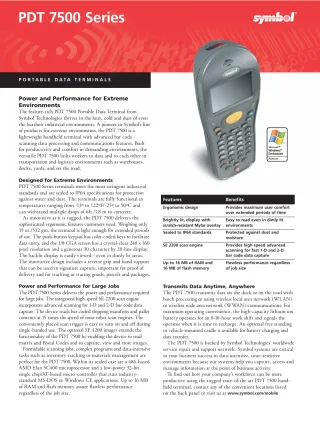
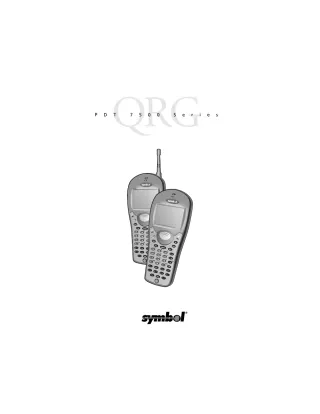
The quick reference guide for the Symbol PDT 7500 Series portable data terminals, rugged 486-based hand-helds running MS-DOS 6.22 or Windows CE. It shows the parts of the terminal, installing, removing and charging the Li-Ion battery and spare, charge LED meanings, power, backlight, contrast, warm and cold boots and hard reset, screen calibration, the 25-, 36- and 49-key keypads, laser and imager scanning, host communications by cable, cradle or printer, troubleshooting, pin-outs and regulatory information.
Its parts
- Introduction
- About This Guide
- Accessories
- Parts of the PDT 7500
- Installing New or Recharged Batteries
- Removing the Battery from the Terminal
- Charging the Battery in the Terminal
- Operating the PDT 7500
- Host Communications
- Using the Touch Screen
- Troubleshooting
- Serial Communication Port Pin-Outs
- Ergonomic Recommendations
- Regulatory Information
- Warranty
From the manual
Key facts from this manual
Each line names its page in the PDF.
The Symbol Technologies quick reference guide (rev. 06/00) for the PDT 7500 Series hand-held data terminal, in DOS and Windows CE versions. It covers the battery, charging, power and reset, keypads, laser and imager scanning, host communications and troubleshooting, plus the serial port pin-out. Wireless models such as the PDT 7540 and PDT 7542 are mentioned only in passing.
- Device
- Rugged hand-held data terminal with a 32-bit 486 DX2 processor, running MS-DOS 6.22 or Windows CE p. 3
- Battery
- 1400 mAh Li-Ion smart battery, p/n 2138602-06 p. 4
- Scanning
- Integrated laser scanner or imager, reading 1D codes and PDF417 p. 3
- Radio
- Spectrum24 wireless LAN; optional WWAN cellular radio (CDPD and GSM) p. 3, 19
- Keypad and screen
- 25-key, 36-key or 49-key keypad; touch screen with stylus on some terminals p. 3, 20
- Ports
- Serial communications port and IrDA port on the bottom; RS-232 through an adapter cable p. 6, 19
- Serial port power
- 15-pin port: PWRIN (+15V) on pins 8 and 15, PWROUT (+5V) on pin 7 p. 23
- Charging
- In the terminal 2-3 hours via cradle or charging cable; spare battery about 4 hours in the CRD 7500 cradle; also UBC 2000 charger p. 8
- Accessories
- Single-slot, four-slot and vehicle cradles, UBC 2000 charging adapter, null modem cable, holster, stylus, IrDA printer p. 4
- Reference guides
- PDT 7500 Series Product Reference Guide 72-39225-xx (DOS) or 72-41235-xx (Windows CE) p. 8
- IrDA printing
- Prints to IrDA printers at up to 39 inches (1 meter), or by RS-232 cable p. 19, 20
- Laser scan angle
- Tilt up to 65 degrees forward or backward; up to 4 degrees off parallel on PDF417 p. 16, 18
- Wireless band
- Spectrum24 at 2.400 to 2.4835 GHz (-EU models); 2.447 to 2.453 GHz for France (-FR) p. 26
What this manual walks you through
- Installing and removing the Li-Ion battery p. 7, 8
- Charging the terminal and a spare battery, and reading the charge LED p. 8, 9
- Powering on, backlight and screen contrast p. 9, 10
- Warm boot, cold boot and hard reset p. 10, 11
- Calibrating the touch screen (Windows CE) p. 11
- Using the 36-key and 49-key keypads p. 12, 13
- Scanning linear and PDF417 codes with the laser, including tall PDF codes p. 16, 17, 18
- Scanning with the imager p. 18
- Host communications by serial cable, cradle and IrDA printer p. 19, 20
- Troubleshooting power, charging, display, scanning and printing p. 20, 21, 22
Good to know
- Use only the Symbol Li-Ion battery, and do not expose it to more than 140 F (60 C). p. 7
- Do not operate the terminal with the battery latch open, or data may be lost. p. 7
- Do not run the terminal on external power with a dead battery installed; data can be lost when external power is removed. p. 9
- A hard reset erases all stored records and entries; use it only if a warm or cold boot fails. p. 10
- For RF exposure rules, keep the antenna 20 cm or more from the body except hands and wrists. p. 24
Questions this manual answers
What battery does the Symbol PDT 7500 use?
How do I reset a PDT 7500?
Hold PWR 6 seconds for a warm boot or 15 seconds for a cold boot; a hard reset (Windows CE) means removing the battery for 20 minutes or longer. p. 10, 11
How long does the PDT 7500 battery take to charge?
2-3 hours in the terminal; a spare battery in the CRD 7500 cradle takes about 4 hours. p. 8
What does a flashing yellow charge LED mean on the PDT 7500?
What operating system does the PDT 7500 run?
MS-DOS 6.22 or Windows CE, depending on the terminal. p. 3
Contents
Chapters and sections
Each line opens the PDF at its page.
- Introduction3
- About This Guide4
- Accessories4
- Parts of the PDT 75005
- Installing New or Recharged Batteries7
- Removing the Battery from the Terminal7
- Charging the Battery in the Terminal8
- Operating the PDT 75009
- Powering the Terminal On/Off9
- Turning the Backlight On/Off9
- Controlling the Screen Contrast10
- Resetting the PDT 750010
- Calibrating the Screen (Windows CE Terminals Only)11
- Using the PDT 7500 36-Key Keypad12
- Using the PDT 7500 49-Key Keypad13
- Using the PDT 7500 25-Key Keypad15
- Using the Integrated Laser Scanner16
- Scanning PDF417 Bar Codes16
- “Tall” PDF Bar Codes17
- Using the Imager18
- Host Communications19
- Using the Touch Screen20
- Troubleshooting20
- Serial Communication Port Pin-Outs23
- Ergonomic Recommendations23
- Regulatory Information24
- END-USER LICENSE AGREEMENT FOR MICROSOFT SOFTWARE31
- Warranty35
- Service Information36
The whole text · 4 parts
Read the manual here as text
Its text as extracted from the PDF, unedited, in parts; each page opens the PDF at that page.
The file