Manual · Symbol
P 300 Series (STD/FZY/PRO) Quick Reference
Manual16 pagesPDF 553 KB
Quick reference guide for the Symbol P 300 series hand-held laser scanners (P 300STD, P 302FZY, P 304PRO): setup, scanning and defaults.
Covers · 3 models
The models it covers

Summary
What is in it
Symbol's quick reference guide for the P 300 series scanners: the undecoded P 300STD, the P 302FZY for damaged or poorly printed bar codes, and the P 304PRO for one and two-dimensional bar codes. It shows the parts of the scanner, how to install the interface cable, scanning tips including 2-D and tall PDF417 symbols, what the beep means, troubleshooting, cleaning, the Set Defaults bar code and a table of FZY and PRO default settings, plus ergonomic and regulatory information.
Its parts
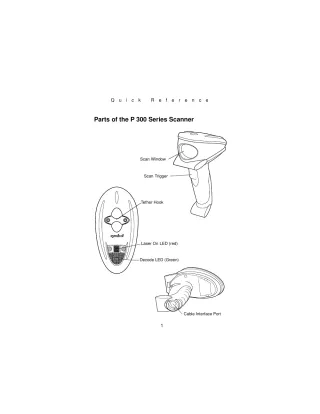
- Parts of the P 300 Series Scanner
- P 300/302/304 Product Descriptions
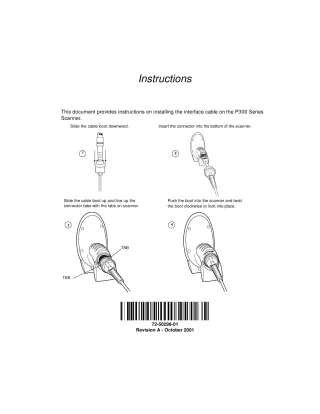
- Installing the Interface Cable
- Scanning
- What Does the Beep Mean?
- Troubleshooting
- Cleaning
- Set Defaults Bar Code
- Default Table
- Ergonomic Recommendations
- Regulatory Information
From the manual · read page by page
Key facts from this manual
Each line names its page in the PDF.
Symbol's Quick Reference (p/n 72-39416-01, November 2001) for the P 300 series hand-held laser scanners: the P 300STD, P 302FZY and P 304PRO. It shows the parts of the scanner, fitting the interface cable, scanning 1D and 2D bar codes, beeps, troubleshooting, cleaning, and the factory default settings.
- Versions
- P 300STD: undecoded scanner. P 302FZY: decodes damaged or poorly printed bar codes. P 304PRO: scans 1D and 2D bar codes p. 4
- Host interfaces
- P 302FZY: RS-232, wand emulation, keyboard wedge, Synapse. P 304PRO: RS-232 and Synapse p. 4
- Parts and indicators
- Scan window, scan trigger, tether hook, red laser-on LED, green decode LED, cable interface port p. 3
- Cable connection
- Connector goes into the bottom of the scanner; the cable boot twists clockwise to lock. Different hosts need different interface cables p. 5
- Default laser on time
- P 302FZY: 3.0 seconds; P 304PRO: 5.0 seconds p. 8
- Default serial settings
- P 302FZY and P 304PRO: 9600 baud, no parity, 1 stop bit, 8-bit ASCII format p. 10
- Default keyboard wedge
- P 302FZY: IBM PC/AT host, North American keyboard p. 11
- PDF417 defaults
- P 304PRO: PDF417 and MicroPDF enabled; Smart Raster scanning mode; slab raster aiming p. 11
- Tall PDF417 tilt
- Scan beam may tilt up to 4° from the symbol's rows p. 7
- Full manual
- P 300/302/304 Scanner Product Reference Guide, p/n 72-39417-xx p. 5
- Compliance
- The manual states FCC Part 15 Class B, Canadian ICES-003 Class B, and CE marking for EU sale p. 12
What this manual walks you through
- Installing the interface cable p. 5
- Scanning bar codes and aiming tips p. 6
- Scanning 2D bar codes with the P 304PRO p. 6, 7
- Reading PDF417 symbols too tall for the scan pattern p. 7
- What the beeps mean and basic troubleshooting p. 8
- Restoring factory defaults and the default settings table p. 8, 9, 10, 11
- Cleaning the scanner window p. 8
- Ergonomic recommendations for scanning work p. 12
Good to know
- If you hear any beep other than one short high tone, the guide says to contact the person in charge of scanning. p. 8
- Do not stare into the beam of a Class 2 laser scanner. p. 13
- Using controls, adjustments or procedures other than those specified may cause hazardous laser light exposure. p. 13
- The P 304IMG imager version is covered by its own quick reference guide. p. 4
Questions this manual answers
What is the difference between the Symbol P300, P302 and P304?
The P 300STD is the undecoded version, the P 302FZY decodes damaged or poorly printed bar codes, and the P 304PRO scans both 1D and 2D bar codes. p. 4
What is the default baud rate of the P302 or P304 scanner?
The default table lists 9600 baud for both the FZY and PRO versions. p. 10
How do I reset a Symbol P300 series scanner to defaults?
Scan the Set Defaults bar code printed in the guide; the table that follows lists each default for the FZY and PRO versions. p. 8
How do I scan a tall PDF417 bar code with the P304?
With the raster pattern open, move the scanner slowly down toward the bottom of the symbol, keeping the beam level with the rows, then slowly back up. p. 7
My P300 scanner does not work. What should I check?
Check the system power, that scanning is enabled, the cable connections, that the scanner is set to decode that bar code type, and that the symbol is not badly defaced. p. 8
Contents
Chapters and sections
Each line opens the PDF at its page.
The whole text · 2 parts
Read the manual here as text
Its text as extracted from the PDF, unedited, in parts; each page opens the PDF at that page.
The file