Manual · Symbol
Symbol MC50 (MC5040) Quick Start
Manual2 pagesPDF 3.9 MB
Both pages are below, each with its text.
Covers · 1 model
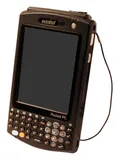
The models it covers
From the manual · read page by page
Key facts from this manual
Each line names its page in the PDF.
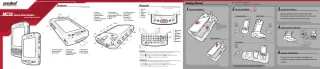
The Symbol MC50 Quick Start Guide (72-67793-01 Rev. B), a two-page fold-out for the MC50 handheld, covering the MC5040 configurations it lists. It names the parts and keys, and shows how to insert and charge the battery, set up ActiveSync with a host computer, and choose among the scanner, imager and camera versions and accessories.
- Device
- Handheld with touch screen, keypad, Secure Digital (SD) slot, IrDA port, headset jack, phone speaker and stylus p. 1
- Data capture
- Scanner versions MC50-SP and MC50-SQ, imager versions MC50-IP and MC50-IQ, or a camera p. 2
- Configurations
- MC5040-PQ0DBNEE1WW, MC5040-PQ0DBQEE1WW, MC5040-PK0DBNEE1WW, MC5040-PK0DBQEE1WW, MC5040-PS0DBNEE1WW, MC5040-PS0DBQEE1WW p. 2
- Batteries
- Standard capacity charges in about 2.5 to 3.5 hours, extended capacity in about 6 to 7 hours, depending on the charger p. 2
- First charge
- Charge for 24 hours before first use so the internal battery is fully charged p. 1
- Cradles
- 1-Slot Cradle and 4-Slot Cradle, with an AC adapter cable; spare battery charger p. 1, 2
- Host software
- Microsoft ActiveSync on the host computer p. 1
- Keys
- Phone-style keys (Calendar, Call, Contacts, End Call, Messaging) with Blue and Orange modifier keys p. 1
- Accessories
- Magnetic stripe reader, cable adapter module, tethered stylus, extended SD card covers, hand strap p. 2
- Guide number
- 72-67793-01 Rev. B, January 2005 p. 2
What this manual walks you through
- Inserting the battery and charging the MC50 p. 1
- Installing ActiveSync and creating a partnership with the host p. 1
- Using the Blue and Orange keys p. 1
- Charging a spare battery p. 2
- Holding the MC50 for scanning and imaging p. 2
Good to know
- The MC50 will not turn on until the Battery Lock Switch is moved to the right. p. 1
- The keypads do not work while the Keypad Lock is in the locked position. p. 1
Questions this manual answers
Why won't my Symbol MC50 turn on?
The Battery Lock Switch must be moved to the right before the MC50 will power on. p. 1
Why don't the MC50 keys work?
The Keypad Lock must be in the down, unlocked position. p. 1
How do I connect the MC50 to a PC?
Install ActiveSync on the host computer, put the MC50 in its cradle and follow the on-screen ActiveSync steps to create a partnership. p. 1
How long should I charge a new MC50?
24 hours before the first use, so the internal battery is fully charged. p. 1
The file
Size and text
Every page · 2
Read it here
Each page as it is printed, and its words beside it, so a phone can search and copy them.
Page1of 2
Open in the PDF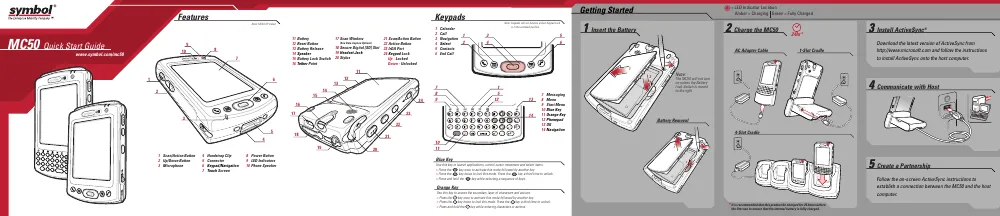
The text of page 1, from the PDF itself
FeaturesMC50 Quick Start Guide9www.symbol.com/mc50KeypadsNote: MC50-SP shown
11 Battery 12 Reset Button 13 Battery Release 14 Speaker 15 Battery Lock Switch 16 Tether Point
8107Getting Started17 Scan Window
(See Data Capture Options)
18 Secure Digital [SD] Slot 19 Headset Jack 20 Stylus
21 Scan/Action Button 22 Action Button 23 IrDA Port 24 Keypad Lock Up - Locked Down - Unlocked
1 2 3 4 5 6
Calendar Call Navigation Select Contacts End Call
1 2
Note: Keypads will not function unless Keypad Lock is in the unlocked position.
3 45 6613224 2317 5184 5 6 7
Handstrap Clip Connector Keypad/Navigation Touch Screen
8 Power Button 9 LED Indicators 10 Phone Speaker
13
7 Messaging 8 Menu 9 Start Menu 10 Blue Key 11 Orange Key 12 Phonepad 13 OK 14 Navigation
The MC50 will not turn on unless the Battery Lock Switch is moved to the right.
20
10 11 Blue Key
Use this key to launch applications, control cursor movement and select items. > Press the key once to activate this mode followed by another key. > Press the key twice to lock this mode. Press the key a third time to unlock. > Press and hold the key while selecting a sequence of keys.
4 Communicate with Host
4-Slot Cradle 135 Create a Partnership2
Follow the on-screen ActiveSync instructions to establish a connection between the MC50 and the host computer.
Orange Key
Use this key to access the secondary layer of characters and actions. > Press the key once to activate this mode followed by another key. > Press the key twice to lock this mode. Press the key a third time to unlock. > Press and hold the key while entering characters or actions.
Download the latest version of ActiveSync from http://www.microsoft.com and follow the instructions to install ActiveSync onto the host computer.
Battery Removal
21 19
1 Scan/Action Button 2 Up/Down Button 3 Microphone
1 5 121422 41-Slot Cradle
- Note
- 2
7 8 93 Install ActiveSync®24hr*31216 32 Charge the MC50114151 Insert the BatteryAC Adapter Cable11 1
= LED Indicator Location Amber = Charging Green = Fully Charged
- It is recommended that this product be charged for 24 hours before the first use to ensure that the internal battery is fully charged.
Page2of 2
Open in the PDF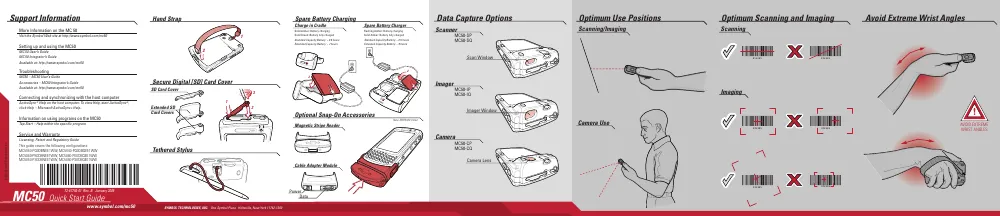
The text of page 2, from the PDF itself
Support InformationHand StrapSpare Battery Charging
More Information on the MC 50
1
Visit the Symbol Web site at http://www.symbol.com/mc50
Setting up and using the MC50
Charge in Cradle
Spare Battery Charger
Solid Amber: Battery charging Solid Green: Battery fully charged
Flashing Amber: Battery charging Solid Amber: Battery fully charged
Standard Capacity Battery: ~ 3.5 hours Extended Capacity Battery: ~ 7 hours
Standard Capacity Battery: ~ 2.5 hours Extended Capacity Battery: ~ 6 hours
Optimum Use Positions
Optimum Scanning and Imaging
ScannerScanning/ImagingScanningMC50-SP MC50-SQ
Avoid Extreme Wrist Angles
2
MC 50 User’s Guide MC 50 Integrator’s Guide Available at: http://www.symbol.com/mc50
Scan WindowTroubleshooting0123450123450123450123450123450123452
MC50 – MC50 User’s Guide Accessories – MC50 Integrator’s Guide Available at: http://www.symbol.com/mc50
2
Secure Digital [SD] Card Cover SD Card Cover
Connecting and synchronizing with the host computer ActiveSync® Help on the host computer. To view Help, start ActiveSync®, click Help – Microsoft ActiveSync® Help.
131ImagerMC50-IP MC50-IQImaging1
Extended SD Card Covers
2
Information on using programs on the MC50 Tap Start – Help within the specific program.
Optional Snap-On Accessories
Imager Window Note: MSR5000 shown
Camera Use
Magnetic Stripe Reader
Service and Warranty © 2004 Symbol Technologies, Inc.
Data Capture Options
Camera
Licensing, Patent and Regulatory Guide
This guide covers the following configurations: MC5040-PQ0DBNEE1WW, MC5040-PQ0DBQEE1WW MC5040-PK0DBNEE1WW, MC5040-PK0DBQEE1WW MC5040-PS0DBNEE1WW, MC5040-PS0DBQEE1WW
MC50-CP MC50-CQ
Tethered Stylus Cable Adapter Module
72-67793-01 Rev. B January 2005
MC50 Quick Start Guide
www.symbol.com/mc50
Power Data SYMBOL TECHNOLOGIES, INC. One Symbol Plaza Holtsville, New York 11742-1300
Camera Lens
AVOID EXTREME WRIST ANGLES