Manual · Symbol
Guía de inicio rápido del Symbol MC50 (MC5040)
Manual2 páginasPDF 3.9 MB
Las dos páginas están más abajo, cada una con su texto.
Abarca · 1 modelo
Los modelos que abarca
Del manual · leído página por página
Datos clave de este manual
Cada línea indica su página en el PDF.
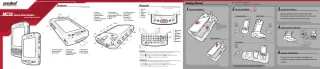
La guía de inicio rápido de la Symbol MC50 (72-67793-01, rev. B), un desplegable de dos páginas para la computadora de mano MC50, que abarca las configuraciones MC5040 que enumera. Nombra las partes y las teclas, y muestra cómo insertar y cargar la batería, configurar ActiveSync con una computadora host y elegir entre las versiones con escáner, con lector de imágenes y con cámara, y los accesorios.
- Dispositivo
- Computadora de mano con pantalla táctil, teclado, ranura Secure Digital (SD), puerto IrDA, conector para auriculares, altavoz de teléfono y lápiz óptico pág. 1
- Captura de datos
- Versiones con escáner MC50-SP y MC50-SQ, versiones con lector de imágenes MC50-IP y MC50-IQ, o una cámara pág. 2
- Configuraciones
- MC5040-PQ0DBNEE1WW, MC5040-PQ0DBQEE1WW, MC5040-PK0DBNEE1WW, MC5040-PK0DBQEE1WW, MC5040-PS0DBNEE1WW y MC5040-PS0DBQEE1WW pág. 2
- Baterías
- La batería de capacidad estándar se carga en unas 2.5 a 3.5 horas, y la de capacidad extendida en unas 6 a 7 horas, según el cargador pág. 2
- Primera carga
- Cargue durante 24 horas antes del primer uso para que la batería interna quede completamente cargada pág. 1
- Bases
- Base de 1 ranura y base de 4 ranuras, con un cable de adaptador de corriente; cargador de baterías de repuesto pág. 1, 2
- Software del host
- Microsoft ActiveSync en la computadora host pág. 1
- Teclas
- Teclas de tipo teléfono (Calendar, Call, Contacts, End Call, Messaging) con las teclas modificadoras Blue y Orange pág. 1
- Accesorios
- Lector de banda magnética, módulo adaptador de cable, lápiz óptico con cordón, tapas extendidas para la tarjeta SD, correa de mano pág. 2
- Número de la guía
- 72-67793-01, rev. B, enero de 2005 pág. 2
Lo que este manual le explica
- Insertar la batería y cargar la MC50 pág. 1
- Instalar ActiveSync y crear una asociación con el host pág. 1
- Usar las teclas Blue y Orange pág. 1
- Cargar una batería de repuesto pág. 2
- Sostener la MC50 para escanear y capturar imágenes pág. 2
Conviene saber
- La MC50 no se enciende hasta que el Battery Lock Switch (interruptor de bloqueo de la batería) se mueve hacia la derecha. pág. 1
- Los teclados no funcionan mientras el Keypad Lock (bloqueo del teclado) está en la posición de bloqueo. pág. 1
Preguntas que responde este manual
¿Por qué no se enciende mi Symbol MC50?
Hay que mover el Battery Lock Switch hacia la derecha para que la MC50 se encienda. pág. 1
¿Por qué no funcionan las teclas de la MC50?
El Keypad Lock debe estar abajo, en la posición de desbloqueo. pág. 1
¿Cómo conecto la MC50 a una PC?
Instale ActiveSync en la computadora host, coloque la MC50 en su base y siga los pasos de ActiveSync en la pantalla para crear una asociación. pág. 1
¿Cuánto tiempo debo cargar una MC50 nueva?
24 horas antes del primer uso, para que la batería interna quede completamente cargada. pág. 1
El archivo
Tamaño y texto
Todas las páginas · 2
Léalo aquí
Cada página tal como está impresa, y su texto al lado, para que en un teléfono se pueda buscar y copiar.
Página1de 2
Abrir en el PDF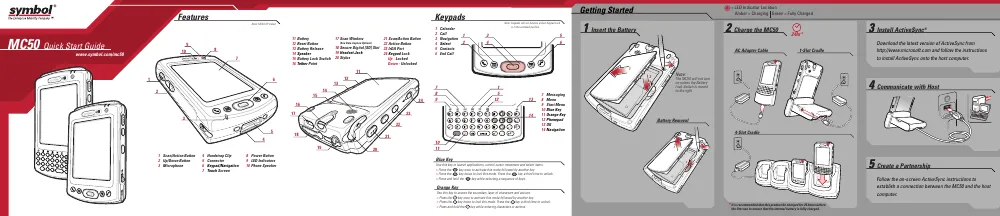
El texto de la página 1, del propio PDF
FeaturesMC50 Quick Start Guide9www.symbol.com/mc50KeypadsNote: MC50-SP shown
11 Battery 12 Reset Button 13 Battery Release 14 Speaker 15 Battery Lock Switch 16 Tether Point
8107Getting Started17 Scan Window
(See Data Capture Options)
18 Secure Digital [SD] Slot 19 Headset Jack 20 Stylus
21 Scan/Action Button 22 Action Button 23 IrDA Port 24 Keypad Lock Up - Locked Down - Unlocked
1 2 3 4 5 6
Calendar Call Navigation Select Contacts End Call
1 2
Note: Keypads will not function unless Keypad Lock is in the unlocked position.
3 45 6613224 2317 5184 5 6 7
Handstrap Clip Connector Keypad/Navigation Touch Screen
8 Power Button 9 LED Indicators 10 Phone Speaker
13
7 Messaging 8 Menu 9 Start Menu 10 Blue Key 11 Orange Key 12 Phonepad 13 OK 14 Navigation
The MC50 will not turn on unless the Battery Lock Switch is moved to the right.
20
10 11 Blue Key
Use this key to launch applications, control cursor movement and select items. > Press the key once to activate this mode followed by another key. > Press the key twice to lock this mode. Press the key a third time to unlock. > Press and hold the key while selecting a sequence of keys.
4 Communicate with Host
4-Slot Cradle 135 Create a Partnership2
Follow the on-screen ActiveSync instructions to establish a connection between the MC50 and the host computer.
Orange Key
Use this key to access the secondary layer of characters and actions. > Press the key once to activate this mode followed by another key. > Press the key twice to lock this mode. Press the key a third time to unlock. > Press and hold the key while entering characters or actions.
Download the latest version of ActiveSync from http://www.microsoft.com and follow the instructions to install ActiveSync onto the host computer.
Battery Removal
21 19
1 Scan/Action Button 2 Up/Down Button 3 Microphone
1 5 121422 41-Slot Cradle
- Note
- 2
7 8 93 Install ActiveSync®24hr*31216 32 Charge the MC50114151 Insert the BatteryAC Adapter Cable11 1
= LED Indicator Location Amber = Charging Green = Fully Charged
- It is recommended that this product be charged for 24 hours before the first use to ensure that the internal battery is fully charged.
Página2de 2
Abrir en el PDF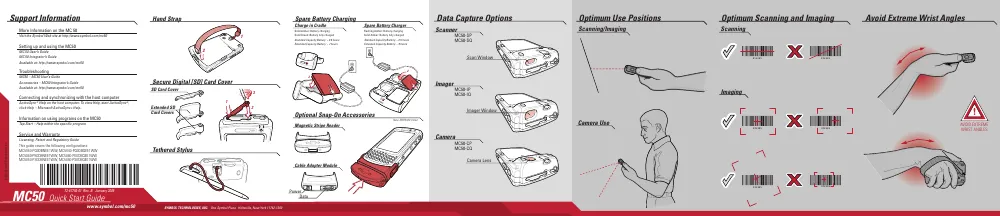
El texto de la página 2, del propio PDF
Support InformationHand StrapSpare Battery Charging
More Information on the MC 50
1
Visit the Symbol Web site at http://www.symbol.com/mc50
Setting up and using the MC50
Charge in Cradle
Spare Battery Charger
Solid Amber: Battery charging Solid Green: Battery fully charged
Flashing Amber: Battery charging Solid Amber: Battery fully charged
Standard Capacity Battery: ~ 3.5 hours Extended Capacity Battery: ~ 7 hours
Standard Capacity Battery: ~ 2.5 hours Extended Capacity Battery: ~ 6 hours
Optimum Use Positions
Optimum Scanning and Imaging
ScannerScanning/ImagingScanningMC50-SP MC50-SQ
Avoid Extreme Wrist Angles
2
MC 50 User’s Guide MC 50 Integrator’s Guide Available at: http://www.symbol.com/mc50
Scan WindowTroubleshooting0123450123450123450123450123450123452
MC50 – MC50 User’s Guide Accessories – MC50 Integrator’s Guide Available at: http://www.symbol.com/mc50
2
Secure Digital [SD] Card Cover SD Card Cover
Connecting and synchronizing with the host computer ActiveSync® Help on the host computer. To view Help, start ActiveSync®, click Help – Microsoft ActiveSync® Help.
131ImagerMC50-IP MC50-IQImaging1
Extended SD Card Covers
2
Information on using programs on the MC50 Tap Start – Help within the specific program.
Optional Snap-On Accessories
Imager Window Note: MSR5000 shown
Camera Use
Magnetic Stripe Reader
Service and Warranty © 2004 Symbol Technologies, Inc.
Data Capture Options
Camera
Licensing, Patent and Regulatory Guide
This guide covers the following configurations: MC5040-PQ0DBNEE1WW, MC5040-PQ0DBQEE1WW MC5040-PK0DBNEE1WW, MC5040-PK0DBQEE1WW MC5040-PS0DBNEE1WW, MC5040-PS0DBQEE1WW
MC50-CP MC50-CQ
Tethered Stylus Cable Adapter Module
72-67793-01 Rev. B January 2005
MC50 Quick Start Guide
www.symbol.com/mc50
Power Data SYMBOL TECHNOLOGIES, INC. One Symbol Plaza Holtsville, New York 11742-1300
Camera Lens
AVOID EXTREME WRIST ANGLES