Manual · Symbol
CyberPen User Guide
Manual16 pagesPDF 323 KB
User guide for the Symbol CyberPen, a writing pen with a built-in bar code reader: batteries, Cyberwell, scanning, uploading and parameters.
Covers · 1 model
The models it covers

Summary
What is in it
The Symbol user guide for the CyberPen, a writing instrument combined with a lightweight bar code reading device that stores scanned bar codes and uploads them to a PC through the Cyberwell. It covers unpacking, approved batteries and how to insert them, connecting the Cyberwell to a PC serial port, adjusting the beeper, scanning technique, memory-full signals, uploading data, writing with the pen and replacing the ink refill, and the parameter bar codes for clearing data, setting defaults, LED on time, volume and continuous scan.
Its parts
- Welcome to CyberPen
- Getting Started with the CyberPen
- Setting Up the Cyberwell
- Adjusting the Beeper Volume
- Scanning with the CyberPen
- Inserting the CyberPen in the Cyberwell
- Uploading Bar Code Data
- Writing with the CyberPen
- Pen Refill Removal and Insertion
- Pen Refill
- Parameter Bar Codes
From the manual · read page by page
Key facts from this manual
Each line names its page in the PDF.
User guide for the Symbol CyberPen, a writing pen with a built-in bar code wand, and its Cyberwell upload dock. It covers inserting batteries, connecting the Cyberwell to a PC, scanning, uploading data, replacing the ink refill and programming the pen with parameter bar codes.
- What it is
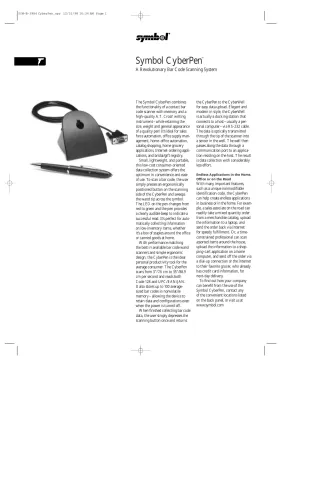
- Writing pen combined with a lightweight bar code reader, uploaded through the Cyberwell dock p. 3, 8
- In the box
- CyberPen, Cyberwell and three silver oxide batteries p. 3
- Batteries
- Three silver oxide cells; ships with Rayovac 675G; Energizer EPX76 and Panasonic SP76 also approved p. 3, 4
- Cyberwell connection
- Cable to the PC serial port, COM1 or COM2 p. 6
- Beeper
- Four levels (High, Medium, Low, Off), default High; change by pressing the scan button twice quickly p. 6, 13
- Good-read signal
- Beep and green LED; LED on time .25, .5, .75 (default) or 1.0 sec p. 7, 12
- Memory full
- Longer decode beep when within 10% of full; three long beeps when full p. 7
- Continuous scan
- Enabled by default: several bar codes with one press and hold of the scan button p. 14
- Ink refills
- AT Cross 8669M2 fine point black; 8671M2 broad point black p. 9
- Regulatory
- The manual states FCC Part 15 Class B, Canadian Class B and CE compliance p. 15
What this manual walks you through
- Inserting batteries into the pen p. 4, 5
- Connecting the Cyberwell to a PC p. 6
- Adjusting the beeper volume p. 6, 13
- Scanning a bar code with the pen p. 7
- Uploading scanned data through the Cyberwell p. 8
- Replacing the ink refill p. 9, 10
- Programming the pen with parameter bar codes: clear memory, defaults, LED time, volume, continuous scan p. 11, 12, 13, 14
Good to know
- Batteries other than the listed types are not recommended. p. 4
- Three short beeps mean low batteries; replace them as soon as possible. p. 4
- Leave the pen in the Cyberwell until the upload is complete. p. 8
- When memory is full, upload or clear the data before scanning more. p. 7
Questions this manual answers
What batteries does the Symbol CyberPen use?
Three silver oxide batteries: it ships with Rayovac 675G, and Energizer EPX76 and Panasonic SP76 are also approved. p. 4
What do three beeps from the CyberPen mean?
Three short beeps mean low batteries, three long beeps mean the memory is full, and three beeps during upload mean the transfer was interrupted. p. 4, 7, 8
How do I change the CyberPen beeper volume?
Press the scan button twice quickly to step through High, Medium, Low and Off, or scan the Volume parameter bar codes. p. 6, 13
What ink refill fits the CyberPen?
AT Cross refill 8669M2 (fine point black) or 8671M2 (broad point black). p. 9
How do I clear the bar codes stored in the CyberPen?
Scan the Clear Bar Codes parameter bar code in the guide. p. 11
Contents
Chapters and sections
Each line opens the PDF at its page.
The whole text · 2 parts
Read the manual here as text
Its text as extracted from the PDF, unedited, in parts; each page opens the PDF at that page.
The file