Manual · Psion
EP10 Hand-Held Computer User Manual (Windows Embedded Hand-Held 6.5)
Manual282 pagesPDF 14 MB
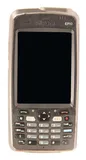
User manual for the Psion EP10 rugged hand-held computer (model 7515) running Windows Embedded Hand-Held 6.5.
Covers · 2 models
The models it covers
Summary
What is in it
The user manual for the Psion EP10 hand-held computer, a small rugged PDA running Windows Embedded Hand-Held 6.5, covering models 7515U, 7515C and 7515. It explains batteries and charging, resets, the keyboard, display and touchscreen, the phone, e-mail and other built-in programs, settings including Bluetooth and the Wi-Fi radio, peripherals and accessories such as imagers, and data transfer to a PC. Appendices cover WWAN, port pinouts, the Imagers applet and specifications.
Its parts
- Introduction
- Getting Started
- Getting to Know the EP10
- Programs
- Settings
- Peripheral Devices & Accessories
From the manual
Key facts from this manual
Each line names its page in the PDF.
User manual for the Psion EP10 hand-held computer (model EP10/7515) running Windows Embedded Hand-Held 6.5. It explains how to prepare, charge, reset and connect the unit, describes its programs, settings, chargers, docking stations and carrying accessories, and gives port pinouts and full specifications.
- Device
- Small, durable hand-held PDA computer with Microsoft Windows Embedded Hand-Held 6.5, 3G and CDMA, Wi-Fi, Bluetooth and built-in sensors p. 18
- Model numbers
- EP10/7515; variants 7515U, 7515C and 7515 p. 2, 17
- Processor and memory
- AM3715 Sitara, 800 MHz (ARM Cortex A8); 256 MB SDRAM, 2 GB flash; one microSD slot p. 18, 19
- Batteries
- Li-ion: standard 2400 mAh RV3005 (BP08-000730) or high capacity 3600 mAh RV3010 (BP08-000760) p. 25
- Display
- 3.7 in. VGA portrait, 480 x 640 color TFT, 165 cd/m2 backlight, sunlight readable touchscreen p. 18
- Keyboards
- Backlit QWERTY, numeric or AZERTY, with Talk and End phone keys p. 18, 32
- Wi-Fi and Bluetooth
- On-board IEEE 802.11a/b/g/n (CCX V4) and Bluetooth, usable at the same time p. 18, 19
- WWAN radios
- Cinterion PH8 for GSM/UMTS worldwide, or Sierra Wireless MC5728V for Sprint and Verizon CDMA in the U.S. p. 27
- Scanner
- 2D EA11 imager p. 270
- Docks and chargers
- Desktop Docking Station RV4000, Quad Docking Station RV4004, Quad Charger RV3004, Snap Modules RV4001 (USB and DC) and RV4002 (RS-232 and DC) p. 212
- Power adaptors
- AC adaptor PS1050-G1 for the snap modules; AC adaptor RV3055 for docks and quad charger; vehicle power outlet adaptor RV3050 p. 212
- Carrying accessories
- Hand strap RV6021, stylus and tether pack RV6101 (5 per pack), carrying pouch RV6091, plastic carrying case RV6092 p. 211
- Size and weight
- 6.2 x 3.1 x 1.2 in. (158 x 78 x 30.6 mm); 0.8 lb (336 g) with 2400 mA battery p. 269
- Environment
- Operating -10 to +50°C; storage -20 to +65°C; IP54; 26 drops from 5 ft (1.5 m) to polished concrete p. 271
What this manual walks you through
- Installing, removing and charging the battery p. 25, 31, 32
- Switching on, suspending and powering off p. 25, 26
- Warm reset, clean start, Boot to BooSt and hardware reset p. 26, 27
- Setting up Wi-Fi, WWAN, Bluetooth and GPS p. 27
- Transferring data between the EP10 and a PC p. 27
- Installing chargers and docking stations safely p. 212, 213
- Dock port and battery contact pinouts p. 245
- Hardware, radio and environmental specifications p. 269, 270, 271, 272
Good to know
- Do not leave a spare battery charging for more than 72 hours; it may damage the battery or reduce its capacity. p. 31
- Chargers only charge between 0°C and 40°C (32°F to 104°F). p. 213
- New batteries come charged to about 40% and must be fully charged before use. p. 31
- The docking stations cannot be used with PDAs other than the EP10, and the power cord is ordered separately. p. 212, 213
- Switch the unit off before changing the battery, or active sessions may be lost. p. 25
Questions this manual answers
What battery does the Psion EP10 use?
A Li-ion pack: the standard 2400 mAh RV3005 (BP08-000730) or the high capacity 3600 mAh RV3010 (BP08-000760). p. 25
How do I warm reset the EP10?
Hold down the BLUE/FN key and the Power button together for at least six seconds; RAM content is not kept. p. 26
EP10 will not turn on and a yellow LED blinks
The battery is overheated (over 60°C) or very low (under 100 mAh); replace the battery or charge it to an acceptable level. p. 32
How long can I swap the EP10 battery without losing data?
About 2 minutes; internal super-capacitors keep the data while the battery is swapped. p. 31
Which EP10 charger takes four batteries?
The Quad Battery Charger, Model No. RV3004. p. 32
Contents
Chapters and sections
Each line opens the PDF at its page.
- EP10™ Hand-Held Computer User Manual (Windows Embedded Hand-Held 6.5)1
- Chapter 1: Introduction5
- Chapter 2: Getting Started5
- Chapter 3: Getting to Know the EP105
- Chapter 4: Programs7
- Chapter 5: Settings8
- Chapter 6: Peripheral Devices & Accessories11
- Appendix A: Wireless Wide Area Network (WWAN)12
- Appendix B: Port Pinouts12
- Appendix C: Imagers Applet12
- Appendix D: Specifications13
- Introduction15
- Getting Started21
- Getting to Know the EP1029
- 3.1 Operating System31
- 3.2 The Battery31
- 3.3 The Keyboard32
- 3.4 The Display38
- 3.5 EP10 Indicators39
- 3.6 Audio Indicators40
- 3.7 Inserting the microSD and SIM Card40
- 3.8 Monitoring the Battery and Maximizing Run Time42
- 3.9 Navigating in Windows Embedded 6.5 and Applications45
- 3.10 The Today Screen45
- 3.11 Using the Navigation Bar and Hotkeys53
- 3.12 The Softkey Bar54
- 3.13 Managing Files and Folders55
- 3.14 Using Menus56
83 more lines, from page 57 on
- 3.15 Programs – Using Applications57
- Programs61
- 4.1 Programs63
- 4.2 Home63
- 4.3 The Phone63
- 4.4 Text Messages73
- 4.5 E-mail74
- 4.6 Contacts77
- 4.7 Internet Explorer81
- 4.8 Calendar82
- 4.9 Alarms82
- 4.10 Pictures & Videos82
- 4.11 Windows Media86
- 4.12 Messenger (Windows Live)86
- 4.13 Windows Live87
- 4.14 Notes87
- 4.15 Task Notification91
- 4.16 File Explorer93
- 4.17 ActiveSync®94
- 4.18 Internet Sharing94
- 4.19 Task Manager96
- 4.20 Search Phone96
- 4.21 Imager and Camera Demo97
- 4.22 Office Mobile98
- 4.23 Modem Link103
- 4.24 PartnerUp104
- 4.25 PsionVu104
- 4.26 Remote Desktop Mobile104
- 4.27 SIM Toolkit UI105
- 4.28 WiFiConnect A.R.C.106
- Settings107
- Peripheral Devices & Accessories209
- 6.1 Carrying Accessories211
- 6.2 The Battery212
- 6.3 Chargers and Docking Stations212
- 6.4 AC Wall Adaptor – Model No. PS1050-G1213
- 6.5 Desktop Docking Station – Model No. RV4000214
- 6.6 Quad Docking Station – Model No. RV4004217
- 6.7 Quad Charger – Model No. RV3004219
- 6.8 Snap Modules – Model Nos. RV4001 & RV4002221
- 6.9 Vehicle Power Outlet Adaptor – Model No. RV3050221
- 6.10 The Unpowered Vehicle Cradle – Model No. RV1000222
- 6.11 The Powered Vehicle Cradle – Model No. RV1005224
- 6.12 EA11 Imager228
- 6.13 Bluetooth Peripherals229
- 6.14 Digital Camera229
- Wireless Wide Area Network (WWAN)231
- Port Pinouts243
- Imagers Applet247
- Specifications267
- Index277
The whole text · 35 parts
Read the manual here as text
Its text as extracted from the PDF, unedited, in parts; each page opens the PDF at that page.
- EP10™ Hand-Held Computer User Manual (Windows Embedded Hand-Held 6.5)1-4
- Table of Contents, pages 5 to 75-7
- Table of Contents, pages 8 to 108-10
- Table of Contents, pages 11 to 1411-14
- Introduction15-20
- Getting Started21-28
- Getting to Know the EP10, pages 29 to 3629-36
- Getting to Know the EP10, pages 37 to 4437-44
- Getting to Know the EP10, pages 45 to 5245-52
- Getting to Know the EP10, pages 53 to 6053-60
- Programs, pages 61 to 7061-70
- Programs, pages 71 to 8071-80
- Programs, pages 81 to 9081-90
- Programs, pages 91 to 10091-100
- Programs, pages 101 to 106101-106
- Settings, pages 107 to 116107-116
- Settings, pages 117 to 126117-126
- Settings, pages 127 to 136127-136
- Settings, pages 137 to 146137-146
- Settings, pages 147 to 156147-156
- Settings, pages 157 to 166157-166
- Settings, pages 167 to 176167-176
- Settings, pages 177 to 186177-186
- Settings, pages 187 to 196187-196
- Settings, pages 197 to 206197-206
- Settings, pages 207 to 208207-208
- Peripheral Devices & Accessories, pages 209 to 216209-216
- Peripheral Devices & Accessories, pages 217 to 224217-224
- Peripheral Devices & Accessories, pages 225 to 230225-230
- Wireless Wide Area Network (WWAN)231-242
- Port Pinouts243-246
- Imagers Applet, pages 247 to 256247-256
- Imagers Applet, pages 257 to 266257-266
- Specifications267-276
- Index277-282
The file