Manual · Datalogic
Datalogic QS-1000 and PSC QS-1000 Manual
Manual2 pagesPDF 714 KB
Both pages are below, each with its text.
Covers · 2 models
The models it covers
From the manual · read page by page
Key facts from this manual
Each line names its page in the PDF.
Two-page PSC user's guide (R44-2017, 2000) for the QuickScan 1000 handheld barcode scanner. It covers installation with host power or an AC/DC adapter, mounting the optional stand, scanning tips, troubleshooting, laser cautions and label placement.
- Device
- Handheld barcode scanner with a visible laser diode p. 1
- Power
- From the host terminal (Power Off the Terminal) or an external AC/DC adapter; needs a Listed Class 2 or Listed LPS source p. 1, 2
- Laser
- Visible Laser Diode, 650-670 nanometers p. 1
- LaserSense
- Detects a bar code moved into range and projects a laser marker spot showing where to place it p. 2
- Interface cable
- Plugs into the scanner handle; released with a paper clip in the cable release hole p. 2
- Stand
- Optional QS1000 scanner stand with gooseneck/cradle; mount plate fixes to a countertop with four screws p. 2
- Programming guide
- QuickScan 1000 Scanner Programming Guide, P/N R44-2018 p. 2
What this manual walks you through
- Installing the scanner with host power or an AC/DC adapter p. 2
- Attaching the optional stand to a countertop p. 2
- Scanning at a slight angle across the whole bar code p. 2
- Troubleshooting power, label quality, interface type and cable connections p. 2
- Laser cautions and label placement p. 1
Good to know
- Do not open or service the optics cavity; the optics system is a factory only repair item. p. 1
- The scanner will not work without system power on, or if its external power supply has failed. p. 2
- The manual states the scanner is certified as a Class 2 laser product to IEC 825-1:1993 and Class II under CDRH. p. 1
- Wrinkled, smudged or torn bar codes may not read at all. p. 2
Questions this manual answers
How do I install a PSC QuickScan 1000?
With host power off, connect the interface cable to the host port; if not powered by the terminal, connect the AC/DC adapter; then power the host and scan a sample bar code. p. 2
Why won't my QuickScan 1000 read bar codes?
Check system or external power, label quality, that the symbology is enabled, that the interface type suits the host, and that the cable is seated at both ends. p. 2
How do I remove the QuickScan 1000 cable?
Push a paper clip tip into the cable release hole to depress the latch, then pull the cable out. p. 2
The file
Size and text
Every page · 2
Read it here
Each page as it is printed, and its words beside it, so a phone can search and copy them.
Page1of 2
Open in the PDF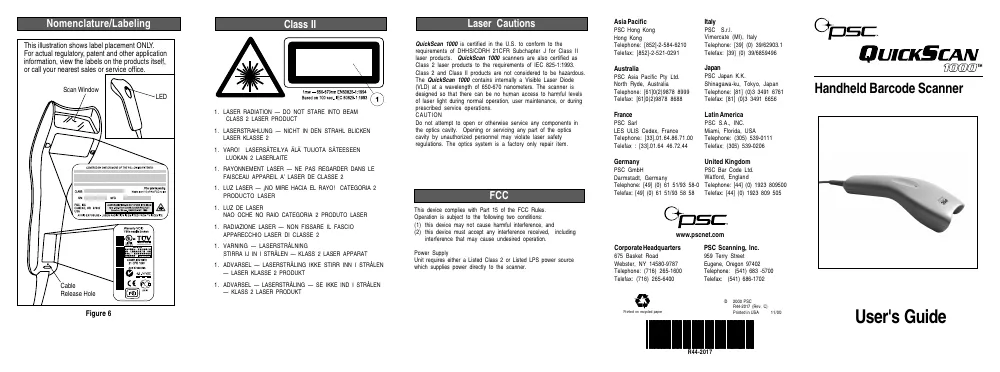
The text of page 1, from the PDF itself
Nomenclature/Labeling
Class II
This illustration shows label placement ONLY. For actual regulatory, patent and other application information, view the labels on the products itself, or call your nearest sales or service office. Scan Window LED 1. LASER RADIATION, DO NOT STARE INTO BEAM CLASS 2 LASER PRODUCT 1. LASERSTRAHLUNG, NICHT IN DEN STRAHL BLICKEN LASER KLASSE 2
Laser Cautions QuickScan 1000 is certified in the U.S. to conform to the requirements of DHHS/CDRH 21CFR Subchapter J for Class II laser products. QuickScan 1000 scanners are also certified as Class 2 laser products to the requirements of IEC 825-1:1993. Class 2 and Class II products are not considered to be hazardous. The QuickScan 1000 contains internally a Visible Laser Diode (VLD) at a wavelength of 650-670 nanometers. The scanner is designed so that there can be no human access to harmful levels of laser light during normal operation, user maintenance, or during prescribed service operations. CAUTION Do not attempt to open or otherwise service any components in the optics cavity. Opening or servicing any part of the optics cavity by unauthorized personnel may violate laser safety regulations. The optics system is a factory only repair item.
1. VARO! LASERSÄTEILYA ÄLÄ TUIJOTA SÄTEESEEN LUOKAN 2 LASERLAITE 1. RAYONNEMENT LASER, NE PAS REGARDER DANS LE FAISCEAU APPAREIL A’ LASER DE CLASSE 2 1. LUZ LASER, ¡NO MIRE HACIA EL RAYO! CATEGORIA 2 PRODUCTO LASER 1. LUZ DE LASER NAO OCHE NO RAIO CATEGORIA 2 PRODUTO LASER 1. RADIAZIONE LASER, NON FISSARE IL FASCIO APPARECCHIO LASER DI CLASSE 2 1. VARNING, LASERSTRÅLNING STIRRA IJ IN I STRÅLEN, KLASS 2 LASER APPARAT 1. ADVARSEL, LASERSTRÅLING IKKE STIRR INN I STRÅLEN, LASER KLASSE 2 PRODUKT
Cable Release Hole
1. ADVARSEL, LASERSTRÅLING, SE IKKE IND I STRÅLEN, KLASS 2 LASER PRODUKT
FCCAsia PacificItaly
PSC Hong Kong Hong Kong Telephone: [852]-2-584-6210 Telefax: [852]-2-521-0291
PSC S.r.l. Vimercate (MI), Italy Telephone: [39] (0) 39/62903.1 Telefax: [39] (0) 39/6859496
Australia
Japan
PSC Asia Pacific Pty Ltd. North Ryde, Australia Telephone: [61]0(2)9878 8999 Telefax: [61]0(2)9878 8688
PSC Japan K.K. Shinagawa-ku, Tokyo, Japan Telephone: [81] (0)3 3491 6761 Telefax: [81] (0)3 3491 6656
France
Latin America
PSC Sarl LES ULIS Cedex, France Telephone: [33].01.64.86.71.00 Telefax : [33].01.64 46.72.44
PSC S.A., INC. Miami, Florida, USA Telephone: (305) 539-0111 Telefax: (305) 539-0206
Germany
United Kingdom
PSC GmbH Darmstadt, Germany Telephone: [49] (0) 61 51/93 58-0 Telefax: [49] (0) 61 51/93 58 58
PSC Bar Code Ltd. Watford, England Telephone: [44] (0) 1923 809500 Telefax: [44] (0) 1923 809 505
This device complies with Part 15 of the FCC Rules. Operation is subject to the following two conditions: (1) this device may not cause harmful interference, and (2) this device must accept any interference received, including interference that may cause undesired operation. Power Supply Unit requires either a Listed Class 2 or Listed LPS power source which supplies power directly to the scanner.
www.pscnet.com Corporate Headquarters
PSC Scanning, Inc.
675 Basket Road Webster, NY 14580-9787 Telephone: (716) 265-1600 Telefax: (716) 265-6400
959 Terry Street Eugene, Oregon 97402 Telephone: (541) 683 -5700 Telefax: (541) 686-1702
©
Figure 6
Handheld Barcode Scanner
Printed on recycled paper
R44-2017
2000 PSC R44-2017 (Rev. C) Printed in USA 11/00
User's Guide
Page2of 2
Open in the PDF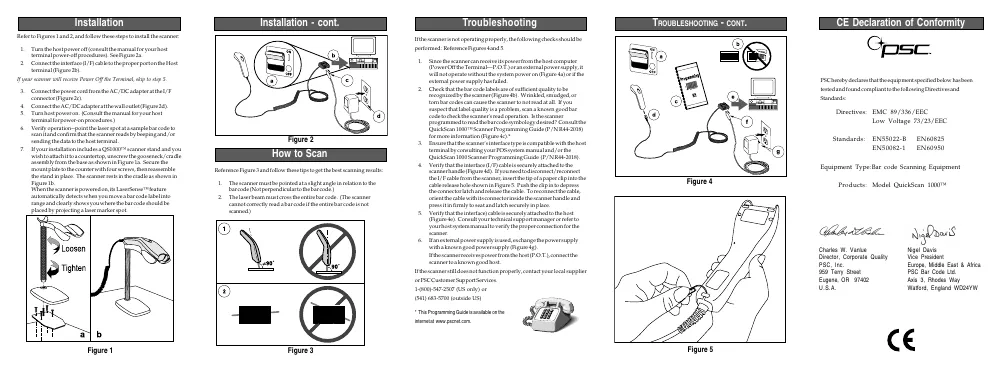
The text of page 2, from the PDF itself
Installation - cont.
Installation Refer to Figures 1 and 2, and follow these steps to install the scanner: 1. 2.
Troubleshooting4. 5. 6.7.
Connect the power cord from the AC/DC adapter at the I/F connector (Figure 2c). Connect the AC/DC adapter at the wall outlet (Figure 2d). Turn host power on. (Consult the manual for your host terminal for power-on procedures.) Verify operation--point the laser spot at a sample bar code to scan it and confirm that the scanner reads by beeping and/or sending the data to the host terminal. If your installation includes a QS1000™ scanner stand and you wish to attach it to a countertop, unscrew the gooseneck/cradle assembly from the base as shown in Figure 1a. Secure the mount plate to the counter with four screws, then reassemble the stand in place. The scanner rests in the cradle as shown in Figure 1b. When the scanner is powered on, its LaserSense™ feature automatically detects when you move a bar code label into range and clearly shows you where the bar code should be placed by projecting a laser marker spot.
performed: Reference Figures 4 and 5. 1.
2.Figure 23.
How to Scan 4. Reference Figure 3 and follow these tips to get the best scanning results: 1. 2.
The scanner must be pointed at a slight angle in relation to the bar code (Not perpendicular to the bar code.) The laser beam must cross the entire bar code. (The scanner cannot correctly read a bar code if the entire bar code is not scanned.)
5.
6.
Since the scanner can receive its power from the host computer (Power Off the Terminal - P.O.T.) or an external power supply, it will not operate without the system power on (Figure 4a) or if the external power supply has failed. Check that the bar code labels are of sufficient quality to be recognized by the scanner (Figure 4b). Wrinkled, smudged, or torn bar codes can cause the scanner to not read at all. If you suspect that label quality is a problem, scan a known good bar code to check the scanner's read operation. Is the scanner programmed to read the bar code symbology desired? Consult the QuickScan 1000™ Scanner Programming Guide (P/N R44-2018) for more information (Figure 4c).* Ensure that the scanner's interface type is compatible with the host terminal by consulting your POS system manual and/or the QuickScan 1000 Scanner Programming Guide (P/N R44-2018). Verify that the interface (I/F) cable is securely attached to the scanner handle (Figure 4d). If you need to disconnect/reconnect the I/F cable from the scanner, insert the tip of a paper clip into the cable release hole shown in Figure 5. Push the clip in to depress the connector latch and release the cable. To reconnect the cable, orient the cable with its connector inside the scanner handle and press it in firmly to seat and latch securely in place. Verify that the interface) cable is securely attached to the host (Figure 4e). Consult your technical support manager or refer to your host system manual to verify the proper connection for the scanner. If an external power supply is used, exchange the power supply with a known good power supply (Figure 4g). If the scanner receives power from the host (P.O.T.), connect the scanner to a known good host.
PSC hereby declares that the equipment specified below has been tested and found compliant to the following Directives and Standards:
Directives: EMC 89/336/EEC Low Voltage 73/23/EEC Standards:
Figure 4
EN60825 EN60950
Products: Model QuickScan 1000™
Charles W. Vanlue Director, Corporate Quality PSC, Inc. 959 Terry Street Eugene, OR 97402 U.S.A.
or PSC Customer Support Services. 1-(800)-547-2507 (US only) or (541) 683-5700 (outside US)
- This Programming Guide is available on the internet at www.pscnet.com.
Figure 3
EN55022-B EN50082-1
Equipment Type:Bar code Scanning Equipment
If the scanner still does not function properly, contact your local supplier
Figure 1
CE Declaration of Conformity
If the scanner is not operating properly, the following checks should be
Turn the host power off (consult the manual for your host terminal power-off procedures). See Figure 2a. Connect the interface (I/F) cable to the proper port on the Host terminal (Figure 2b).
If your scanner will receive Power Off the Terminal, skip to step 5. 3.
TROUBLESHOOTING - CONT.
Figure 5
Nigel Davis Vice President Europe, Middle East & Africa PSC Bar Code Ltd. Axis 3, Rhodes Way Watford, England WD24YW