Manual · POS-X
Barcode Scanner Magstripe Decoder & Scanner Programming Manual
Manual52 pagesPDF 1.2 MB
Programming manual with setup bar codes for a keyboard wedge or RS-232 barcode scanner and magstripe decoder.
Filed with · 1 model
Also filed with these models on the old site

Summary
What is in it
Programming manual for a barcode scanner and magstripe decoder that is set up by scanning bar code labels. It explains installing a keyboard wedge or RS-232 scanner and the setup procedure (Enter Group, select items, Exit), then gives the setup labels group by group: interface, keyboard type and language, terminator, scan mode, preamble and postamble, RS-232 parameters, each symbology, code ID, wand and magnetic stripe parameters and function key emulation, with ASCII and hex tables and pin assignments. The manual does not name a scanner model.
Its parts
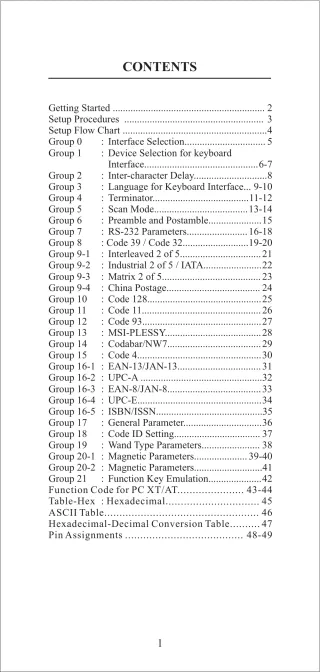
- Getting Started
- Setup Procedures
- Setup Flow Chart
- Group 0: Interface Selection
- Group 1: Device Selection for Keyboard Interface
- Group 2: Inter-character Delay
- Group 3: Language for Keyboard Interface
- Group 4: Terminator
- Group 5: Scan Mode
- Group 6: Preamble and Postamble
- Group 7: RS-232 Parameters
- Group 8: Code 39 / Code 32
- Group 17: General Parameter
- Group 20-1: Magnetic Parameters
- Group 21: Function Key Emulation
From the manual · read page by page
Key facts from this manual
Some pages are scans or cannot be read; this says only what the readable text supports. Each line names its page in the PDF.
A generic programming manual for barcode scanners and magstripe decoders, made of setup barcodes arranged in numbered groups. It does not name the POS-X Xi1000 or any other model. It lets the reader change the interface, keyboard language, terminator, scan mode, RS-232 settings, symbologies and magnetic track settings, and gives the connector pin assignments.
- Interfaces
- Keyboard wedge, RS-232, wand and TTL outputs, and USB, with the interface preset at the factory for each model p. 6, 49
- Scanner-end plug
- 10-pin modular plug, RJ-45 male 10P10C p. 49
- RS-232 defaults
- 9600 baud, 8 data bits, no parity, no handshaking; 600 to 38400 baud available p. 17, 18
- RS-232 power
- For PC use, a cable with a DC power jack takes external power p. 50
- Keyboard hosts
- PC/AT, PS/2 50, 60, 70, 80 (default), PC/XT, PS/2 25, 30; IBM 3197, 3476, 3477 p. 7, 8
- Keyboard languages
- U.S. (default), England, France, Germany, Italy, Belgium, Sweden/Finland, Spanish, Denmark, Portugal, Swiss, Norway, Canada, Holland, Poland, Latin, Japan p. 10, 11
- Symbologies
- Code 39/Code 32, Interleaved, Industrial and Matrix 2 of 5, IATA, China Postage, Code 128, Code 11, Code 93, MSI-Plessey, Codabar/NW7, Code 4, EAN-13, EAN-8, UPC-A, UPC-E, ISBN/ISSN p. 2
- Magstripe
- Tracks 1, 2 and 3, any order; ISO format by default p. 40, 41
- Scan modes
- Eight trigger and continuous modes; default Trigger On/Good Read Off; CCD and laser scanners only p. 14
- Default terminator
- CR p. 12, 13
- Preamble and postamble
- Up to 10 characters each p. 16
- Manual version
- V20040930 p. 52
What this manual walks you through
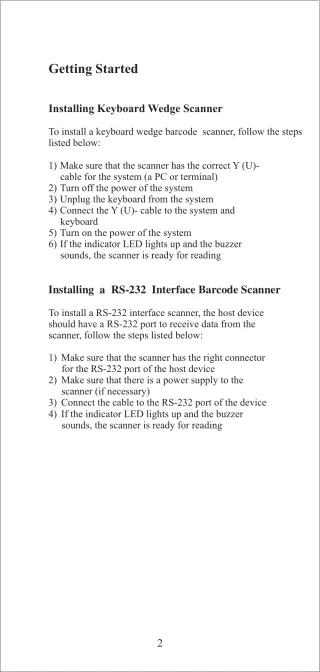
- Installing a keyboard wedge scanner with a Y cable p. 3
- Installing an RS-232 scanner p. 3
- Changing a setting by scanning Enter Group, the option and Exit p. 4
- Restoring all defaults and showing the firmware version p. 5
- Adding a preamble or postamble from the ASCII and hex tables p. 16
- Enabling symbologies, check characters and barcode lengths p. 20, 21, 22, 23, 24, 25, 26, 27
- Setting magstripe track order, track selection and sentinels p. 40, 41, 42
- Sending function keys such as F1 or Enter with the data p. 43
- Connector pin assignments for TTL, wand, RS-232, keyboard and USB outputs p. 49, 50, 51
Good to know
- Options shown in parentheses are only available upon request. p. 5
- Turn the computer off before connecting a keyboard wedge scanner. p. 3
- To scan function key barcodes, Full ASCII Code 39 must be enabled. p. 43
Questions this manual answers
How do I reset the scanner to factory defaults?
This manual has a Set All Defaults barcode on its setup flow chart page; scan it to restore the defaults. p. 5
What are the default RS-232 settings in this scanner manual?
9600 baud, 8 data bits, no parity and no handshaking. p. 17, 18
How do I add a prefix to scanned barcodes?
Scan Enter Group 6, then Preamble, then two hex digits per character from Table-Hex (up to 10 characters), then Confirm and Exit. p. 16
The whole text · 6 parts
Read the manual here as text
Its text as extracted from the PDF, unedited, in parts; each page opens the PDF at that page.
The file