Manual · Microscan
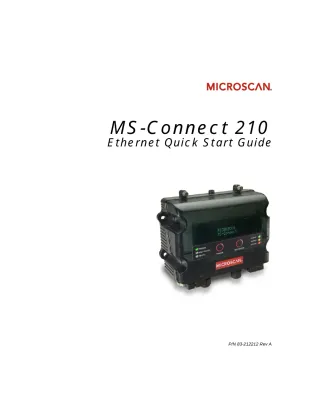
MS-Connect 210 Ethernet Quick Start Guide
Manual8 pagesPDF 212 KB
Quick start guide for the Microscan MS-Connect 210: power up, find it in ESP, set network and COM port settings, connect a reader.
Covers · 1 model
The models it covers
Summary
What is in it
Microscan's short Ethernet quick start guide for the MS-Connect 210, which connects a Microscan reader to an Ethernet network. In seven steps it shows how to power on the system, select and find the MS-Connect 210 in the ESP software, set network parameters (subnet mask, gateway, TCP port), set COM port parameters to match the reader, select the reader model and connect over TCP/IP, configure the reader, and begin operation, with pointers to the user's manual for EtherNet/IP.
Its parts
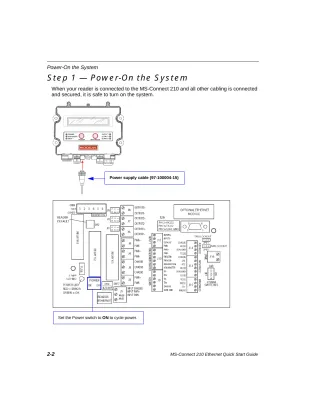
- Power-On the System
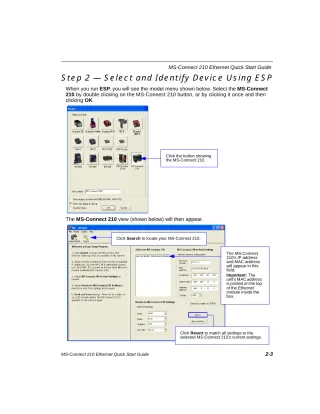
- Select and Identify Device Using ESP
- Set Network Parameters
- Set COM Port Parameters
- Select Reader Model and Connect
- Configure the Connected Reader
- Begin Active Operation of System
From the manual · read page by page
Key facts from this manual
Each line names its page in the PDF.
A short Ethernet quick start guide (P/N 83-212212 RevA) for the Microscan MS-Connect 210. It takes the reader through powering on, finding the unit in the ESP software, setting its network and serial port parameters, and connecting to a Microscan reader over TCP/IP.
- Device
- Unit with an Ethernet module that links a serially connected reader to Ethernet p. 4, 5
- Power supply cable
- 97-100004-15 p. 2
- Setup software
- ESP, which searches for the unit and sends and saves its Ethernet and COM port settings p. 3, 4, 5
- Network settings
- Subnet mask, gateway address and TCP port; firmware version, MAC and IP address fill in automatically p. 4
- Serial settings
- Baud rate, parity, stop bits and data bits, set to match the connected reader p. 5
- MAC address
- Printed on top of the Ethernet module inside the box p. 3
- EtherNet/IP
- EtherNet/IP settings, IP assignment without ESP and star topology are left to the MS-Connect 210 User's Manual p. 7
What this manual walks you through
- Powering on the system once the reader and cabling are connected p. 2
- Selecting and finding the MS-Connect 210 in ESP p. 3
- Setting the network parameters p. 4
- Setting the COM port parameters to match the reader p. 5
- Selecting the reader model and connecting over TCP/IP p. 6
- Configuring the connected reader and starting Ethernet operation p. 7
Good to know
- Turn the system on only when the reader and all other cabling are connected and secured. p. 2
- If the reader's baud rate, parity, stop bits or data bits change, the MS-Connect 210 must be set to match again. p. 7
Questions this manual answers
Where is the MAC address of the MS-Connect 210?
It is printed on top of the Ethernet module inside the box; ESP also shows it after a search. p. 3
Why does my reader not talk over Ethernet through the MS-Connect 210?
The MS-Connect 210 serial port settings must match the reader's baud rate, parity, stop bits and data bits. p. 5
How do I connect ESP to a reader through the MS-Connect 210?
Select the reader model, open Settings from the Connect menu, choose the TCP/IP tab, enter the IP address and TCP port, and click Connect. p. 6
What power cable does the MS-Connect 210 quick start show?
The power supply cable 97-100004-15. p. 2
The whole text · 1 part
Read the manual here as text
Its text as extracted from the PDF, unedited, in parts; each page opens the PDF at that page.
The file