Manual · Microscan
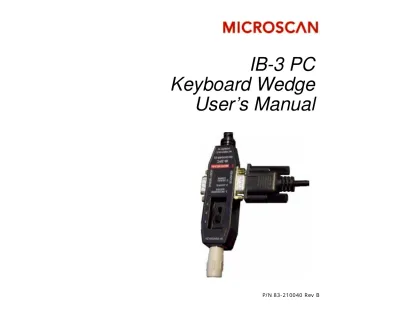
IB-3 PC Keyboard Wedge User's Manual
Manual32 pagesPDF 710 KB
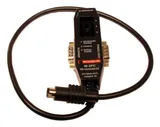
User's manual for the Microscan IB-3 PC keyboard wedge, which feeds MS-3 reader data to a PC as keyboard input.
Covers · 1 model
The models it covers
Summary
What is in it
User's manual for the Microscan IB-3 PC Keyboard Wedge, a programmable junction box that streams data from an MS-3 reader into a host computer program as if it were typed on the keyboard. It gives a quick start for wedge operation with the laser and CCD versions of the MS-3, wedge configuration by bar code or serial commands, serial operations between the host and the MS-3, and an appendix with electrical specifications, wedge limitations, key mapping commands, keyboard layout and an ASCII table.
Its parts
- Wedge Quick Start
- Wedge Configuration
- Serial Operations
From the manual · read page by page
Key facts from this manual
Each line names its page in the PDF.
This is the user's manual for the Microscan IB-3 PC keyboard wedge, which connects an MS-3 laser scanner or MS-3 CCD reader to a PC keyboard port. It covers wedge setup, configuring the wedge with serial commands, using it as a serial junction box, and the connector pinouts.
- Device
- Programmable keyboard wedge junction box that sends MS-3 data to the host as if typed on the keyboard p. 5
- Readers
- MS-3 laser scanner or MS-3 CCD reader p. 7
- Part number
- IB-3 PC, FIS-0001-0030G p. 8
- Power
- Wedge mode: 5VDC from the host's PS/2 keyboard port, also fed to the MS-3; serial mode: separate 5 VDC supply p. 5, 22
- Mode switch
- 3 positions: 1 wedge and bar code configuration, 2 serial configuration from the keyboard, 3 serial link host to MS-3 p. 5
- Keyboard emulation
- AT or XT keyboard (default AT) p. 5, 20
- Connectors
- 15-pin SCANNER connector, PS/2 keyboard socket, cable to the host keyboard port or RS-232 port p. 15, 26
- Serial cable
- DB-9 serial communications cable, P/N 61-000010-01 p. 14
- Power supply
- P/N 97-000002-01, for serial operations p. 22
- Input buffer
- 200 characters; optional Xon/Xoff flow control p. 18, 27
- Key bindings
- 10 momentary and 10 held key bindings p. 28
- Commands
- <W...> serial commands or bar codes; save with <W200,1>, default with <W900,DEFAULT> p. 16, 18, 19
- MS-3 terminal link
- In ESP: 9600 baud, even parity, one stop bit, seven data bits p. 16
What this manual walks you through
- Connecting the IB-3 PC between the keyboard and the host p. 8, 9
- Setting up an MS-3 laser scanner or MS-3 CCD reader with bar codes p. 10, 11
- Testing the wedge setup p. 12
- Connecting a computer to configure the wedge p. 14, 15
- Enabling muting before sending serial commands p. 16, 17
- Choosing AT or XT keyboard emulation p. 20
- Using the IB-3 PC as a serial junction box p. 21, 22, 23
- Scanner, serial and PS/2 connector pinouts p. 26
- Mapping keys and setting capitalization p. 28, 29
Good to know
- Always send the Enable Muting command first, or keyboard commands echo in an endless loop. p. 17
- Connect all cables before applying power, and power down before disconnecting any cable. p. 9
- A substitute power supply must be wired correctly and supply 5 VDC. p. 22
- Packet mode cannot be used for data longer than 200 characters. p. 27
- An MS-3 default from the wedge only takes effect within 60 seconds after power-on. p. 18
Questions this manual answers
How is the Microscan IB-3 PC powered?
As a wedge it takes 5VDC from the host's PS/2 keyboard port. As a serial junction box it uses a separate power supply, P/N 97-000002-01. p. 5, 22
What do the IB-3 PC switch positions do?
Position 1 is normal wedge use and bar code configuration, position 2 takes serial configuration commands from the keyboard, and position 3 passes serial data between host and MS-3. p. 5
Why does the IB-3 PC repeat characters in an endless loop?
Muting is off. Send <W500,1> as a macro in position 2, or scan the Enable Muting symbol in position 1. p. 16
Does the IB-3 PC work with XT keyboards?
Yes. It emulates an AT or XT keyboard, set with <W800>; the default is AT. p. 20
Contents
Chapters and sections
Each line opens the PDF at its page.
The whole text · 4 parts
Read the manual here as text
Its text as extracted from the PDF, unedited, in parts; each page opens the PDF at that page.
The file