Manual · Metrologic
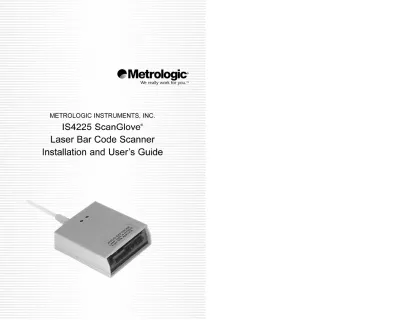
IS4225 ScanGlove Laser Bar Code Scanner Installation and User's Guide
Manual32 pagesPDF 2.4 MB
Installation and user's guide for the Metrologic IS4225 ScanGlove wearable single-line laser bar code scanner: setup, indicators and specifications.
Covers · 1 model
The models it covers
Summary
What is in it
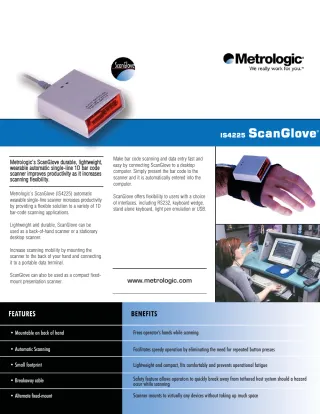
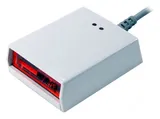
Metrologic's installation and user's guide for the IS4225 ScanGlove, a fully automatic single-line laser scanner worn hands-free or used on a desktop. It lists the models by interface (USB, RS232, light pen emulation, keyboard wedge), then covers installation, configuring the scanner to the host with the MetroSelect configuration guide, the parts, LED and beeper indicators, maintenance, the infrared object sensor, the scan field, specifications, default settings, troubleshooting, warranty and regulatory notices.
Its parts
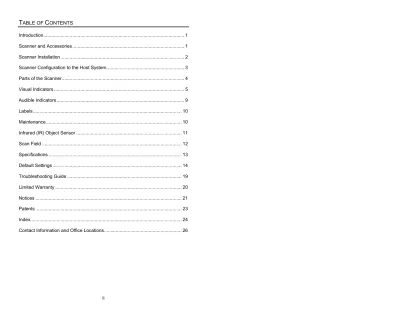
- Introduction
- Scanner Installation
- Scanner Configuration to the Host System
- Parts of the Scanner
- Visual Indicators
- Audible Indicators
- Labels
- Maintenance
- Infrared (IR) Object Sensor
- Scan Field
- Specifications
- Default Settings
- Troubleshooting Guide
- Limited Warranty
- Notices
From the manual
Key facts from this manual
Each line names its page in the PDF.
Metrologic's installation and user's guide for the IS4225 ScanGlove laser bar code scanner and its interface models IS4225-07, -14, -15, -41 and -47. It covers connecting and configuring the scanner, the LED and beep signals, the infrared activation sensor, specifications, factory default settings and troubleshooting.
- Device
- Fully automatic single-line laser bar code scanner, worn hands-free or used as a desktop scanner p. 5
- Interface models
- IS4225-07 USB Keyboard; IS4225-14 RS232; IS4225-15 Light Pen Emulation; IS4225-47 PC Keyboard Wedge and Stand Alone Keyboard; IS4225-41 Full RS232 and Light Pen Emulation p. 5
- Power
- 5VDC ± 0.25V input, 0.75 W, 135 mA p. 17
- Power supply
- Class 2 DC transformer, 5VDC @ 300 mA; requests 100mA from a USB port p. 17, 23
- Scanning
- 650 nm VLD, 52 scan lines per second, single scan line p. 17
- Depth of field
- 12.7 mm to 203 mm (.5" to 8") for .33 (13 mil) bar codes p. 17
- Size
- 70 mm x 49 mm x 24 mm (2.75" x 1.94" x 0.94") p. 17
- Weight
- 105 grams (3.7 oz.) p. 17
- Operating temperature
- -20°C to 50°C (-4°F to 122°F) p. 17
- IR activation range
- Short range about 4" to 7"; long range about 9" to 13" from the window p. 15
- Decoding
- Autodiscriminates all standard bar codes; up to 80 data characters p. 17
- Firmware
- Flash upgradeable on all models p. 5
- Glove
- 45-45455 Black Adjustable Glove p. 5
- Related guides
- 00-02348 this guide; 00-02544 MetroSelect Single-Line Configuration Guide; 00-02259 USB Configuration Addendum p. 5
What this manual walks you through
- Connecting the scanner to the host system p. 6
- Changing settings with configuration bar codes p. 7
- Reading the red and green LEDs p. 9
- Understanding the beep tones p. 13
- Setting the infrared activation range p. 15
- Reading the same bar code twice p. 15
- Cleaning the output window p. 14
- Checking the factory default settings p. 18
- Troubleshooting power, data and USB keyboard problems p. 23
Good to know
- On the IS4225-07, scanning recall defaults removes the USB setup, which must be redone (see the USB Configuration Addendum) before other changes. p. 7
- The scanner must be powered from an outlet with a switch the user can reach, or from a host with a switch that cuts its power. p. 6
- The laser scanner has no user-serviceable parts: never open it or look into the beam. p. 25
- It is a Class A device and may cause interference in a residential area. p. 25
Questions this manual answers
What does a razzberry tone at power up mean on the IS4225?
The scanner has failed its diagnostics. p. 13
Which IS4225 model has an RS232 interface?
The IS4225-14 is RS232, and the IS4225-41 has full RS232 plus light pen emulation. p. 5
Why does my IS4225 USB scanner type the wrong characters?
The guide gives two causes: the scanner is not configured correctly, or the wrong keyboard country is selected. Reconfigure it with the codes for your model. p. 23
How much current does the IS4225 draw from a USB port?
It requests 100mA from the USB port; if the port cannot supply it, a notice appears on the screen. p. 23
How far away does the IS4225 start scanning?
Short range activation starts within about 4" to 7" of the window; long range within about 9" to 13". p. 15
Contents
Chapters and sections
Each line opens the PDF at its page.
The whole text · 4 parts
Read the manual here as text
Its text as extracted from the PDF, unedited, in parts; each page opens the PDF at that page.
The file