Manual · Intermec
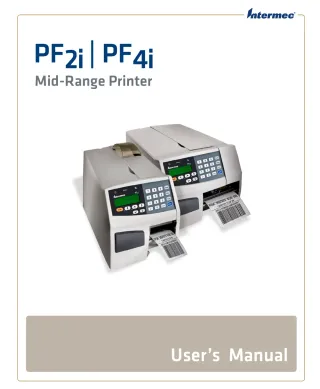
PF2i | PF4i Mid-Range Printer User's Manual
Manual194 pagesPDF 12 MB
User's manual for the Intermec PF2i and PF4i mid-range label printers: media loading, connections, setup and maintenance.
Covers · 1 model
The models it covers
Summary
What is in it
Intermec's user's manual for the PF2i and PF4i mid-range label printers. It explains the control panel, choosing the Fingerprint or IPL printer language, loading media for tear-off, peel-off and cut-off printing and loading ribbon, connecting by serial, USB, IEEE 1284, Ethernet or 802.11 radio, configuring from the screen or the printer web page, upgrading firmware, troubleshooting, cleaning and replacing the printhead, plus specifications, default settings and setup menus.
Its parts
- Before You Begin
- Using the Printer
- Connecting the Printer
- Configuring the Printer
- Troubleshooting and Maintaining the Printer
- Specifications
- Default Settings
- Fingerprint and IPL Setup Menus
- Advanced Configuration
From the manual
Key facts from this manual
Each line names its page in the PDF.
Intermec's user's manual for the PF2i and PF4i Mid-Range Printers (version 002, 11/2010); the site files it under the PF4i. It explains choosing the printer language, the control panel, connecting to a PC, upgrading firmware, reading error messages and cleaning the printer. An appendix gives the specifications, interface pinouts and accessories.
- Device
- Mid-range direct thermal printer; the PF2i prints up to 2 inches wide, the PF4i up to 4 inches p. 16
- Interfaces
- USB device, USB full speed host, RS-232 serial and Ethernet 100 Mbps; 802.11b/g optional p. 16, 140
- Interface boards
- 802.11 radio, parallel (IEEE 1284), serial/industrial, RFID/serial (PF2i only) p. 160
- Memory
- 32MB RAM and 16MB flash; optional CompactFlash card or USB memory device p. 140
- Power
- 100-240 V, 2-1A, 50/60Hz p. 140
- Printer languages
- Fingerprint (or Direct Protocol), IPL, ZSim for Zebra ZPL II programs, DSim for Datamax programs p. 17, 18
- Print speed
- 100 to 200 mm/sec (4 to 8 in/sec) p. 141
- Media width
- PF4i: up to 114.3 mm (4.50 in); PF2i: up to 60 mm (2.36 in); at least 25 mm (1.00 in) with the standard guide p. 146
- Media roll
- Up to 213 mm (8.38 in) across; core 38 to 40 mm (1.5 in) or 76 mm (3 in) p. 141
- Ribbon roll
- Up to 64 mm (2.56 in) across, 240 to 300 m (787 to 985 ft), on a 25.4 mm (1.00 in) core p. 141
- Size and weight
- PF4i: 24.4 x 39.7 x 17.8 cm (9.61 x 15.63 x 7.00 in) with long side door; 7 to 8 kg (15.5 to 17.7 lb) p. 140
- Environment
- Operating 5°C to 40°C (41°F to 104°F), storage -20°C to 70°C (-4°F to 158°F), 20 to 80% non-condensing p. 140
- Serial port
- DB9 at the printer; defaults 9600 baud, 8 data bits, no parity, 1 stop bit p. 142
- Accessories
- Integral liner takeup unit, paper cutter (PF4i only), media supply hub, 76 mm (3-in) adapter, label taken sensor, real time clock, font card, thick media printhead (PF4i only) p. 159, 160
What this manual walks you through
- Choosing the printer language at first start and changing it later p. 17, 18
- Using the control panel buttons p. 19
- Connecting the printer to a PC by serial, USB or IEEE 1284 port p. 56, 57
- Upgrading firmware with PrintSet, a CF card, a USB storage device or a connection p. 104
- What to have ready before calling product support p. 108
- Reading Fingerprint and IPL error messages and the Ready-to-Work indicator p. 109, 110, 111, 112
- Cleaning the printer p. 129
- Serial, USB, Ethernet and parallel connector pinouts and the Ethernet LEDs p. 142, 143, 144, 145
Good to know
- PrintSet cannot reach the printer over USB; use a serial, Ethernet or 802.11 connection. p. 57
- The label taken sensor cannot be used together with the paper cutter. p. 159
- The 76 mm (3-in) adapter cannot be used with a media supply roll post. p. 159
- Remove the power cord before cleaning, never spray the printer and never use sharp tools on stuck labels. p. 129
- The maximum print length is also limited by the free SDRAM memory. p. 141
Questions this manual answers
What is the difference between the PF2i and the PF4i?
The PF2i prints up to 2 inches wide and the PF4i up to 4 inches. p. 16
Can the PF4i run Zebra or Datamax label programs?
Yes. ZSim interprets Zebra ZPL II programs and DSim runs Datamax programs, each set up through its own programmer's guide. p. 17
How do I upgrade the firmware on a PF4i?
With PrintSet, a CompactFlash card, a USB storage device of up to 2GB, a serial or USB connection, or an Ethernet or 802.11 network. p. 104
What does LSS too high or LSS too low mean on the PF4i?
It can happen when a test feed runs with no media loaded or with the wrong media settings; load media and select the right media type. p. 110
What are the default serial port settings of the PF4i?
9600 baud, 8 data bits, no parity and 1 stop bit. p. 142
Contents
Chapters and sections
Each line opens the PDF at its page.
The whole text · 23 parts
Read the manual here as text
Its text as extracted from the PDF, unedited, in parts; each page opens the PDF at that page.
- Pages 1 to 101-10
- Before You Begin11-14
- Chapter 1 - Using the Printer, pages 15 to 2415-24
- Chapter 1 - Using the Printer, pages 25 to 3425-34
- Chapter 1 - Using the Printer, pages 35 to 4435-44
- Chapter 1 - Using the Printer, pages 45 to 5445-54
- Chapter 2 - Connecting the Printer, pages 55 to 6455-64
- Chapter 2 - Connecting the Printer, pages 65 to 7465-74
- Chapter 3 - Configuring the Printer, pages 75 to 8275-82
- Chapter 3 - Configuring the Printer, pages 83 to 9083-90
- Chapter 3 - Configuring the Printer, pages 91 to 9891-98
- Chapter 3 - Configuring the Printer, pages 99 to 10699-106
- Chapter 4 - Troubleshooting and Maintaining the Printer, pages 107 to 114107-114
- Chapter 4 - Troubleshooting and Maintaining the Printer, pages 115 to 122115-122
- Chapter 4 - Troubleshooting and Maintaining the Printer, pages 123 to 130123-130
- Chapter 4 - Troubleshooting and Maintaining the Printer, pages 131 to 138131-138
- Appendix A - Specifications, pages 139 to 146139-146
- Appendix A - Specifications, pages 147 to 154147-154
- Appendix A - Specifications, pages 155 to 160155-160
- Default Settings161-168
- Fingerprint and IPL Setup Menus169-176
- Advanced Configuration177-184
- Index185-194
The file