Manual · Intermec
EasyCoder E4 Paper Cutter Kit Installation Instructions
Manual5 pagesPDF 119 KB
Installation instructions for the optional paper cutter kit on the Intermec EasyCoder E4 label printer: limits, setup, fitting and cleaning.
Names · 1 model
The models it names
Filed with · 1 model
Also filed with these models on the old site
Summary
What is in it
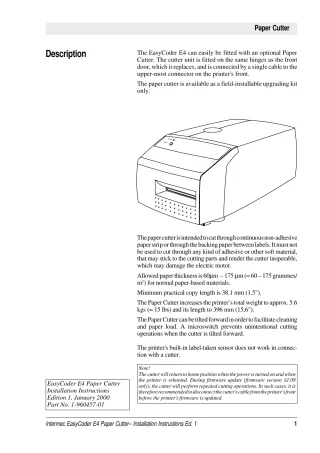
Short installation instructions for the optional paper cutter of the Intermec EasyCoder E4 printer. The cutter replaces the front door on the same hinges and plugs into the printer's front. The guide describes what the cutter can cut, paper thickness and minimum length, how it changes the printer's weight and length, controlling it with CUT instructions in Direct Protocol with recommended start and stop adjustments, step-by-step fitting, and cleaning.
Its parts
- Description
- Controlling the Cutter
- Installation
- Cleaning
From the manual · read page by page
Key facts from this manual
Some pages are scans or cannot be read; this says only what the readable text supports. Each line names its page in the PDF.
Intermec installation instructions (Edition 1, January 2000) for the optional paper cutter kit for the EasyCoder E4 label printer. They describe what the cutter can cut, how it is controlled, how to fit it in place of the front cover, and how to clean it.
- Device
- Optional paper cutter for the EasyCoder E4, sold as a field-installable kit only p. 2
- Fitting
- Replaces the front door on the same hinges; one cable to the upper-most front connector p. 2
- Cuts
- Continuous non-adhesive paper strip or the backing paper between labels p. 2
- Paper thickness
- 60µm – 175 µm (about 60 – 175 grammes/m2) for paper-based materials p. 2
- Minimum length
- 38.1 mm (1.5") per copy p. 2
- Printer length
- 396 mm (15.6") with the cutter fitted p. 2
- Control
- CUT or CUT ON instructions in EasyCoder E4 Direct Protocol p. 3
- Tilt switch
- Cutter tilts forward for cleaning and paper load; a microswitch blocks cutting while tilted p. 2
- Cleaning
- Cotton swab moistened with isopropyl alcohol on the cutting parts p. 5
What this manual walks you through
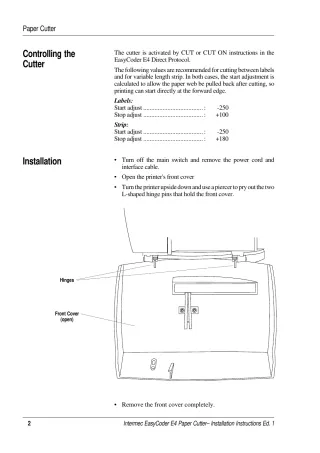
- Removing the printer's front cover p. 3
- Fitting the cutter on the hinges and connecting its cable p. 4
- Setting start and stop adjust for cutting labels or strip p. 3
- Cleaning the cutter p. 5
Good to know
- Never cut adhesive or other soft material; it can stick to the cutting parts, stop the cutter and damage the motor. p. 2
- The printer's label-taken sensor does not work with the cutter. p. 2
- With firmware 1.08 or older, a firmware update makes the cutter cut repeatedly; unplug its cable before updating. p. 2
- If adhesive was cut by mistake, clean the cutter at once. p. 5
- Turn off the main switch and remove the power cord and interface cable before installing. p. 3
Questions this manual answers
How do I make the Intermec E4 cutter cut?
Send CUT or CUT ON instructions in the EasyCoder E4 Direct Protocol. p. 3
What paper thickness can the EasyCoder E4 cutter handle?
60 to 175 µm, roughly 60 to 175 grammes/m2, for normal paper-based materials. p. 2
Can the E4 cutter cut through labels?
No. It cuts only the backing paper between labels or non-adhesive strip, never adhesive material. p. 2
Where does the E4 cutter cable plug in?
Into the upper, circular one of the two connectors on the printer's front. p. 4
Why does my E4 cutter keep cutting during a firmware update?
With firmware version 1.08 or older the cutter cuts repeatedly during an update; disconnect its cable first. p. 2
Contents
Chapters and sections
Each line opens the PDF at its page.
The whole text · 1 part
Read the manual here as text
Its text as extracted from the PDF, unedited, in parts; each page opens the PDF at that page.
The file