Manual · Intermec
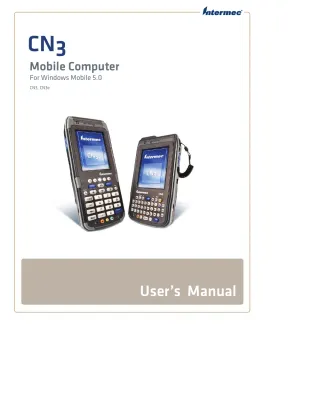
CN3 Series Mobile Computer User's Manual for Windows Mobile 5.0
Manual142 pagesPDF 4.2 MB
User's manual for the Intermec CN3 and CN3e mobile computers running Windows Mobile 5.0: setup, networking, apps and care.
Covers · 1 model
The models it covers
Summary
What is in it
User's manual for the Intermec CN3 Series mobile computers (CN3 and CN3e) running Windows Mobile 5.0. It covers the battery, keypads, audio and phone, touch screen, status LEDs, scanning bar codes with the area imager, the color camera, storage card and GPS. It then explains connecting to a PC, configuring 802.11b/g, Bluetooth, Ethernet, phone and wireless security, installing and launching applications, upgrading system software, troubleshooting, resetting and cleaning, with specifications, default settings and keypad tables in the appendixes.
Its parts
- Using the CN3
- Connecting and Configuring the CN3
- Developing and Installing Applications
- Troubleshooting and Maintaining the CN3
From the manual
Key facts from this manual
Each line names its page in the PDF.
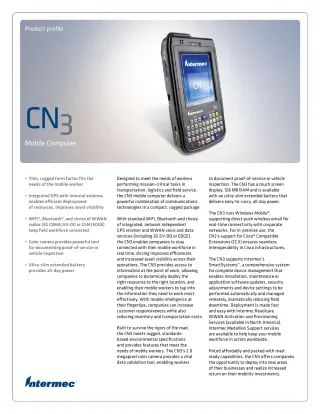
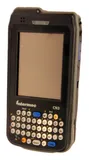
Intermec's user's manual for the CN3 Series mobile computers running Windows Mobile 5.0. It covers both the CN3 and the CN3e, a version with extended environmental specifications and larger keys. It explains the battery, keypad, screen, LEDs, imager, camera and GPS, network setup, installing applications, troubleshooting and resets, with specifications and accessories in an appendix.
- What it is
- Mobile computer on Microsoft Windows Mobile 5.0; the CN3e adds extended environmental specifications and larger keys p. 14
- Radios
- 802.11b/g and Bluetooth standard; WWAN option GSM/GPRS/EDGE or CDMA/1xRTT/EV-DO; 802.11d in a separate version p. 15
- Memory and keypad
- 128 MB RAM; QWERTY or numeric keypad p. 15
- Imaging
- EA11 Standard Area Imager or color camera; a unit with the imager cannot also have the camera p. 15, 36
- Default symbologies
- Code 39, Code 128/GS1-128, UPC-A, UPC-E, EAN-8, EAN-13, PDF417, DataMatrix; others enabled in Intermec Settings p. 36
- Batteries
- CN3: AB8, AB9, AB15 or AB16 Li-ion; CN3e: AB9 or AB16 extended. Standard 8.1 Watt hours, extended 14.8 Watt hours p. 16
- Charging
- Within 0 °C to 40 °C; standard pack up to four hours, extended up to five; external charge power 5 V +/- 5% @3.5 A max p. 17, 111
- Display
- 3.5 in transflective TFT QVGA color touch screen, 240 x 320 pixels, 5-level LED backlight p. 111
- Communications
- Ethernet, serial, IrDA, USB host and client, Bluetooth, 802.11 b/g, 802.11 d, GPRS, CDMA (CN3 only), GPS p. 110
- Environment
- CN3: operating -10 °C to 50 °C (CN3e: -20 °C to 60 °C); IP54; multiple 1.5 m (5 ft) drops to steel or concrete p. 111
- Chargers and docks
- AC14 Quad Battery Charger (P/N 852-065-001); AD10 Single Dock (P/N 871-025-001); AD12 Charge-Only Multidock (P/N 875-026-002) p. 114
- Vehicle accessories
- AV6 Vehicle Dock for the CN3 (P/N 871-027-001); AV9 Vehicle Dock for the CN3e (P/N 871-027-101); CN3 Vehicle Battery Adapter (P/N 852-066-001) p. 114, 115
- Adapters
- AA12 Ethernet (P/N 871-025-101, for the AD10 dock); AA15 Audio (P/N 850-561-001); AA16 Ethernet (P/N 850-560-001); AA17 RS-232/DEX (P/N 850-558-001); AA18 USB (P/N 850-559-001) p. 113, 114
- Other accessories
- AR1 Magnetic Card Reader (P/N 850-557-001); CN3 Scan Handle (P/N 203-839-001) p. 114, 115
What this manual walks you through
- Charging, removing and installing the battery p. 17, 19
- Making the battery last and checking its status LED p. 19, 20
- Reading the status LEDs p. 35, 36
- Scanning bar codes with the area imager p. 36
- Fixing problems with configuration, operation and wireless connections p. 99, 100, 101, 102
- Fixing problems scanning bar codes p. 103, 104
- Warm, cold and clean booting the CN3 p. 104, 105, 106
- Scanner reading distances by symbology and density p. 112
Good to know
- With the CN3 suspended, an internal super capacitor keeps status, memory and the clock for about 5 minutes during a battery change. p. 16
- Do not disassemble the battery, heat it above 100 °C (212 °F) or incinerate it. p. 16
- While the blue Ready-to-Work light is on, do not toggle the CN3 or remove the battery, or the unit may be corrupted. p. 35
- A clean boot erases memory, including all applications and data files in the object store. p. 106
- Cold booting may lose transactional data, so use it only when other recovery methods have failed. p. 105
Questions this manual answers
What battery does the Intermec CN3 use?
An AB8, AB9, AB15 or AB16 Li-ion pack; standard packs are 8.1 Watt hours and extended packs 14.8 Watt hours. The CN3e takes only the AB9 or AB16. p. 16
How long does a CN3 battery take to charge?
Between 0 °C and 40 °C, the standard pack takes up to four hours and the extended pack up to five; the battery is full when the status LED is steady green. p. 17
How do I reset a frozen Intermec CN3?
Hold the Power button for 10 seconds for a warm boot. If it still does not respond, suspend it, remove the battery and press the Reset button for a cold boot. p. 104, 105
Why is the CN3 battery LED blinking red?
The battery is low and the CN3 goes into Suspend mode; charge or replace the battery. p. 20
Can a CN3 have both the imager and the camera?
No. The manual says a CN3 with an area imager cannot also have the color camera option. p. 36
Contents
Chapters and sections
Each line opens the PDF at its page.
The whole text · 17 parts
Read the manual here as text
Its text as extracted from the PDF, unedited, in parts; each page opens the PDF at that page.
- Pages 1 to 91-9
- Send Feedback10-12
- Chapter 1 - Using the CN3, pages 13 to 2013-20
- Chapter 1 - Using the CN3, pages 21 to 2821-28
- Chapter 1 - Using the CN3, pages 29 to 3629-36
- Chapter 1 - Using the CN3, pages 37 to 4437-44
- Chapter 2 - Connecting and Configuring the CN3, pages 45 to 5345-53
- Chapter 2 - Connecting and Configuring the CN3, pages 54 to 6254-62
- Chapter 2 - Connecting and Configuring the CN3, pages 63 to 7163-71
- Chapter 2 - Connecting and Configuring the CN3, pages 72 to 8072-80
- Chapter 3 - Developing and Installing Applications, pages 81 to 8881-88
- Chapter 3 - Developing and Installing Applications, pages 89 to 9689-96
- Chapter 4 - Troubleshooting and Maintaining the CN397-108
- Appendix A - Specifications109-116
- Appendix B - Default Settings117-128
- Appendix C - Keypads and Keystrokes129-134
- Index135-142
The file