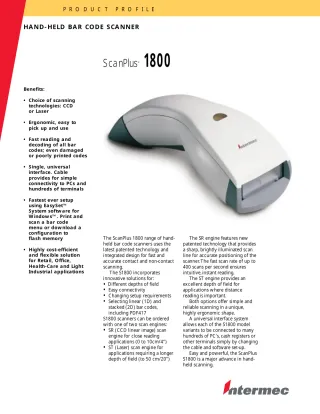
Manual · Intermec
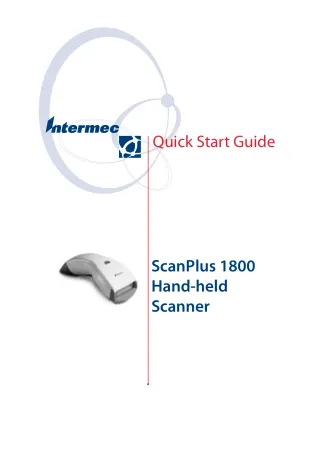
ScanPlus 1800 Hand-held Scanner Quick Start Guide
Manual9 pagesPDF 472 KB
Quick start guide for the Intermec ScanPlus 1800 hand-held scanners (SR, ST, VT, PDF): connection setup, symbologies and test codes.
What this file really is
The old site listed this file as “Quick Start” for the Intermec 1800 PDF, 1800 SR and 4 more models. This is the quick start guide for the ScanPlus 1800 scanners (SR, ST, VT and PDF models); it does not mention the 1802.
Names · 4 models
The models it names
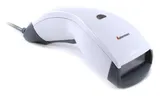 Intermec 1800 PDFHand-held CCD barcode scanner from$245.00122 in stock Intermec 1800 SRHand-held CCD barcode scanner from$245.00536 in stock Intermec 1800 STHand-held laser barcode scanner from$245.008 in stock Intermec 1800 VTHand-held CCD barcode scanner from$245.0058 in stock
Filed with · 2 models
Also filed with these models on the old site
Summary
What is in it
A short quick start guide for the Intermec ScanPlus 1800 hand-held scanner family. It walks through connecting by PC keyboard wedge, USB or RS-232 C cable, choosing a keyboard layout and serial settings by scanning setup bar codes, selecting symbologies, returning to defaults, enabling the trigger or hands-free scanning, using the EasySet software for more options, typical reading distances for the SR, PDF, ST and VT models, laser warnings, regulatory statements and test bar codes.
From the manual · read page by page
Key facts from this manual
Some pages are scans or cannot be read; this says only what the readable text supports. Each line names its page in the PDF.
The Intermec quick start guide (P/N 0-360049-01 Rev D, 2004) for the ScanPlus 1800 hand-held scanner, covering the models it names as the ScanPlus 1800 SR, ST, PDF and VT. It shows how to connect by keyboard wedge, USB or RS-232 C, pick the bar code types to read, return to defaults, turn on the trigger or hands-free stand scanning, and lists reading distances. The guide does not mention the 1802 or a VTPDF model.
- Device
- Hand-held bar code scanner; the 1800 SR, PDF and VT are CCD scanners, the 1800 ST is a laser scanner p. 7
- Connections
- PC keyboard wedge, USB or RS-232 C; other terminals through EasySet p. 2
- Reading distance
- 1800 SR and PDF: 0 to 10 cm (0 to 4 in); 1800 ST: 0 to 50 cm (0 to 20 in); 1800 VT: 0 to 35 cm (0 to 14 in) p. 7
- Cables
- PC wedge cable 0-364037-00, USB cable 3-364038-01, RS-232 C cable 0-364032-00 p. 3, 4
- Default serial setup
- 9600 baud, 7 data bits, even parity, 2 stop bits, carriage return plus line feed p. 4
- Bar codes
- Code 39, UPC-A, UPC-E, EAN-8, EAN-13, Code 128 / EAN 128; PDF 417 on the 1800 PDF only p. 5
- Scanner stand
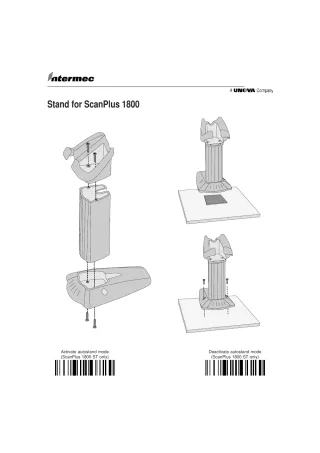
- P/N 0-360029-00, for hands-free scanning p. 5, 6
- Serial options
- 9600, 19200 or 38400 baud; 7 or 8 data bits; even, odd or no parity p. 4
- Keyboard layouts
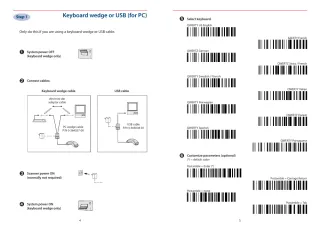
- US, French, German, Swiss, Swedish/Finnish, Italian, Norwegian, Danish, Spanish, Portuguese p. 3
- Wedge postamble
- Enter by default; carriage return, Tab or none selectable p. 3
- Setup software
- EasySet, on the CD-ROM p. 6
- Laser (1800 ST)
- 0.54 mW maximum output at 630-680 nm p. 7
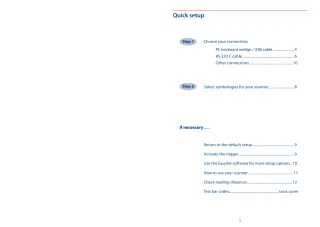
What this manual walks you through
- Connecting to a PC by keyboard wedge or USB p. 3
- Connecting by RS-232 C and setting baud, data bits and parity p. 4
- Choosing which bar code types the scanner reads p. 5
- Returning the scanner to its default setup p. 5
- Turning on the trigger or hands-free stand scanning p. 5, 6
- Further setup with the EasySet software p. 6
- Reading distances by model p. 7
- Testing the setup with sample bar codes p. 5, 9
Good to know
- Do not scan the trigger codes on a model without a trigger; it may stop working. p. 5
- Turn the host system off before connecting the scanner cables. p. 3, 4
- The manual states the 1800 ST is a CDRH Class II laser product and asks that its warning labels be fixed on if missing. p. 7
Questions this manual answers
How do I connect a ScanPlus 1800 to a PC by USB?
With power off, connect USB cable 3-364038-01, power the scanner and then the system on, and read the code for your keyboard layout. p. 3
What are the ScanPlus 1800 default RS-232 settings?
9600 baud, 7 data bits, even parity, 2 stop bits, with carriage return plus line feed after each scan. p. 4
How far away can a ScanPlus 1800 read?
Up to 10 cm (4 in) for the SR and PDF models, 35 cm (14 in) for the VT and 50 cm (20 in) for the ST. p. 7
My ScanPlus without a trigger stopped working after I scanned the trigger code. How do I recover it?
Disconnect the scanner, then reconnect it while aiming it at the Default setup code in the guide. p. 5
The whole text · 1 part
Read the manual here as text
Its text as extracted from the PDF, unedited, in parts; each page opens the PDF at that page.
The file