Manual · Honeywell
MS4980 Area Imaging Scanner Installation and User's Guide
Manual52 pagesPDF 1.3 MB
Installation and user's guide for the Honeywell MS4980 fixed-mount area imaging scanner: RS232, keyboard wedge and USB setup, operation, specs.
Covers · 1 model
The models it covers
Summary
What is in it
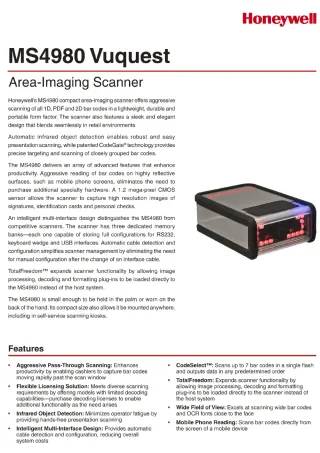
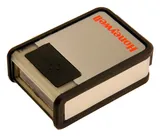
The installation and user's guide for the Honeywell MS4980, a small, rugged area imaging bar code scanner that reads 1D, PDF417 and 2D codes, OCR and images. It lists the kit and accessories and shows how to attach the cable and install the scanner on RS232, keyboard wedge and USB hosts, then covers mounting, modes of operation, audible and visual indicators, field and depth of view, IR activation range, troubleshooting, design specifications, configuration and firmware upgrades, pinouts and regulatory compliance.
Its parts
- Introduction
- Installation
- Operation
- Troubleshooting Guide
- Design Specifications
- Applications and Protocols
- Configuration and Upgrades
- Scanner and Cable Terminations
- Limited Warranty
- Regulatory Compliance
- Patents
- Customer Support
From the manual
Key facts from this manual
Each line names its page in the PDF.
Installation and user's guide for the Honeywell MS4980 area imaging bar code scanner. It explains how to connect the scanner to a host by RS232, keyboard wedge or USB, what its beeps and LEDs mean, and how to troubleshoot it. It also gives the specifications, the configuration and firmware upgrade steps, and the scanner and cable pinouts.
- Device
- Area imaging bar code scanner with a CMOS imaging sensor for 1D, PDF417 and 2D codes, OCR and image capture p. 5
- Interfaces
- RS232, Keyboard Wedge and USB, detected and configured automatically p. 5
- USB modes
- Keyboard Emulation (default), Bi-Directional Serial Emulation or IBM OEM p. 31
- Scanner connector
- 15-pin HD-22 D-type socket; the cable is held by two screws p. 7, 8
- Input voltage
- 5.2 VDC ± 0.25V p. 30
- Power supplies
- Regulated 5.2VDC @ 1A transformer: 46-00525 (120V United States), 46-00526 (Continental European), 46-00870 (United Kingdom), 46-00528 (Australia), 46-00529 (China) p. 6
- Cables
- 52-52557x-3-FR RS232 PowerLink; 52-52558x-3-FR Keyboard Wedge PowerLink; 52-52559x-N-3-FR USB direct; 52-52559x-3-FR USB PowerLink p. 6
- Imager resolution
- 1280 x 960 pixels p. 29
- Depth of scan field
- 40 mm to 300 mm (1.57" to 11.8") for 0.33 mm (13 mil) codes p. 29
- Symbologies
- Standard 1-D, GS1 DataBar, PDF417, microPDF, MaxiCode, Data Matrix, QR Code, Aztec, Postals and composites; PDF, 2D and OCR need limited use licenses p. 5, 29
- Size and weight
- 74 mm (2.91") deep, 50 mm (1.97") wide, 26 mm (1.02") high; 70 g (2.5 oz.) p. 29
- Temperature
- Operating 0°C to 40° (32° to 104°F); storage -20°C to 70°C (-4°F to 158°F) p. 30
- Drop rating
- Designed to withstand 1.5 m (5 ft.) drops p. 30
- Firmware
- Flash upgradeable with MetroSet2 from a Windows 95 or later PC over RS232 or USB p. 34
What this manual walks you through
- Attaching and removing the interface cable p. 8
- Installing the scanner on an RS232 host p. 11
- Installing the scanner as a keyboard wedge p. 12
- Installing on USB, powered by the host or by an external supply p. 13, 14
- Reading the beeps and LED indicators p. 19, 20
- Troubleshooting power, scanning and host communication problems p. 25, 26, 27, 28
- Configuring by bar codes, MetroSet2 or serial programming p. 33
- Upgrading the firmware with MetroSet2 p. 34
- Scanner and host-end cable pinouts p. 35, 36, 37, 38
Good to know
- Standard units read PDF, 2D and OCR only with the matching limited use licenses. p. 5
- The standard keyboard wedge cable must not be used for firmware upgrades. p. 34
- On USB, the scanner will not run from hub or host power unless the host is communicating. p. 28
- Turn off the host and disconnect the power supply before removing the cable. p. 8
Questions this manual answers
What power supply does the MS4980 use?
A regulated 5.2VDC @ 1A AC to DC transformer; the 120V United States version is part 46-00525. p. 6
What does a long razzberry tone at power up mean on the MS4980?
The scanner failed to initialize or configure. If it still does not respond after reconfiguration, the manual says to return it for repair. p. 21
Which bar codes does the MS4980 read by default?
UPC/EAN, Code 39, interleaved 2 of 5, Code 93, Code 128, Codabar and PDF are enabled by default. p. 26
How do I update the MS4980 firmware?
Use the Flash Utility in MetroSet2 with a firmware file from customer service, connecting the scanner over USB or RS232. p. 34
Contents
Chapters and sections
Each line opens the PDF at its page.
The whole text · 6 parts
Read the manual here as text
Its text as extracted from the PDF, unedited, in parts; each page opens the PDF at that page.
The file