Manual · Honeywell
Dolphin 60s with Windows Embedded Handheld 6.5 User's Guide
Manual136 pagesPDF 6.1 MB
User's guide for the Honeywell Dolphin 60s mobile computer with Windows Embedded Handheld 6.5: setup, scanning, keyboards, radios and chargers.
Covers · 1 model
The models it covers
Summary
What is in it
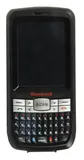
The user's guide for the Honeywell Dolphin 60s mobile computer running Windows Embedded Handheld 6.5. It covers getting started, battery charging and resets, the hardware and its accessories, the scan image engine and supported bar code symbologies, the color camera, the 30-key numeric and 46-key QWERTY keyboards, system settings, communication and software installation, WWAN voice and data, Bluetooth, GPS, the D60s-HB HomeBase and the mobile charger devices.
Its parts
- Getting Started
- Hardware Overview
- Using the Scan Image Engine
- Using the Color Camera
- Using the Keyboards
- System Settings
- Communication
- Working with Wireless Wide Area Networking (WWAN)
- Working with the Bluetooth Radio
- Working with GPS
- Dolphin 60s HomeBase Device (Model D60s-HB)
- Dolphin 60s Mobile Charger Devices
From the manual
Key facts from this manual
Each line names its page in the PDF.
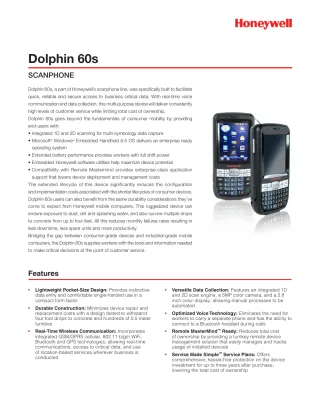
Honeywell user's guide for the Dolphin 60s mobile computer with Windows Embedded Handheld 6.5, relevant to models 60sLU, 60sLE, 60sLP and 60sL0. It covers setup and charging, the hardware and I/O connector, the scan image engine, settings, the radios, and the D60s-HB HomeBase and mobile chargers.
- Configurations
- WLAN, WPAN and camera; or WLAN, WPAN, WWAN, GPS and camera with voice and data p. 25
- Operating system
- Microsoft Windows Embedded Handheld 6.5 Professional p. 25
- Processor and memory
- TI AM3715 Cortex-A8 800MHz; 256MB RAM, 512MB flash p. 25
- Battery
- 3.7V Li-ion, 12.358 watt hour; full charge in 6 hours in the HomeBase or mobile charger p. 34, 121, 129
- Chargers and cables
- D60s-HB HomeBase, 60s-MC, 60s-DEXKIT and 60s-DB9KIT mobile chargers, USB-WALL-CHARGER-1 p. 12
- I/O connector
- 16-pin connector for power, charging, USB v2.0 up to 480 Mbps and RS-232 signals (RXD, TXD, RTS, CTS, DTR) p. 34
- Micro USB port
- Under the left side door; USB v2.0 client; charges from a 5VDC 1A supply or a high-power USB port p. 12, 33
- Image engine
- CMOS imager for 1D, stacked and 2D codes, signatures and OCR; field angle 21.9° horizontal, 15.9° vertical p. 43
- Depth of field
- 10 mil C39/128: 0.67 to 9.93 in (1.7 to 25.2 cm); 100% 13 mil UPC: 1.57 to 12.18 in (3.9 to 30.9 cm) p. 43
- Memory card
- microSD or microSDHC socket under the battery door and battery p. 33
- HomeBase D60s-HB
- Charging and USB 2.0 cradle with a spare battery well; needs 12VDC, 3 amps; operating 0° to 50°C p. 121, 125
- Mobile charger
- 60s-MC cigarette lighter adapter; 60s-DEXKIT adds a DEX cable, 60s-DB9KIT a DB9 cable; input 10V - 30VDC p. 129
- Accessories
- HOLSTER-1 holster with spare battery pouch; 60s-STYLUS kit of three styli and tethers; USB-CABLE-1 cable p. 26
- Model numbers
- 60sLU, 60sLE, 60sLP and 60sL0 p. 133
What this manual walks you through
- Installing the battery and charging it before first use p. 11, 12
- Charging from a power outlet or a PC with the USB cable p. 12
- Keeping files and programs through resets and kernel upgrades p. 21
- Reading the I/O connector pinout p. 34
- Checking whether the terminal draws more current than the charger supplies p. 35, 36
- Reviving a severely low or completely discharged battery p. 36
- Image engine field of view and depth of field by code p. 43
- Charging a terminal and a spare battery in the HomeBase p. 126
- Powering the mobile charger from a vehicle p. 129
Good to know
- Removing the battery erases all non-persistent memory; suspend the terminal first. p. 12
- Do not try to charge the terminal from a 100 mA USB source. p. 35
- A kernel upgrade reformats the root file system; back up user data first. p. 21
- Store batteries at -10°C to +45°C for under a month and 0°C to +30°C long term. p. 37
- Do not use the terminal without the battery door installed. p. 32
Questions this manual answers
How long does the Dolphin 60s battery take to charge?
The HomeBase and the mobile charger complete a full charge of the extended battery in 6 hours. p. 121, 129
What chargers work with the Dolphin 60s?
The D60s-HB HomeBase, the 60s-MC, 60s-DEXKIT and 60s-DB9KIT mobile chargers, and the USB-WALL-CHARGER-1 cable kit. p. 12
Why does my Dolphin 60s show an Authentication Error at startup?
The guide lists it as a battery error; replace the battery with a Honeywell Dolphin 60s extended battery pack. p. 36
What power supply does the D60s-HB HomeBase need?
12 Volts DC from a UL listed supply rated 12VDC and 3 amps. p. 125
What model numbers does the Dolphin 60s user guide cover?
60sLU, 60sLE, 60sLP and 60sL0. p. 133
Contents
Chapters and sections
Each line opens the PDF at its page.
- Dolphin 60s User's Guide1
- Customer Support9
- Product Service and Repair9
- Technical Assistance9
- Warranty Disclaimer: Proper Use of a Touch Screen Mobile Device9
- Limited Warranty9
- Send Feedback9
- Getting Started11
- Hardware Overview25
- Using the Scan Image Engine43
- Using the Color Camera49
- Using the Keyboards55
- System Settings63
- Communication87
- Working with Wireless Wide Area Networking (WWAN)101
- Working with the Bluetooth Radio113
- Working with GPS119
- Dolphin 60s HomeBase Device (Model D60s-HB)121
- Dolphin 60s Mobile Charger Devices129
- Dolphin 60s Terminal Agency Information133
The whole text · 14 parts
Read the manual here as text
Its text as extracted from the PDF, unedited, in parts; each page opens the PDF at that page.
- Dolphin 60s User's Guide1-8
- Customer Support, pages 9 to 189-18
- Customer Support, pages 19 to 2819-28
- Customer Support, pages 29 to 3829-38
- Customer Support, pages 39 to 4839-48
- Customer Support, pages 49 to 5849-58
- Customer Support, pages 59 to 6859-68
- Customer Support, pages 69 to 7869-78
- Customer Support, pages 79 to 8879-88
- Customer Support, pages 89 to 9889-98
- Customer Support, pages 99 to 10899-108
- Customer Support, pages 109 to 118109-118
- Customer Support, pages 119 to 128119-128
- Customer Support, pages 129 to 136129-136
The file