Manual · Höft & Wessel
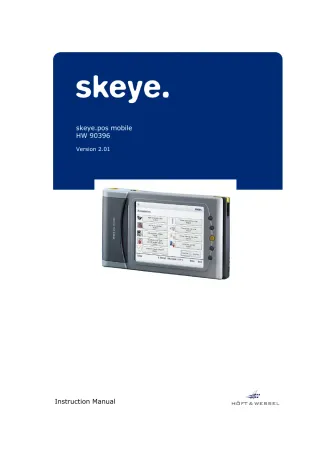
skeye.pos mobile HW 90396 Instruction Manual
Manual97 pagesPDF 1.9 MB
Instruction manual for the Höft & Wessel skeye.pos mobile HW 90396 handheld POS terminal, its desktop cradle and battery charger.
Names · 1 model
The models it names
Filed with · 1 model
Also filed with these models on the old site
Summary
What is in it
The instruction manual for the skeye.pos mobile HW 90396, a handheld point-of-sale terminal with printer, magnetic card and chip card readers and an optional imager. It covers safety for the lithium-ion battery, radio and WLAN, views of the device and desktop cradle, switching on and off, scanning and printing, maintenance and paper rolls, the desktop cradle and battery charger, battery care, Windows settings, data backup, and Ethernet, GSM, GPRS and WLAN setup.
Its parts
- Introduction
- Technical Description
- User Instructions
- Maintenance and Support
- Desktop Cradle
- Battery Charger
- Handling the Batteries (Power Management)
- Additional Functions and Settings
- Data Backup
- Communication/Data Exchange
From the manual
Key facts from this manual
Each line names its page in the PDF.
Höft & Wessel's Instruction Manual (version 2.01, 2010) for the skeye.pos mobile HW 90396, a handheld Windows CE terminal with a built-in receipt printer, card readers and imager. It covers switching on and the power states, the printer and paper roll, the HW 50396 desktop cradle and HW 16396 battery charger, battery care and the hardware data. The Skeye POS Dock HW52396 is not named; the cradle it describes is the HW 50396.
- Device
- Handheld terminal with receipt printer, magnetic card reader, chip card reader and 1D/2D imager p. 19, 36, 94
- Processor
- Intel PXA250 XScale, 400 MHz p. 94
- Operating system
- Microsoft Windows CE 5.0 (license included) p. 15, 16
- Memory
- 64 to 256 MB SDRAM and 128 MB to 1 GByte flash, depending on variant; 512 Kbyte SRAM p. 94
- Display
- 6.4 in. VGA color TFT LCD, 640 x 480 pixels, 18-bit color, integrated touch screen p. 94
- Imager
- 1D and 2D bar codes, 752 x 480 pixels, 256 greyscale; reads Code 39, Codabar, Code 11, Interleaved 2 of 5, Code 93, Code 128, EAN 8, EAN 13, UPC A, UPC E0, PDF417, Maxicode, Vericode, Aztec Code, QR Code p. 94, 95
- Communication
- Infrared IrDA 1.0 (SIR 115200 baud), USB, Ethernet p. 16
- Buttons
- 5 control buttons beside the display, 2 scanner buttons on the back, 2 reset buttons p. 94
- Battery and power
- Rechargeable lithium-ion battery HW 19396; wide-range power supply HW 14396 p. 15, 16
- Desktop cradle
- HW 50396: USB-A, USB-B, serial, RJ45 Ethernet and power connections p. 15, 22
- Battery charger
- HW 16396 external charger; a fully discharged battery takes about 2.5 to 3 hours p. 15, 54
- Environment
- Operating -5°C to +40°C; storage -20°C to +60°C; relative humidity 5-85% non-condensing p. 16
- Size and weight
- Approx. 240 x 133 x 45 mm at the paper roll (32 mm deep elsewhere); approx. 1000 g depending on options p. 94
- Storage
- With a charged battery: up to six months in Complete Off, up to three weeks in Suspend p. 58
What this manual walks you through
- Inserting the battery and switching on p. 23, 24
- Switching off, suspend mode and the Partially Off and Complete Off states p. 24, 25
- Resolving printer faults p. 36
- Replacing the printer paper roll p. 36, 37
- Removing the battery to replace it, reach the second reset button or change the CF card p. 38
- Using the desktop cradle, its LEDs and its PC connection p. 52, 53
- Charging a battery in the battery charger and reading its LEDs p. 54, 55
- Battery maintenance, the floating battery and storage p. 56, 57, 58
- Special commands: Reset, SysBackup, SysInfo, PowerOff p. 95
Good to know
- Charge the battery only in the HW 50396 desktop cradle or the HW 16396 battery charger. p. 8
- An unused battery must be recharged every three months. p. 56
- Store the terminal with a charged battery fitted; a discharged floating battery must be replaced by qualified service personnel. p. 57
- The paper cutter has sharp teeth; avoid touching it when changing the paper roll. p. 36
- When the battery is unlocked, the floating battery keeps the RAM for 3 minutes, so a battery swap within that time keeps the work. p. 57
Questions this manual answers
What charger does the skeye.pos mobile HW 90396 battery use?
The HW 16396 external battery charger for battery HW 19396, or the HW 50396 desktop cradle; a flat battery takes about 2.5 to 3 hours. p. 15, 54
Why won't my skeye.pos mobile switch on?
It only starts with a charged battery inserted and locked; if it has gone to Complete Off, it must be reset before the yellow button works. p. 23, 24
What does a flashing red LED on the battery charger mean?
A flashing red LED indicates a malfunction; a steady red LED means the charger is ready. p. 55
The printer gives no out-of-paper message. What should I do?
Clean the out-of-paper sensor and the paper compartment with a clean, dry, lint-free cloth. p. 36
The whole text · 10 parts
Read the manual here as text
Its text as extracted from the PDF, unedited, in parts; each page opens the PDF at that page.
The file