Manual · HHP
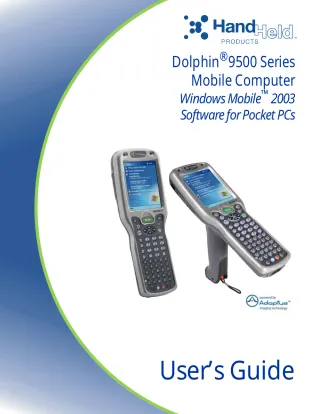
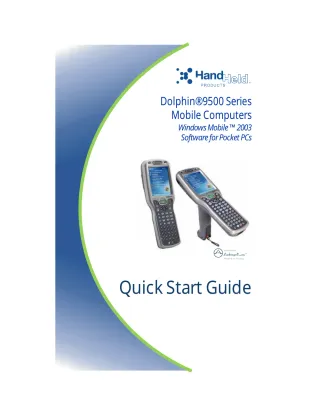
Dolphin 9500 Series Mobile Computers Quick Start Guide
Manual36 pagesPDF 799 KB
Quick start guide for the Hand Held Products Dolphin 9500, 9501, 9550 and 9551 mobile computers with Windows Mobile 2003.
Covers · 2 models
The models it covers
Summary
What is in it
Quick start guide for the Hand Held Products Dolphin 9500 Series mobile computers running Windows Mobile 2003 Software for Pocket PCs: the Dolphin 9500, 9501, 9550 and 9551. It lists the cradles, chargers and cable kits, labels the hardware, and walks through unpacking, installing and charging the batteries, initializing the computer, checking imaging, decoding and radio status, the 35, 43 and 56-key keyboards, the stylus, decoding a bar code, soft and hard resets, suspend mode, communications and troubleshooting.
Its parts
- Dolphin 9500 Series Quick Start Guide
From the manual
Key facts from this manual
Each line names its page in the PDF.
The Hand Held Products quick start guide for the Dolphin 9500 Series mobile computers running Windows Mobile 2003 for Pocket PCs. It covers four terminals, the Dolphin 9500, 9550, 9501 and 9551, and walks through unpacking, battery and charging, first start-up, scanning and imaging, radios, resets and basic troubleshooting.
- Device
- Windows Mobile 2003 Pocket PC mobile computer with a 1D and 2D imager; the 9550 has an integrated pistol grip p. 5, 23
- Battery
- 7.4V, 14.8 watt hour Li-ion main pack; internal backup battery keeps RAM and clock up to 30 minutes p. 5, 9
- Image engines
- IMAGETEAM 4100SR or 4300SR: 2.5 to 12.5 in.; 4100SF or 4300SF: 2.1 to 8.9 in.; 4100HD: 2.2 to 6.5 in. p. 23
- Radios
- 802.11b, Bluetooth and GSM/GPRS (9500 only); Bluetooth runs alongside either other radio, 802.11b and GSM/GPRS only one at a time p. 15
- Keyboards
- Backlit 35-key numeric/alpha, 43-key alpha/numeric or 56-key full alpha/numeric p. 18
- Ports
- 17-pin industrial-grade mechanical connector, IrDA port, Secure Digital memory slot, 2.5mm audio jack p. 6
- Cradles
- HomeBase (RS-232 or USB, spare battery well), MobileBase (RS-232, 5 volt output), Net Base (four slots, Ethernet), ChargeBase (four slots) p. 5
- Chargers and cables
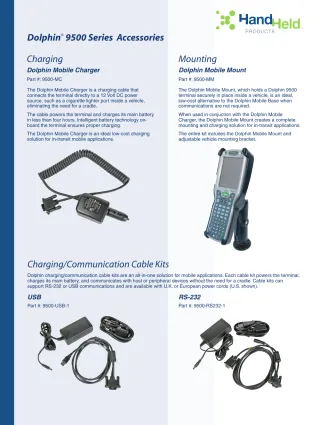
- QuadCharger charges four Li-ion packs in under four hours, one slot also analyzes; Mobile Charger for a vehicle power port; USB or serial cable kits p. 5
- In the box
- Terminal, 7.4v Li-ion battery, Microsoft Companion CD-ROM, quick start guide; an SDK and User's Guide CD with each order p. 8
- Charging
- At least four hours before first use; the HomeBase auxiliary well charges a spare pack in four hours p. 9, 10
- Image capture
- Saves *.bmp, *.jpg or *.png; default is grayscale *.jpg p. 25
- Display
- LCD with touch screen, aligned with the stylus p. 6, 11
- Host link
- Microsoft ActiveSync over the bottom connector, IrDA or a wireless radio p. 26
What this manual walks you through
- Unpacking the carton and installing the battery p. 8, 9
- Charging in the HomeBase or Mobile Base p. 10
- Starting the terminal for the first time and aligning the screen p. 11, 12
- Checking imaging and decoding with the demos p. 14
- Checking which radio is powered up p. 15
- Decoding a bar code p. 23, 24
- Taking an image p. 25
- Soft and hard resets and suspend mode p. 25, 26
- Troubleshooting power, screen, memory, scanning and radio problems p. 26, 27
Good to know
- Use only Li-ion packs from Hand Held Products; other packs may damage the terminal or battery. p. 9
- Terminals ship with both batteries discharged. p. 9
- A hard reset erases all data in RAM and all RAM installed applications. p. 25
- Do not press keys while the terminal boots or touch it while Autoinstall loads programs. p. 11, 12
- The terminal suspends after three minutes idle on battery by default, adjustable from one to five minutes. p. 26
Questions this manual answers
What battery does the Dolphin 9500 use?
A 7.4V, 14.8 watt hour Li-ion pack, with an internal backup battery that holds RAM and the clock for up to 30 minutes. p. 5, 9
How do I hard reset a Dolphin 9500?
Hold CTRL + ESC for about five seconds; this erases RAM data and RAM installed programs. p. 25
How do I soft reset a Dolphin 9550?
Hold CTRL + SFT for about five seconds; RAM data is kept. p. 25
Contents
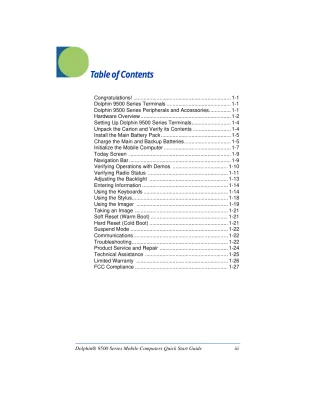
Chapters and sections
Each line opens the PDF at its page.
The whole text · 4 parts
Read the manual here as text
Its text as extracted from the PDF, unedited, in parts; each page opens the PDF at that page.
The file