Manual · Fujitsu
fi-5000N Operator's Guide
Manual118 pagesPDF 2.3 MB
Operator's guide for the Fujitsu fi-5000N, which connects a fi-series scanner to a network with fingerprint user authentication.
Covers · 1 model
The models it covers
Summary
What is in it
The operator's guide for the fi-5000N, a device that connects a fi-series image scanner over USB and sends scanned images to computers over the network, with a built-in fingerprint sensor so only registered operators can scan. It covers the parts and keyboard, installing the unit and connecting it to the network, installing the TWAIN and ISIS scanner drivers and the fi-5000N Software, managing users, registering fingerprints and PINs, daily care, troubleshooting and specifications.
Its parts
- Introduction
- Overview of fi-5000N
- Names and Functions of Parts
- Installing the fi-5000N
- Installing and Setting Driver
- Installing and setting the fi-5000N Software
- User Authentication
- Daily Care
- Troubleshooting
- Specifications
From the manual
Key facts from this manual
Each line names its page in the PDF.
The Fujitsu fi-5000N Operator's Guide, for the network adapter that links a USB fi-series scanner to a computer over a LAN and identifies operators by fingerprint. It explains the parts and keyboard, installation and network setup, drivers and the fi-5000N Software, fingerprint and PIN login, cleaning, error messages, troubleshooting and specifications.
- Device
- Network adapter that connects a fi-series scanner to computers over a network, with a built-in fingerprint identification mechanism p. 16
- Supported scanners
- fi-4120C, fi-4220C, fi-4120C2, fi-4220C2, fi-5110C, fi-4530C p. 96, 108
- Interfaces
- Scanner: USB 2.0 / 1.1; network: IEEE802.3 (10BASE-T) and IEEE802.3u (100BASE-TX) p. 108
- Fingerprint sensor
- Static capacity method, 500 dpi (256 x 300 pixels); infrared photo-reflector finger detection sensor p. 108
- Memory
- 2 MB flash ROM; 32 MB RAM p. 108
- Display
- Monochrome backlit LCD, 20 characters x 4 lines; English, German, French, Italian, Spanish, Japanese p. 108
- Keyboard
- 17 keys: [ID], [SET], [ESC], [ENT], [L], [K], [.] and numeric keys 0 to 9, under a white cover p. 24, 108
- Power
- 100 to 120 VAC ±10%, single-phase, 50 / 60 ± 3Hz; 8 W or less; through the supplied AC adapter p. 26, 109
- Size and weight
- 176 mm x 125 mm x 62 mm (6.93 x 4.92 x 2.44 in); 1.0kg (2.2lb) p. 109
- Environment
- Operating 5 to 35°C (41 to 95°F), 20 to 80 % humidity p. 109
- Scan modes
- Pull mode (a computer application scans from the networked scanner) and Push mode (the operator presses [Scan] or [Send to]) p. 18
- Rear connectors
- DC inlet, power switch, network connector (LAN), USB connector for the scanner; security cable slot on the front p. 22, 23
- Cleaner
- Cleaner F1 (or isopropyl alcohol), part number CA99501-0013, with a lint-free dry cloth p. 92
- Software
- TWAIN/ISIS interface; bundled fi-5000N Software manages users and multiple fi-5000N units p. 17
What this manual walks you through
- Connecting the AC adapter and the scanner's USB cable p. 26, 27
- Connecting to the network with DHCP or a static IP address p. 28, 29
- Choosing between Pull mode and Push mode scanning p. 18
- Administrator and operator tasks p. 19
- Cleaning the cover and fingerprint sensor p. 93
- Fixing temporary error messages on the display p. 96, 97, 98, 99
- Responding to fi-5000N and scanner device alarms p. 100, 101
- Troubleshooting power, display, keyboard and network problems p. 102, 103
- Information to collect before asking for repair p. 104
Good to know
- Use only the AC adapter and AC cable provided by the manufacturer. p. 26
- Use a straight network cable, not a cross cable. p. 96
- Use the USB cable provided with the scanner. p. 27
- Do not let liquids reach the unit, and do not clean with flammable solvents such as benzine. p. 93
- Settings that need administrator rights require the Administrator's PIN. p. 24
Questions this manual answers
Which scanners can connect to the fi-5000N?
The fi-4120C, fi-4120C2, fi-4220C, fi-4220C2, fi-5110C and fi-4530C; other scanners are not supported. p. 96
What does "Scanner is disconnected" mean on the fi-5000N?
The scanner is off or not connected properly; check that it is on and that the USB cable is connected and undamaged. p. 27, 96
What should I do about "Sensor surface not clean" on the fi-5000N?
Turn off the power and wipe the fingerprint sensor lightly with a dry lint-free cloth, then restart. p. 96
What should I do if the fi-5000N cannot get an IP address from DHCP?
Check with the network administrator that the DHCP server is working; if not, set a fixed IP address. p. 98
What should I do about a device alarm on the fi-5000N?
Turn the fi-5000N off and on again; if the alarm returns, it likely has a hardware problem and needs service. p. 100
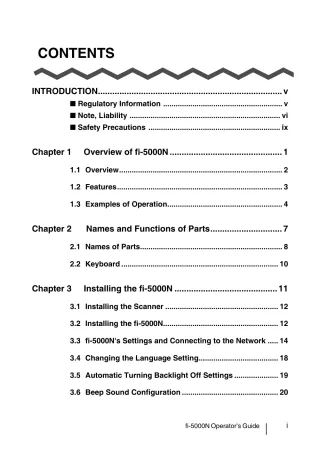
Contents
Chapters and sections
Each line opens the PDF at its page.
- INTRODUCTION7
- Chapter 1 Overview of fi-5000N15
- Chapter 2 Names and Functions of Parts21
- Chapter 3 Installing the fi-5000N25
- 3.1 Installing the Scanner26
- 3.2 Installing the fi-5000N26
- 3.3 fi-5000N's Settings and Connecting to the Network28
- 3.4 Changing the Language Setting32
- 3.5 Automatic Turning Backlight Off Settings33
- 3.6 Beep Sound Configuration34
- 3.7 Pull Mode User Authentication Settings35
- 3.8 Push Mode Automatic Logout Time Settings37
- 3.9 Host Connection Time-out38
- 3.10 Displaying Device Information39
- 3.11 Initialization of fi-5000N40
- Chapter 4 Installing and Setting Driver41
- Chapter 5 Installing and setting the fi-5000N Software55
- Chapter 6 User Authentication83
The whole text · 16 parts
Read the manual here as text
Its text as extracted from the PDF, unedited, in parts; each page opens the PDF at that page.
- CONTENTS1-6
- INTRODUCTION7-14
- Chapter 1 Overview of fi-5000N15-20
- Chapter 2 Names and Functions of Parts21-24
- Chapter 3 Installing the fi-5000N, pages 25 to 3225-32
- Chapter 3 Installing the fi-5000N, pages 33 to 4033-40
- Chapter 4 Installing and Setting Driver41-54
- Chapter 5 Installing and setting the fi-5000N Software, pages 55 to 6455-64
- Chapter 5 Installing and setting the fi-5000N Software, pages 65 to 7465-74
- Chapter 5 Installing and setting the fi-5000N Software, pages 75 to 8275-82
- Chapter 6 User Authentication83-90
- Chapter 7 Daily Care91-94
- Chapter 8 Troubleshooting95-106
- Chapter 9 Specifications107-110
- APPENDIX Using User Authentication by Fingerprint111-114
- INDEX115-118
The file