Manual · Datalogic
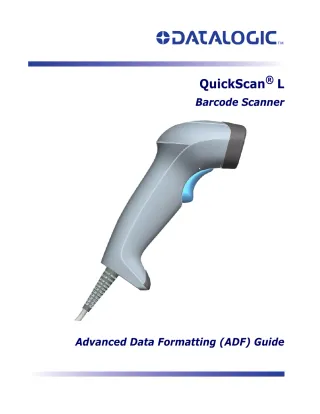
QuickScan L Barcode Scanner Advanced Data Formatting (ADF) Guide
Manual100 pagesPDF 1.3 MB
Advanced Data Formatting (ADF) guide for the Datalogic QuickScan L barcode scanner: rules, criteria and actions set by barcodes.
What this file really is
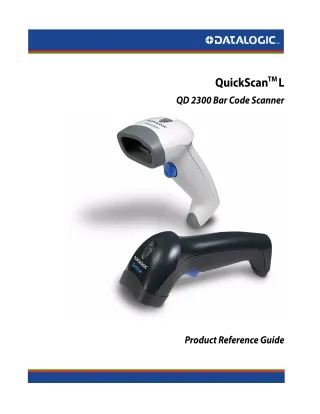
The old site listed this file as “Configuration Manual” for the Datalogic QD-2300. The old site links this as a configuration manual for the QD-2300, but it is the Advanced Data Formatting guide for the QuickScan L scanner and does not name the QD-2300.
Filed with · 1 model
Also filed with these models on the old site
Summary
What is in it
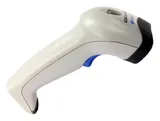
The Datalogic Scanning guide to Advanced Data Formatting (ADF) for the QuickScan L barcode scanner. ADF customizes scan data before it goes to the host, using rules that link criteria (code types, code lengths, data strings) to actions (send data, move cursor, pad or modify data, beeps, keystrokes, function keys). The guide explains rules and rule sets, special commands for entering and saving rules, and gives the programming barcodes, including an alphanumeric keyboard.
Its parts
- Introduction
- Rules
- Special Commands
- Criteria
- Actions
- Alphanumeric Keyboard
From the manual
Key facts from this manual
Each line names its page in the PDF.
Advanced Data Formatting (ADF) guide for the Datalogic QuickScan L barcode scanner; the QD-2300 name does not appear in it. It explains how to program rules with barcodes that edit scanned data before it is sent to the host. It also covers the criteria a rule can test, the actions it can take and how to group rules into sets.
- Document
- Advanced Data Formatting (ADF) guide for the QuickScan L barcode scanner, programmed by scanning barcodes p. 1, 5
- What ADF does
- Edits scan data before it is sent to the host, using rules of criteria linked to actions p. 7
- Rule criteria
- Code type, code length, or data containing a specific character string p. 8
- Code type criteria
- Include Code 39, Codabar, GS1 DataBar-14, GS1 DataBar Limited, GS1 DataBar Expanded, Code 128 p. 17
- String match
- Up to 8 characters, at the start or at a set position p. 24
- Send data
- All remaining data, data up to a character, or the next N characters (N from 1 to 254) p. 28
- Rule sets
- Four alternate rule sets that rules can turn on and off p. 10
- Pauses
- Two-digit pause in 0.1 second steps p. 13
- Data edits
- Remove all spaces, crunch spaces, remove leading zeros p. 36
- Rule beeps
- Beep once, twice or three times per rule p. 45
- Default rule
- Every unit has a default rule that sends all scan data p. 12
- Document number
- 820002240 (Rev. A), 3/08 p. 100
What this manual walks you through
- Programming a rule: begin, criteria, actions, save p. 8
- Worked example: formatting Code 128 and UPC data for a distribution center p. 9, 10
- Setting up alternate rule sets and a switching rule p. 10, 11
- Ordering rules so the most general one comes last p. 12
- Erasing criteria, actions or saved rules p. 14
- Choosing code type and code length criteria p. 17, 20
- Matching a specific data string p. 24
- Sending data and moving the cursor within the data p. 28, 31
- Removing spaces and leading zeros p. 36
- Turning rule sets on and off p. 84
Good to know
- ADF rules cannot format data when the scanner uses the Wand interface. p. 7
- ADF rules scanned into one scanner are not passed on to other scanners in the piconet. p. 12
- Prefix and suffix settings are stored as rules in the same list, so their order also matters. p. 12
- After programming a rule for an alternate set, the guide recommends scanning Disable All Rule Sets. p. 11
- The Modify Data options do not apply to Send Keystroke or Send Preset Value. p. 36
Questions this manual answers
What is Advanced Data Formatting on a QuickScan L?
A way to edit scanned data before it goes to the host, using rules that apply actions when the data meets set criteria. p. 7
Why does one of my ADF rules seem not to work?
Rules are checked from the most recently programmed down, and the first match wins, so a more general rule entered later can hide it. Program the most general rule last. p. 12
Can I use ADF with the Wand interface?
No. With the Wand interface, ADF rules cannot be used to format the data. p. 7
How do I add a pause to the data a QuickScan L sends?
Scan Pause Duration and a two-digit number in 0.1 second steps, then use the Send Pause action in a rule. p. 13
How do I erase ADF rules?
Scan Erase Previously Saved Rule for the last rule, or Erase All Rules; there are also barcodes to erase criteria or actions and start again. p. 14
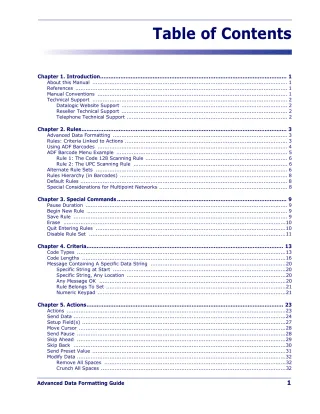
Contents
Chapters and sections
Each line opens the PDF at its page.
The whole text · 12 parts
Read the manual here as text
Its text as extracted from the PDF, unedited, in parts; each page opens the PDF at that page.
- Pages 1 to 41-4
- Pages 5 to 125-12
- Special Commands13-16
- Criteria17-26
- Actions, pages 27 to 3627-36
- Actions, pages 37 to 4637-46
- Actions, pages 47 to 5647-56
- Actions, pages 57 to 6657-66
- Actions, pages 67 to 7667-76
- Actions, pages 77 to 8477-84
- Alphanumeric Keyboard, pages 85 to 9285-92
- Alphanumeric Keyboard, pages 93 to 10093-100
The file