Manual · Datalogic
Catcher D531 Series Quick Reference
Manual28 pagesPDF 1.4 MB
Quick reference guide for the Datalogic Catcher D531 omni-directional presentation scanner: connections, interface setup and specifications.
Covers · 1 model
The models it covers
Summary
What is in it
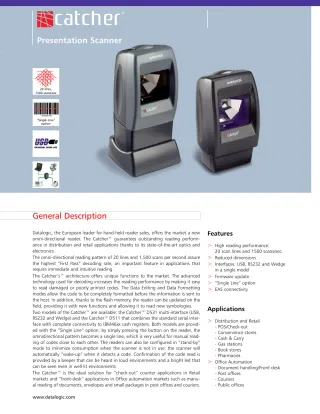
The quick reference guide for the Datalogic Catcher D531 Series omni-directional scanner. It explains hands-free and hand-held use, sleep state and single line mode for picking one bar code, RS232, USB and keyboard wedge connections, the EAS model and tag deactivation, and gives configuration bar codes for selecting the USB, RS232 or wedge interface and keyboard nationality. It ends with default values, an operating test, technical features, the reading diagram and compliance.
Its parts
- Using Catcher
- Sleep State
- Single Line Mode
- Connections
- Connecting / Disconnecting the Cables
- EAS Model
- TAG Deactivation
- Interface Selection
- USB Interface Configuration
- RS232 Reader Configuration
- Wedge Interface Selection
- Default Values
- Operating Test
- Technical Features
- Reading Diagram
From the manual · read page by page
Key facts from this manual
Each line names its page in the PDF.
Quick reference guide for the Datalogic Catcher D531 series, an omnidirectional laser scanner that can be used handsfree or hand-held, including the EAS model. It shows how to connect the scanner, pick a USB, RS232 or keyboard wedge interface by reading setup barcodes, and lists the default settings, technical features and LED and beeper signals.
- Device
- Omnidirectional laser scanner with a 20-line scan pattern, used handsfree or hand-held p. 7
- Interfaces
- RS232, USB, Keyboard Wedge p. 24
- Power
- +5 Vdc ± 5%; consumption 340 mA @ 5v p. 24
- Scanning
- Visible laser diode, 630 to 680 nm; 5 directions, 20 lines; 1500 scans/seconds p. 24
- Resolution
- Max 0.12 mm (5 mils); PCS min. 27% p. 24
- USB modes
- USB-KBD (default), USB-KBD-ALT-MODE, USB-KBD-APPLE, USB-COM, USB-IBM-Table Top, USB-IBM-Hand Held p. 13, 14
- USB hosts
- Windows 98 and later, Mac OS 8.0 and later, IBM POS for Windows, 4690 Operating System p. 12
- RS232 modes
- Standard (default 9600 baud, no parity, 8 data bits, 1 stop bit, no handshaking), Nixdorf Mode A, Fujitsu, ICL Mode p. 16, 21
- Wedge hosts
- IBM AT or PS/2, IBM XT, PC Notebook, IBM SURE1, IBM Terminal 3153, IBM 31xx/32xx/34xx/37xx terminals, Wyse terminals, Digital VT2xx/VT3xx/VT4xx, Apple ADB Bus p. 17, 18, 19
- Indicators
- Red and green bicolored LED, beeper p. 24
- Temperature
- Operating 0° to + 40 °C (32° to 104 °F); storage -20° to +70 °C (-4° to 158 °F) p. 24
- Size and weight
- 87 x 85 x 150 mm / 3.4 x 3.3 x 5.9 in; 340 g (12 oz) without cable p. 24
- Environment
- Humidity 0% to 90% RH non-condensing; drop IEC 68-2-32 Test ED 1.2 m; ESD 16 KV; IP40 p. 24
- EAS model
- Connects by an EAS cable to a Checkpoint EAS driving system and deactivates tags at a few centimeters p. 11
What this manual walks you through
- Using single line mode to pick one barcode among many p. 8
- Connecting the RS232, USB and keyboard wedge cables and power p. 9, 10
- Deactivating EAS tags with the EAS model p. 11
- First USB start-up, drivers and bus power p. 12, 13
- Selecting the USB interface and keyboard nationality p. 14, 15
- Configuring the RS232 interface and POS terminal modes p. 16
- Selecting the keyboard wedge interface and keyboard nationality p. 17, 18, 19, 20
- Default settings for each interface, power save and enabled codes p. 21, 22
- Running the operating test with test barcodes p. 23
- Reading the LED and beeper signals p. 26
Good to know
- Switch off the scanner and the host before installing the scanner. p. 9
- Install the scanner where air circulates well, out of direct sunlight. p. 9
- With the RS232 cable the scanner needs a Class 2 plug-in power unit rated 5 V, minimum 350 mA. p. 9
- If the USB host does not supply enough power, the reader stays blocked with the green LED blinking until an external supply is connected to the cable. p. 12
- USB-COM needs files and drivers from the USB Device Installation software. p. 14
Questions this manual answers
What power supply does the Catcher D531 need?
It runs on +5 Vdc ± 5% and draws 340 mA. With the RS232 cable it needs a Class 2 plug-in power unit rated 5 V, minimum 350 mA. p. 9, 24
How do I read just one barcode from a sheet with the Catcher D531?
Press the trigger to get a single laser line, place it over the code and press the trigger again within 5 seconds to decode it. p. 8
What are the Catcher D531 RS232 default settings?
Standard RS232 defaults to 9600 baud, no parity, 8 data bits, 1 stop bit and no handshaking, with a CR-LF terminator. p. 21
How do I wake the Catcher D531 from sleep?
Press the trigger. In sleep the laser is off and the motor stops to save power. p. 7
What does a blinking red LED on the Catcher D531 mean?
Blinking fast means the scanner is in stand-by mode; blinking slowly means it is in sleep mode. p. 26
Contents
Chapters and sections
Each line opens the PDF at its page.
- QUICK REFERENCE LANGUAGE AVAILABILITY5
- USING CATCHER™7
- SLEEP STATE7
- SINGLE LINE MODE8
- CONNECTIONS9
- CONNECTING / DISCONNECTING THE CABLES10
- EAS MODEL11
- TAG DEACTIVATION11
- INTERFACE SELECTION12
- USB INTERFACE CONFIGURATION12
- USB INTERFACE SELECTION14
- USB KEYBOARD NATIONALITY15
- RS232 READER CONFIGURATION16
- WEDGE INTERFACE SELECTION17
- WEDGE KEYBOARD NATIONALITY20
- DEFAULT VALUES21
- OPERATING TEST23
- TECHNICAL FEATURES24
- READING DIAGRAM25
- SCANNER DATA ENTRY26
- WARRANTY26
- SERVICES AND SUPPORT27
- PATENTS27
- COMPLIANCE27
- DECLARATION OF CONFORMITY28
The whole text · 3 parts
Read the manual here as text
Its text as extracted from the PDF, unedited, in parts; each page opens the PDF at that page.
The file