Manual · CipherLab
9400 Mobile Computer Reference Manual (Windows CE Mobile Computer 9400)
Manual151 pagesPDF 7.8 MB
Reference manual for the CipherLab 9400 series rugged Windows CE 5.0 mobile computer: setup, Wi-Fi, Bluetooth, GSM/GPRS and specifications.
Filed with · 3 models
Also filed with these models on the old site
Summary
What is in it
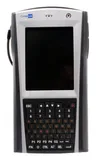
CipherLab's reference manual for the 9400 Mobile Computer, a rugged PDA-style Windows CE 5.0 handheld with a bar code scanner or imager, an RFID reader and Bluetooth, 802.11b/g and optional GSM/GPRS radios. It covers quick start, battery, memory, keypad, touch screen and cradles, Windows CE basics, device configuration and OS upgrades, the Wi-Fi, Bluetooth and GSM/GPRS radios, the Reader Configuration utility, backup, button and camera utilities, and full specifications.
Its parts
- Introduction
- Quick Start
- Using 9400 Mobile Computer
- Learning Windows CE Basics
- Configuring 9400 Mobile Computer
- Using 802.11 Radio
- Using Bluetooth
- Using GSM/GPRS
- Using Reader Configuration Utility
- More Applications
- Specifications
From the manual
Key facts from this manual
Some pages are scans or cannot be read; this says only what the readable text supports. Each line names its page in the PDF.
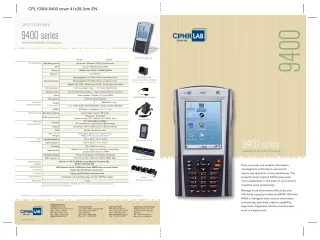
CipherLab reference manual, version 2.06, for the 9400 Mobile Computer, a rugged handheld running Windows CE 5.0. It covers the 9400 series as a whole and does not name the 9401, 9471 or 9491 separately. It walks through setup, batteries and charging, memory, cradles and chargers, resets, the wireless radios and the reader utility, and lists full specifications.
- Operating system, CPU
- Microsoft Windows CE 5.0; Marvell PXA270 at 520 MHz p. 125
- Memory
- 128 MB NAND flash; 128 MB SDRAM (64 MB as an ordering option); one miniSD card slot p. 125
- Display
- 3.5 inch transflective TFT-LCD, 65536 colors; 240 x 320 QVGA (480 x 640 VGA as an ordering option) p. 126
- Keypad
- 28-key alphanumeric layout (59-key layout as an ordering option); white LED backlight p. 126
- Data capture
- Ordering options: linear imager (CCD), laser (SE950) or 2D imager; RFID reader at 13.56 MHz; 2 mega-pixel CMOS camera p. 125
- Wireless
- Built-in Bluetooth Class 2 and 802.11b/g; GSM/GPRS/EDGE quad-band module as an ordering option p. 125
- USB
- USB 1.1 via the cradle: host port (type-A) and device port (type-B) p. 125
- Main battery
- Rechargeable Li-ion pack, 3.7 V, 1800 mAh p. 25, 126
- Power adapter
- Input AC 100~240 V, 50/60 Hz; output DC 6 V, 3.5 A for the 4-Slot Battery Charger, DC 6 V, 3.3 A for the Charging & Comm. Cradle, 4-Slot Charging Cradle and Travel Charger p. 126
- Working time
- Laser, one scan per 5 seconds, with backlight: 10 hours in batch mode, 8 hours in Wi-Fi mode p. 126
- Size and weight
- 170 mm x 90 mm x 38 mm; approx. 400 g (configuration-dependent) p. 126
- Operating temperature
- -10 °C to 50 °C (storage -20 °C to 60 °C) p. 127
- Drops and sealing
- 1.5 m, 5 drops per 6 sides; tumble 50 cm, 1000 cycles; splash/dust IP 64 p. 127
- Development tools
- 9400 SDK or Windows CE 5.0 Standard SDK; Visual Studio 2005, Visual Studio .NET 2003, eMbedded Visual C++ 4.0 SP4 p. 127
What this manual walks you through
- Installing the battery and turning on backup battery charging with the DIP switch p. 21
- Inserting and removing a miniSD memory card p. 19
- Inserting a SIM card p. 20
- Charging the main and backup batteries for the first time p. 23
- Using the cradle for charging and a USB connection for ActiveSync p. 24
- Setting power schemes to save battery p. 27
- Checking storage space and splitting SDRAM between storage and programs p. 28, 29
- Reading the Charging & Communication Cradle LED p. 38
- Mounting the 4-Slot Battery Charger and using the 4-Slot Charging Cradle p. 39
- Software reset and hardware reset p. 55
Good to know
- Battery charging stops below 0°C or above 40°C; room temperature (18°C to 25°C) is recommended. p. 23
- A hardware reset erases data and program files stored in SDRAM. p. 55
- The unit will not turn on unless the battery cover is in place. p. 25
- A 1D and a 2D scan engine cannot both be installed in one unit. p. 129
- Data is lost when both the main and backup batteries discharge completely, so back up before storing the unit. p. 28
Questions this manual answers
What battery does the CipherLab 9400 use?
A rechargeable 3.7 V, 1800 mAh Li-ion battery pack, which takes about 4 hours to charge fully. p. 25
Does the CipherLab 9400 come with a charger?
No. The package holds the unit, a Li-ion battery pack, stylus, hand strap and product CD; a charging cradle is bought separately. p. 15
How do I soft reset a CipherLab 9400?
Press the [Reset] button with the stylus. A software reset restarts the unit and keeps saved files. p. 55
Which RFID tags can the CipherLab 9400 read?
The manual lists ISO 15693, Icode, Tag-it, ISO 14443A and ISO 14443B labels. p. 131
What operating system does the CipherLab 9400 run?
Microsoft Windows CE 5.0, on a 520 MHz Marvell PXA270 processor. p. 14
Contents
Chapters and sections
Each line opens the PDF at its page.
The whole text · 20 parts
Read the manual here as text
Its text as extracted from the PDF, unedited, in parts; each page opens the PDF at that page.
- IMPORTANT NOTICES1-6
- RELEASE NOTES7-12
- INTRODUCTION13-16
- QUICK START17-24
- USING 9400 MOBILE COMPUTER, pages 25 to 3225-32
- USING 9400 MOBILE COMPUTER, pages 33 to 4033-40
- LEARNING WINDOWS CE BASICS, pages 41 to 4841-48
- LEARNING WINDOWS CE BASICS, pages 49 to 5649-56
- CONFIGURING 9400 MOBILE COMPUTER57-66
- USING 802.11 RADIO67-70
- USING BLUETOOTH, pages 71 to 7971-79
- USING BLUETOOTH, pages 80 to 8880-88
- USING GSM/GPRS89-100
- USING READER CONFIGURATION UTILITY101-106
- MORE APPLICATIONS, pages 107 to 115107-115
- MORE APPLICATIONS, pages 116 to 124116-124
- SPECIFICATIONS125-128
- SCAN ENGINE SETTINGS129-132
- LINEAR IMAGER (CCD), LASER (SE950)133-138
- 2D IMAGER139-151
The file