Manual · Beijer
TREQ-M4 Mobile Data Terminal Manual
Manual98 pagesPDF 2.4 MB
User manual for the Beijer Electronics TREQ-M4 vehicle-mount mobile data terminal running Windows Embedded CE 6.0.
Covers · 3 models
The models it covers
Summary
What is in it
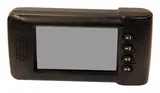
The manual for the TREQ-M4, a rugged mobile data terminal with a 4.3 inch color touch screen for commercial mobile applications, published by Beijer Electronics. It describes the hardware and software architecture, power and reset, function keys, Windows CE and TREQ Panel settings, connecting to a PC with ActiveSync, application development with Visual Studio 2005 and 2008 and the device drivers, optional USB, wireless, magnetic card and Bluetooth peripherals, specifications, dimensions, cable pinouts and software upgrades.
Its parts
- Introduction
- Product Description and Architecture
- Getting Started
- System Settings
- Connect to a PC Via ActiveSync
- Application Development
- Optional Peripherals
- Specifications
- Mechanical
- Technical Support
From the manual
Key facts from this manual
Each line names its page in the PDF.
This is the Beijer Electronics manual (M01-003-00 Rev 02, updated March 2011) for the TREQ-M4 rugged mobile data terminal running Windows Embedded CE 6.0. It describes the hardware and software, power and reset, the touch screen and function keys, connecting to a PC with ActiveSync, optional USB, Wi-Fi, card reader and Bluetooth peripherals, specifications, and software upgrades and system recovery.
- Device
- Rugged graphic mobile data terminal for commercial mobile applications p. 11
- Display
- 109 mm (4.3") TFT color WQVGA (480 x 272), 600 nit, analog-resistive touch screen p. 11
- Power
- 6 to 32 VDC input, direct from a 12 or 24 volt supply; 3-5 Watts average (400 mA @ 12 VDC) p. 14, 86
- Serial ports
- COM1 EIA-232 with hardware flow control or EIA-422 (software set); COM2 EIA-232, RX and TX only; up to 3.6 MBaud p. 14
- USB and network
- Two powered (500 mA per port) USB 2.0 full-speed host ports, optional third in the cable; 10/100Base-T wired Ethernet p. 14
- Processor
- Marvell PXA300 (ARMV5TE), Intel XScale technology, 624 MHz p. 13
- Memory
- 128 Mbytes DDR SDRAM; 2 Gbytes internal flash p. 13
- Operating system
- Windows Embedded CE 6.0, Core or Professional (optional) p. 16
- Keypad
- Four lighted programmable elastomeric function keys, mapped by default to F1, F2, F3 and ESC p. 11, 23
- Integral cable
- Two meters, female DB15; power, ground, two serial ports and Ethernet or optional USB p. 15
- Size and mass
- 167 x 90 x 37 mm; 0.46 kg; two-bolt stud mount p. 85
- Temperature
- Operating -20 to 70 °C; storage -40 to 85 °C; humidity 0 to 95% non-condensing p. 85
- Options
- Bluetooth class 2, v2.0; three-track bidirectional magnetic card reader (ANSI/ISO/AAMVA) p. 13, 14
- Wi-Fi and USB Ethernet
- 802.11b/g through the external USB Xterasys XN-3135G adapter; USB wired Ethernet adapters with the ASIX AX88772 chipset p. 71, 72
What this manual walks you through
- Turning the terminal on and off p. 21, 22
- Resetting the terminal when the operating system stops p. 22
- Using and cleaning the touch screen p. 22
- Mapping the function keys p. 23
- Connecting to a PC with ActiveSync over a null modem cable p. 45, 47
- Setting the serial baud rate p. 47
- Adding a USB Wi-Fi or USB Ethernet adapter p. 71, 72
- Reading magnetic cards through keyboard emulation p. 73
- Upgrading the operating system package with UpgradeCE.exe p. 91
- Booting the SOS recovery image to back up or restore flash p. 95
Good to know
- The Windows CE root folder is RAM-based and lost at power off; keep data under \HardDisk or \USBHardDisk. p. 22
- Files being written on \HardDisk or \USBHardDisk are corrupted if power is lost. p. 22
- Below about seven volts, USB devices and the speaker lose power and the backlight may dim. p. 15
- Tap the touch screen only with a fingertip or stylus, and do not spray liquid directly on it. p. 22
- Pressing a USB keyboard key while the card reader is sending may corrupt the card data. p. 73
Questions this manual answers
How do I reset a frozen TREQ-M4?
Hold the bottom-most (fourth) keypad key for five seconds, release it, then press it again briefly to boot. If it does not restart, check the integral cable is seated and has power. p. 22
What baud rate does the TREQ-M4 use for ActiveSync?
The default for the TREQ-M4 ports is 115200 bps; at that rate the serial cable should not exceed six feet. p. 46, 47
What voltage does the TREQ-M4 run on?
6 to 32 volts DC, so it can run directly from a 12 or 24 volt supply. p. 14
How do I boot the TREQ-M4 into recovery mode?
Hold the first and third keypad keys for about five seconds while power is applied to boot the SOS recovery image. p. 95
Does the TREQ-M4 support Wi-Fi?
Yes, 802.11b/g through an external USB Wi-Fi adapter, the Xterasys XN-3135G; its drivers are in the TREQ-M4 file distribution. p. 71
Contents
Chapters and sections
Each line opens the PDF at its page.
- Figures8
- Chapter 1. Introduction11
- Chapter 2. Product Description and Architecture13
- Chapter 3. Getting Started21
- Chapter 4. System Settings27
- Chapter 5. Connect to a PC Via ActiveSync45
- Chapter 6. Application Development51
- Chapter 7. Optional Peripherals71
- Chapter 8. Specifications85
- Chapter 9. Mechanical87
The whole text · 13 parts
Read the manual here as text
Its text as extracted from the PDF, unedited, in parts; each page opens the PDF at that page.
- Pages 1 to 41-4
- Contents5-7
- Figures8-10
- Pages 11 to 2011-20
- Chapter 3. Getting Started21-26
- Chapter 4. System Settings, pages 27 to 3527-35
- Chapter 4. System Settings, pages 36 to 4436-44
- Chapter 5. Connect to a PC Via ActiveSync45-50
- Chapter 6. Application Development, pages 51 to 6051-60
- Chapter 6. Application Development, pages 61 to 7061-70
- Chapter 7. Optional Peripherals71-84
- Pages 85 to 9085-90
- Chapter 10. Technical Support91-98
The file