Manual · Beijer
QTERM-R55 User's Manual
Manual42 pagesPDF 1.6 MB
User's manual for the QSI QTERM-R55 BASIC-programmable industrial data-entry terminal: setup, qaBASIC programming and hardware specs.
Covers · 2 models
The models it covers
Summary
What is in it
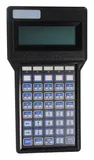
QSI Corporation's user's manual for the QTERM-R55, a BASIC programmable data-entry terminal for industrial applications, covering all versions (handheld, panel-mount and large character panel-mount). It explains power-on setup, connecting the communication lines and downloading programs, teaches the qaBASIC language in detail, and gives the hardware specifications: EIA-232, EIA-422 and EIA-485 interfaces, display, keypad, options, environmental and electrical data, plus character charts, a command summary and the R55 Downloader.
Its parts
- Basic Operation
- qaBASIC
- QTERM-R55 Hardware
- ASCII Chart
- QTERM-R55 Character Chart
- qaBASIC Command Summary
- Using the R55 Downloader
From the manual
Key facts from this manual
Each line names its page in the PDF.
The user's manual (Revision 6) for the QSI QTERM-R55, a BASIC programmable data-entry terminal made in handheld, panel-mount and large character panel-mount versions. It explains Power-On Setup, wiring and power, the hardware specifications, error handling in qaBASIC, and the R55 Downloader for Windows.
- Device
- BASIC programmable data-entry terminal for industrial use; handheld, panel-mount and large character panel-mount versions p. 5, 8
- Display
- 4-line by 20-character supertwist LCD; backlight when ordered p. 31
- Keypad
- 24-key or 40-key p. 31
- Serial interface
- EIA-232, EIA-422 or EIA-485 p. 12
- Connectors
- Handheld: 6-pin modular jack; panel-mount: 6-pin 2 mm pitch header; large character panel-mount: DB9 p. 27, 28
- Power
- 8 to 32 VDC from a SELV source with a 5 A current limit p. 13, 31
- Current draw
- EIA-232 version: 88 mA at 8 V, 33 mA at 32 V; backlight adds 30 mA at 8 V, 9 mA at 32 V p. 32
- Memory
- 1.0 Mbyte flash option; default split 128 kbytes application, 640 kbytes file system p. 12
- Operating temperature
- -10 to 60 °C standard or backlit display; -20 to 70 °C wide-temperature display p. 32
- Storage and humidity
- -40 to 85 °C storage; 0 to 95% humidity, non-condensing p. 32
- Housing
- Handheld: impact-resistant black ABS; large character panel-mount: glass-fiber filled nylon p. 27, 28
- Cable distance
- EIA-232 about 15 meters; EIA-422 about 1,000 meters; EIA-485 up to 32 devices on 1000 meters p. 29, 30
- Download software
- R55 Downloader for Windows sends qaBASIC programs and firmware upgrades over a PC COM port p. 41
- EIA-485 adapter
- QCOM-4 serial interface device, for downloading to an EIA-485 unit p. 41
What this manual walks you through
- Entering Power-On Setup to set contrast, baud rate and data format p. 11, 12
- Downloading new firmware or a BASIC program from Power-On Setup p. 12
- Connecting the host communication lines to the right pins p. 12, 13, 29
- Connecting the DC power supply p. 13
- Mounting the panel-mount terminal in a panel cutout p. 27, 28
- Panel-mount output header wiring p. 30
- Writing master-slave software for an EIA-485 network p. 31
- Handling errors and low battery in a qaBASIC program p. 26
- Installing and running the R55 Downloader p. 41
- Using the include and define preprocessor directives p. 42
Good to know
- An EIA-422 or EIA-485 unit cannot connect directly to a PC COM port; an interface device is needed. p. 13
- The handheld housing is not waterproof, though moderate rain or splash does no harm. p. 27
- The DB9 connector uses a non-standard pinout for RTS and CTS. p. 29
- The terminal enforces no EIA-485 protocol; the user application must provide it. p. 31
- Error and low-battery handlers should not wait on keypad or serial input. p. 26
Questions this manual answers
How do I get into Power-On Setup on a QTERM-R55?
Hold down any three keys while applying power, and release them when POWER ON SETUP appears on the screen. p. 11
What power supply does the QTERM-R55 need?
8 to 32 volts DC from a SELV source, with the output current limited to 5 amperes. p. 13
How do I load a BASIC program into the QTERM-R55?
Choose Download, then Application, in Power-On Setup, and send the file from the PC with the R55 Downloader. p. 12, 41
How do I reset the QTERM-R55 settings to default?
Select the Defaults menu in Power-On Setup; it restores contrast, baud rate, data format and the other settings. p. 12
Contents
Chapters and sections
Each line opens the PDF at its page.
The whole text · 6 parts
Read the manual here as text
Its text as extracted from the PDF, unedited, in parts; each page opens the PDF at that page.
The file