Manual · AML
M5900 Portable Data Terminal User's Guide
Manual64 pagesPDF 2.8 MB
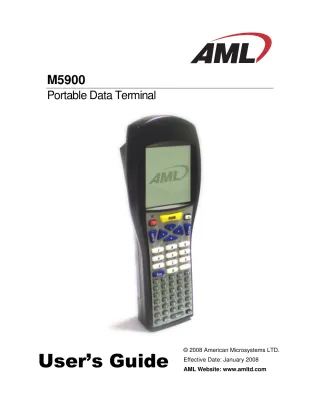
User's guide for the AML M5900 portable data terminal, a Linux-based handheld bar code terminal with laser scan engine.
Covers · 1 model
The models it covers
Summary
What is in it
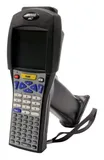
American Microsystems' user's guide for the M5900 portable data terminal, a handheld bar code terminal running Linux. It describes the 55-key and 35-key keyboards and key values, the display, scan engine options and scanner LED, the optional handle and cradle, the communications ports and charger, cold booting and updating firmware, the program generator and built-in programs, charging, the full menu system (barcode, security, PC uplink, power management and tool settings) and memory allocation.
Its parts
- Introducing the M5900
- M5900 Terminal Overview
- Using the M5900
- The M5900 Menu System
- The M5900 Terminal Memory
From the manual
Key facts from this manual
Each line names its page in the PDF.
The American Microsystems (AML) user's guide for the M5900 portable data terminal, a Linux handheld with a built-in laser bar code scanner. It describes the keyboards, display, scan engines, ports, charger and cradle, and explains cold boot, firmware updates, the menu settings and the terminal memory.
- Device
- Rugged, lightweight handheld portable data terminal running Linux, with a built-in laser bar code scanner p. 4, 12
- Keyboard
- 55-key alphanumeric or 35-key numeric keyboard p. 6
- Display
- 160 x 160 pixel grayscale graphical LCD, not a touch screen p. 12
- Scan engines
- Standard range, long range (LR) or advanced long range (ALR) laser; 35 (± 5) scans/second p. 12, 13
- Symbologies
- Code 39, UPC, EAN, I 2of5, Codabar, Code 128, Code 93, MSI/Plessey, Code 11, RSS p. 13
- Ports
- RJ-45 10 pin RS-232 connector and USB Type II connector (slave only) on the bottom of the unit p. 19
- Memory
- 16 MB Flash; 32 MB SDRAM p. 63
- Battery life and charging
- Designed for a full 8 hour shift; a fully discharged battery recharges in about 6 hours p. 4, 22
- Charger
- ACC-5910 Terminal Charger with built-in null-modem adapter for RS-232 serial communications p. 20
- Cradle
- Optional charging and communications cradle with a spare battery slot; RS-232 (DB-9) and USB (Type II) ports wired straight through p. 21, 22
- Handle
- Optional pistol grip handle fixed by 4 screws; the battery moves into the handle p. 18
- PC link
- RS-232 or USB Slave; 300 to 115200 bps; M5900 ProgGen, Softcom32, zMODEM, xMODEM or no protocol p. 52, 53
- Software
- M5900 Program Generator on a Windows PC; built-in programs P1 to P6 p. 26
- Firmware updates
- Over serial or USB with the AML programming utility from the Program Generator package p. 24
What this manual walks you through
- Using the 55-key and 35-key keyboards p. 7, 8, 9, 10, 11
- Charging on the ACC-5910 charger or the cradle p. 20, 21, 22
- Forcing a cold boot p. 23
- Updating the firmware p. 24, 25
- Writing custom programs with the Program Generator p. 26
- Setting the PC uplink protocol, port and baud rate p. 52, 53
- Setting the auto suspend time p. 54
- Setting date, time and display contrast p. 55
- Checking firmware version and serial number in Diagnostics p. 60
- How Flash and SDRAM memory are allocated p. 62, 63
Good to know
- The display is not a touch screen; do not use sharp objects on its plastic window. p. 12
- The battery discharges if the charger is not kept plugged in while the terminal sits in the cradle or on the charger. p. 22
- A cold boot ends any active program. p. 23
- Turning the auto suspend timer off increases battery usage and shortens battery life. p. 54
- Programs larger than the SDRAM cannot run on the M5900. p. 62
Questions this manual answers
What scan engines are available for the AML M5900?
A standard range laser, a long range (LR) laser or an advanced long range (ALR) laser, all at 35 (± 5) scans per second. p. 12, 13
How long does the M5900 battery take to charge?
About 6 hours from fully discharged; the LED turns green when it is full. p. 22
How do I cold boot the M5900?
Press and hold the Power and SCAN buttons together for at least 5 seconds; it cold boots at the next power on. p. 23
How do I update the M5900 firmware?
Force a cold boot, then hold Menu, Space and Shift while pressing power to reach the Firmware Update screen, and send the files over serial or USB. p. 24
What operating system does the M5900 use?
A fully functional Linux operating system. p. 4
The whole text · 7 parts
Read the manual here as text
Its text as extracted from the PDF, unedited, in parts; each page opens the PDF at that page.
The file